GuestVerify helps property managers verify guest identities and conduct background checks to ensure safer bookings. This article explains how to monitor verification statuses and understand the notification system.
Access the GuestVerify reservations dashboard
Follow the steps below to navigate to the reservations dashboard and review reservation verification statuses.
Step by step:
- Sign in to your Guesty account.
- In the side navigation menu, click
 Integrations to open the dropdown menu.
 - Select Guesty add-ons.
- In the right-side menu, click Shield.
- Under "Shield", click the GuestVerify tile.
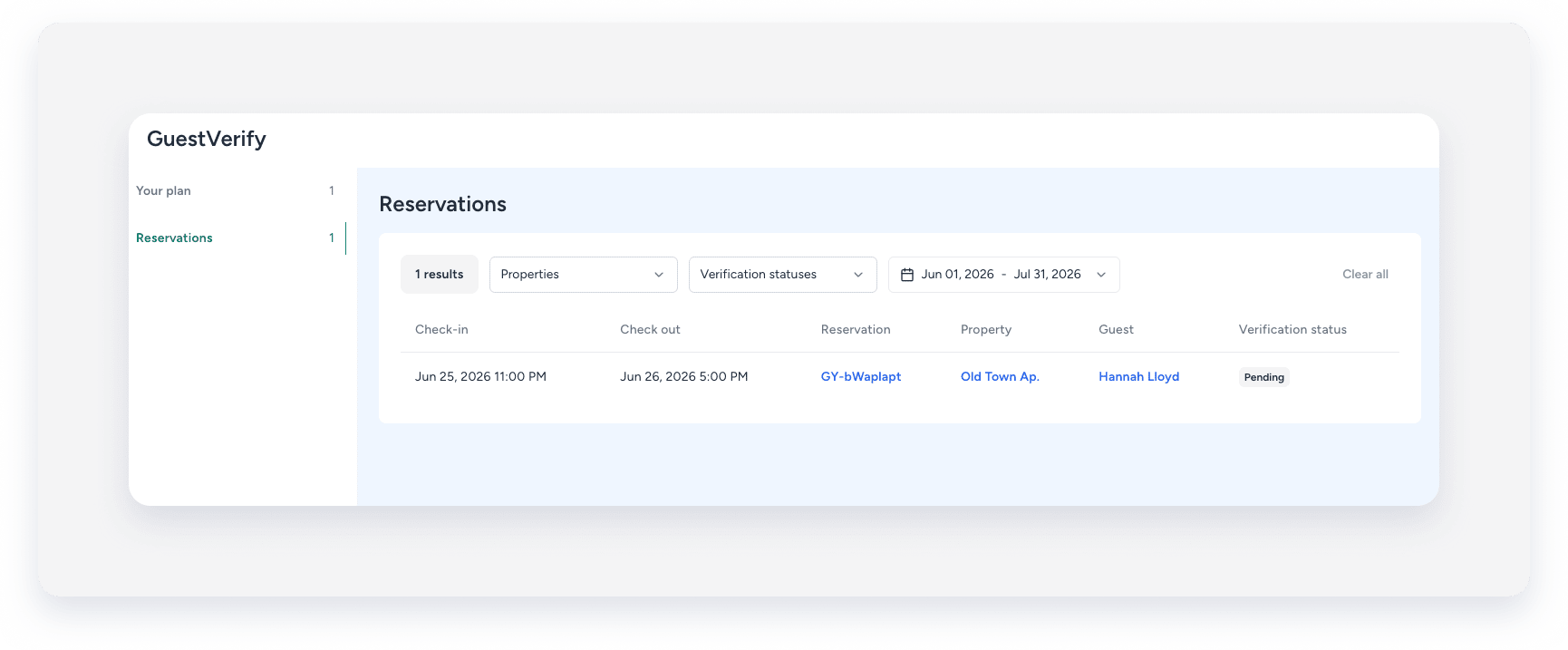
- In the right-side menu, click Reservations.
- In this tab, you can filter reservations by property, verification status, and date.
Understand verification statuses
The status of the identification process can be viewed on the relevant reservation’s page under the "GuestVerify" section. You can quickly identify the verification status of any guest through this dedicated section. For any failed verification status, you can view the specific reason for failure by hovering over the  icon next to the status. This tooltip provides detailed explanations and actionable tips to help resolve verification issues and guide guests through successful re-submission when needed.
Initial fail reason on event |
Text on tooltip |
|---|---|
| Could not verify your face, try taking a photo of your document in a slight angle to make sure your document is free from glare and reflection. | Problem recognizing the guest's face on their ID. They must upload a new picture of their ID. Please note that a new screening will be billed. Tip: Make sure there's no glare and the photo isn't too blurry (clean the camera lens, use good natural lighting). |
| Multiple face detected within face image. | Identified more than one face in the selfie. Have your guest retake the selfie. Please note that a new screening will be billed. Tip: Make sure there's no glare and the photo isn't too blurry (clean the camera lens, use good natural lighting). |
| We could not recognize your document. Try taking a photo of your document in a slight angle to make sure your document is free from glare and reflection. | Problem recognizing the guest's ID. They must upload a new picture of their ID. Please note that a new screening will be billed. Tip: Make sure there's no glare and the photo isn't too blurry (clean the camera lens, use good natural lighting). |
| Document does not have all the details visible. Try taking a photo of your document in a slight angle to make sure your document is free from glare and reflection. (Names) | Problem recognizing the guest's ID. They must upload a new picture of their ID. Please note that a new screening will be billed. Tip: Make sure there's no glare and the photo isn't too blurry (clean the camera lens, use good natural lighting). |
| Document authentication failed, please try another document. | Problem recognizing the guest's ID. They must upload a new picture of their ID. Please note that a new screening will be billed. Tip: Make sure there's no glare and the photo isn't too blurry (clean the camera lens, use good natural lighting). |
| Document does not have all the details visible. Try taking a photo of your document in a slight angle to make sure your document is free from glare and reflection. (Document/Personal Number) | Problem recognizing the guest's ID. They must upload a new picture of their ID. Please note that a new screening will be billed. Tip: Make sure there's no glare and the photo isn't too blurry (clean the camera lens, use good natural lighting). |
| Could not find face in face image. | Problem recognizing the guest's face in the ID. They must upload a new picture of their ID. Please note that a new screening will be billed. Tip: Make sure there's no glare and the photo isn't too blurry (clean the camera lens, use good natural lighting, make sure not to cover the face). |
| Could not find face data within document image. | Problem recognizing the guest's face in the ID. They must upload a new picture of their ID. Please note that a new screening will be billed. Tip: Make sure there's no glare and the photo isn't too blurry (clean the camera lens, use good natural lighting, make sure not to cover the face). |
| Document image file format not supported or corrupted. | There was an issue uploading the guest's document, they should try uploading the photo from a different device. Please note that a new screening will be billed. |
You will only receive a notification in your notification center if the screening process of the guest on that reservation has a “Failed’ or “Partially passed” status. You won’t receive notifications for “pending” or “successfully passed” statuses.
Each status indicator provides clear insights to help you make informed decisions about your reservations. Review the tables below to understand what each status means and identify which guests might need additional attention.
ID Verification Status
The ID verification status provides indication on where the identification verification process of the guests stands.
Status |
Description |
|---|---|
| Failed | The guest's identification could not be verified |
| Pending | The verification process is still in progress |
| Partially passed | Some elements of the verification were successful, but others require attention |
| Passed | The guest's identification has been successfully verified |
Background Check Status
The background check status provides an indication if the guest passed or failed the background check.
You can see the background check status in the reservations page as well.
Status |
Description |
|---|---|
| Failed | The background check revealed concerns |
| Passed | The background check was completed successfully with no issues |
Risk score status
The risk score operates on a scale of 0-500, with higher numbers indicating riskier transactions:
Score Range |
Risk Level |
|---|---|
| 0-250 | Safe |
| 251-349 | Suspicious |
| 350-500 | Risky |
