Guesty PriceOptimizer uses a default market to generate pricing recommendations. However, some listings have unique characteristics that the default market may not fully capture. Creating custom market groups allows you to handpick specific competitors to better align with your inventory.
By applying a custom market group to your pricing forecast, you gain more control over how seasonal, day-of-week, and holiday coefficients are calculated. This helps ensure your pricing curve reflects real, local trends relevant to your specific portfolio.
Custom market groups created at the account level can be used in two ways:
- Competitive benchmarking: Use these groups to compare your performance against similar listings.
- Custom market pricing: Apply a group to a specific listing to replace the PriceOptimizer default market data with your custom market data for pricing forecasts.
- Base price strategy: Select a custom market group to determine and influence your listing's base price.
Before you begin
- You must create market groups at the account level before they can be applied to individual listings.
- Each group should include at least five and up to 20 active listings to maintain accurate data and prevent over-reliance on a single competitor.
- If a competitor listing in your group becomes unlisted or leaves an OTA, Guesty automatically removes it from the group. If a group becomes empty, affected listings revert to the PriceOptimizer default market.
Apply a market group to your forecast
Follow the steps below to use a specific market group to determine a listing's pricing forecast.
Step by step:
- Sign in to your Guesty account.
- In the side navigation menu, click
 Marketing and sales to open the dropdown menu.
 - Under Revenue management, select PriceOptimizer.
- Find and select the relevant listing.
- In the side navigation menu, click Custom market pricing.
- Under "Market used for pricing", select Custom market pricing.
- Click Select a market group and choose from any of your existing market groups created at the account level.
- Review your forecasted prices as compared to the selected market group. Switch between different groups if needed to see how each affects your pricing curve.
- In the top-right, click Apply change.
- In the pop-up, confirm by clicking Apply changes.
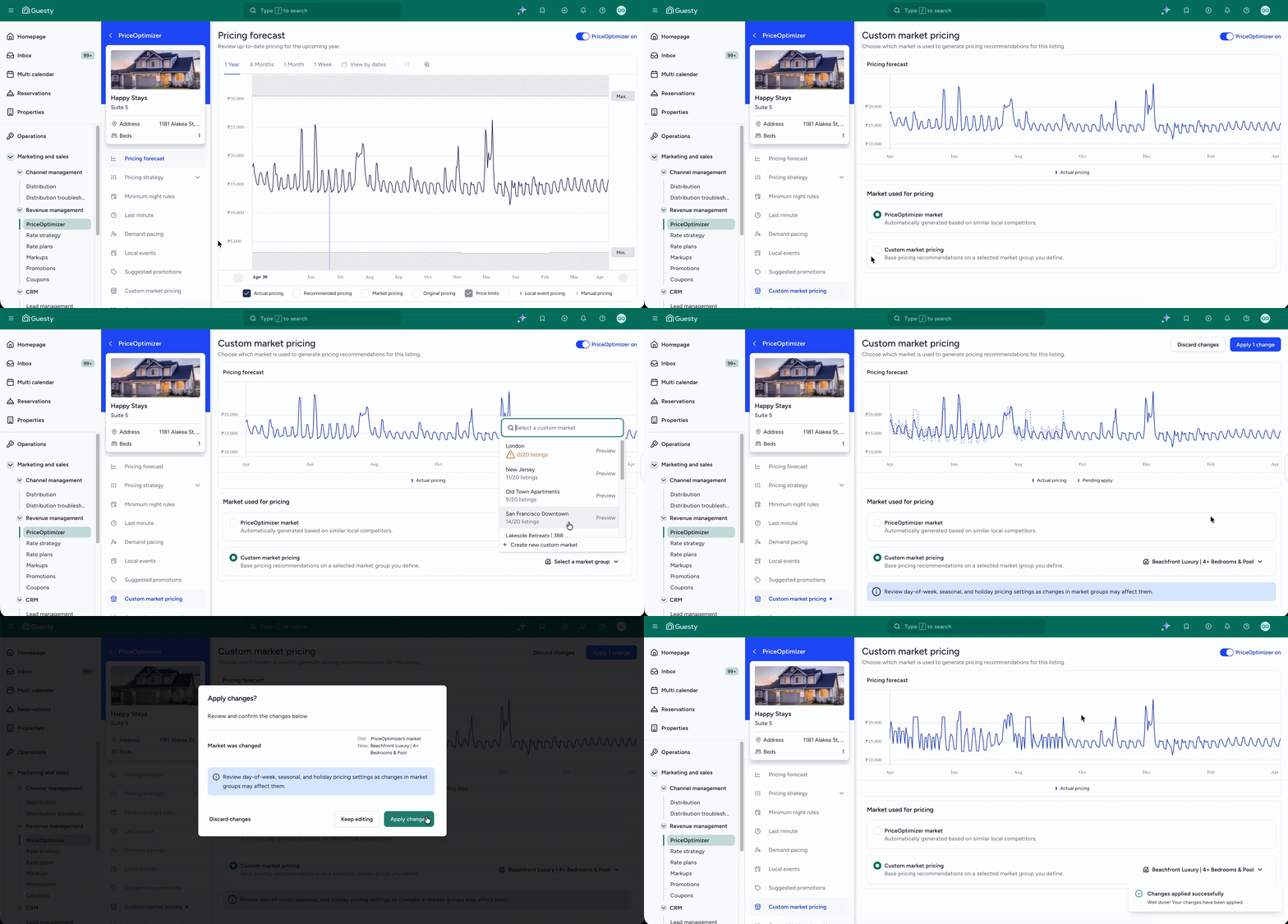
You can view which listings are associated with a certain market group under the Market groups tab. Click the number to view more details in the side panel.
Manage market groups for forecasts
Create and manage market groups from the Market groups section in PriceOptimizer. You can add or remove listings, or create entirely new groups as your competitive landscape evolves. Changes made apply to all connected listings.
Follow the steps below to view or edit your market groups.
Step by step:
- Sign in to your Guesty account.
- In the side navigation menu, click Marketing and sales to open the dropdown menu.
- Under Revenue management, select PriceOptimizer.
- Find and select the relevant listing.
- In the right submenu, click Market groups.
- [Icon] next to each group shows where it is used for pricing or base price settings. Click the icon to view all related listings in detail.
- Edit group membership to change which competitor listings are included.
- Add at least 5 (and up to 20) listings per group to prevent over-reliance on single competitors.
- If a listing in a group is deactivated or removed from an OTA, it is automatically removed from the group.
- If all listings are removed from a group, affected listings revert to the PriceOptimizer default market.
- Alerts appear in PriceOptimizer when changes to group membership affect your forecasts.
Compare pricing forecasts with different market groups
Compare pricing forecasts using different market groups before applying changes to your listing. Select another group from the Select a market group dropdown to preview its impact. No changes are made to live pricing until you confirm.
FAQs
Applying a custom market group changes the coefficients used for seasonality, holidays, and days of the week. It does not directly change your base price.
The PriceOptimizer's default market automatically excludes listings that have flat or near-flat pricing throughout the year to ensure a dynamic forecast. When you create a custom market group, Guesty does not filter these out. If your handpicked competitors use flat pricing, your forecast may show less variance throughout the year.
If competitor listings in your market group become unlisted or inactive, Guesty automatically removes them from the group. You will see a message in the PriceOptimizer listing interface when this happens. Always keep your groups updated to ensure pricing accuracy.
Yes. You can select a market group to influence both your price forecasts and your base price strategy. The Market groups page clearly shows groups in use for either purpose, with details available at a click.
Learn more about creating and managing market groups.
