Viewing and downloading monthly statements allow you to track your financial transactions, income, and expenses related to your GuestyPay account.
Download a merchant statement
Step by step:
- Sign in to your Guesty account.
- In the side navigation menu, click
 Guest payments to open the dropdown menu.
 - Under General, select Payment processing.
- In the GuestyPay section, click Payment dashboard.
- You will be redirected to the dashboard login page. Enter your username and password and click Sign in.
- Once inside your GuestyPay dashboard, click Sub-Account Reports.
- Select Merchant Statement. Under "Statement", use the down arrow to select your desired month.
- Under "Statement", use the down-arrow to select your desired month.
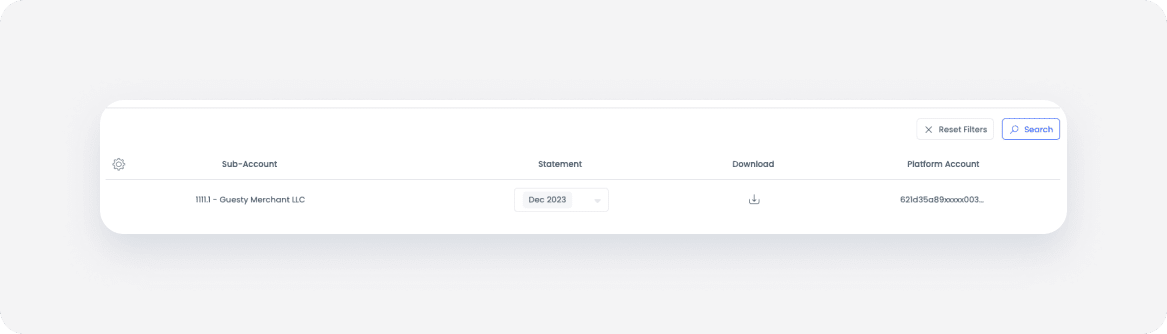
- Browse to your download folder, open the Merchant Statement and view it.
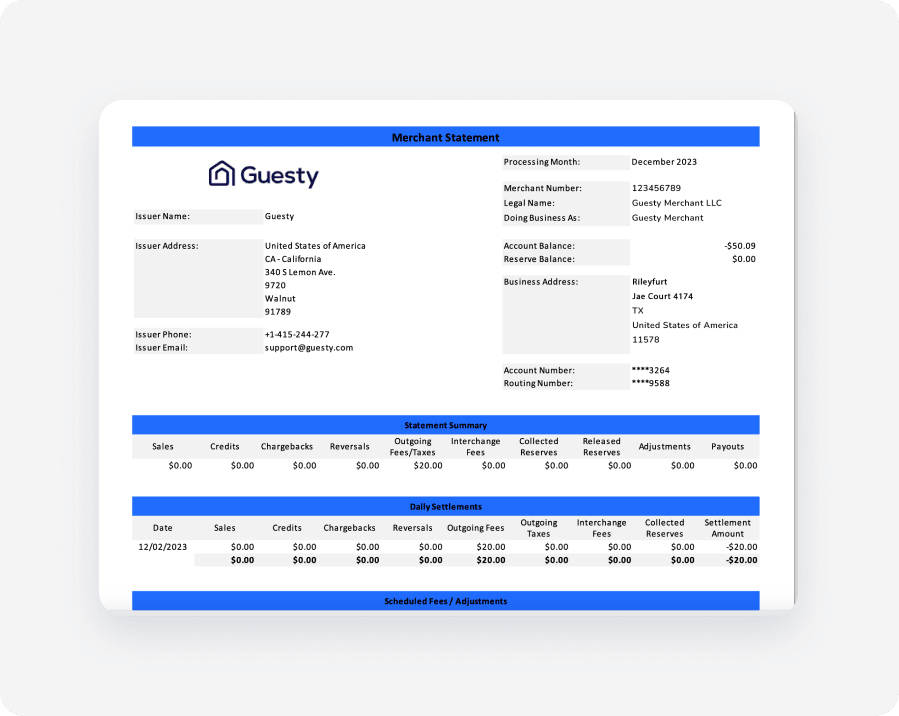
Understanding the "Payouts" line
- The Payouts figure on the "Statement Summary" is the money paid out to the merchant's bank during the statement month, meaning the payouts that were processed in that month. It is not sales minus fees and reserves.
- The Daily Settlements total equals sales minus outgoing fees minus collected reserves for the month. Settlements and payouts are different and rarely match in a given month.
- A payout that was declined and re-issued is counted in the month it was finally processed, so a month can include money from an earlier settlement. A released reserve is paid as its own payout, often in the following month.
- To explain a gap, open the sub-account's "Payouts" report and add up the payouts processed in the statement month.
For example, a statement might show sales of $1,071.24, fees of $56.67, and collected reserves of $107.12, which equals $907.45 in "Daily Settlements". The "Payouts" line on the same statement could be $1,396.70, which represents the total of two separate payouts processed that month ($1,053.50 and $343.20).
