The settlements report shows a summary of the daily payment processing activity in your GuestyPay account. Use this report to review how much money you are making each day. We recommend filtering the report by specific dates based on payment activity. The total amount of money you make every day will be sent to your bank account according to the GuestyPay settlement terms in your contract.
Terms to know
- Sales - processed charges
- Credits - refunds
- Chargeback - the reversal of a payment made by a client to a merchant
- Sub-accounts - GuestyPay payment processing accounts
- Platform accounts - Guesty accounts
- Settlements - daily summary of transactions
- Balance - the total amount of money in the GuestyPay processing account
- Reserve balance - 10% of the total of all GuestyPay transactions are kept in a reserve balance and held for 90 days in order to account for any refunds or chargebacks that could occur
-
Payouts - money taken out of the GuestyPay account balance and moved to your bank account
Outgoing fees - total fees for a transaction
Access the report
Step by step:
- Sign in to your Guesty account.
- In the side navigation menu, click
 Guest payments to open the dropdown menu.
 - Under General, select Payment processing.
- In the GuestyPay section, click Payment dashboard.
- In the dashboard login page, enter your username and password, and click Sign in.
- Once inside the GuestyPay dashboard, click Sub-account reports.
- Select Settlements.
Settlements report
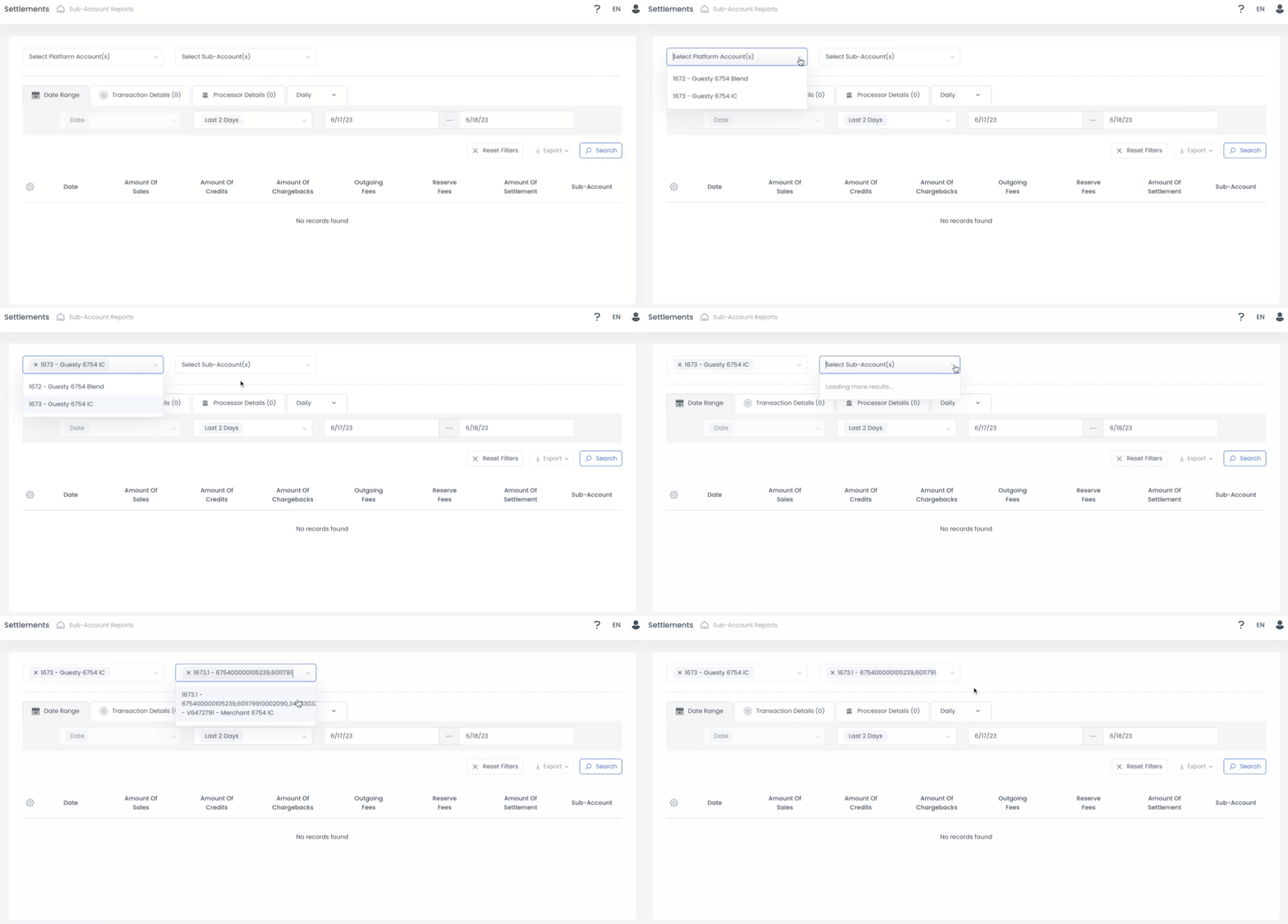
At the top of the report, select the relevant Guesty account from the dropdown menu, then select the relevant GuestyPay account.
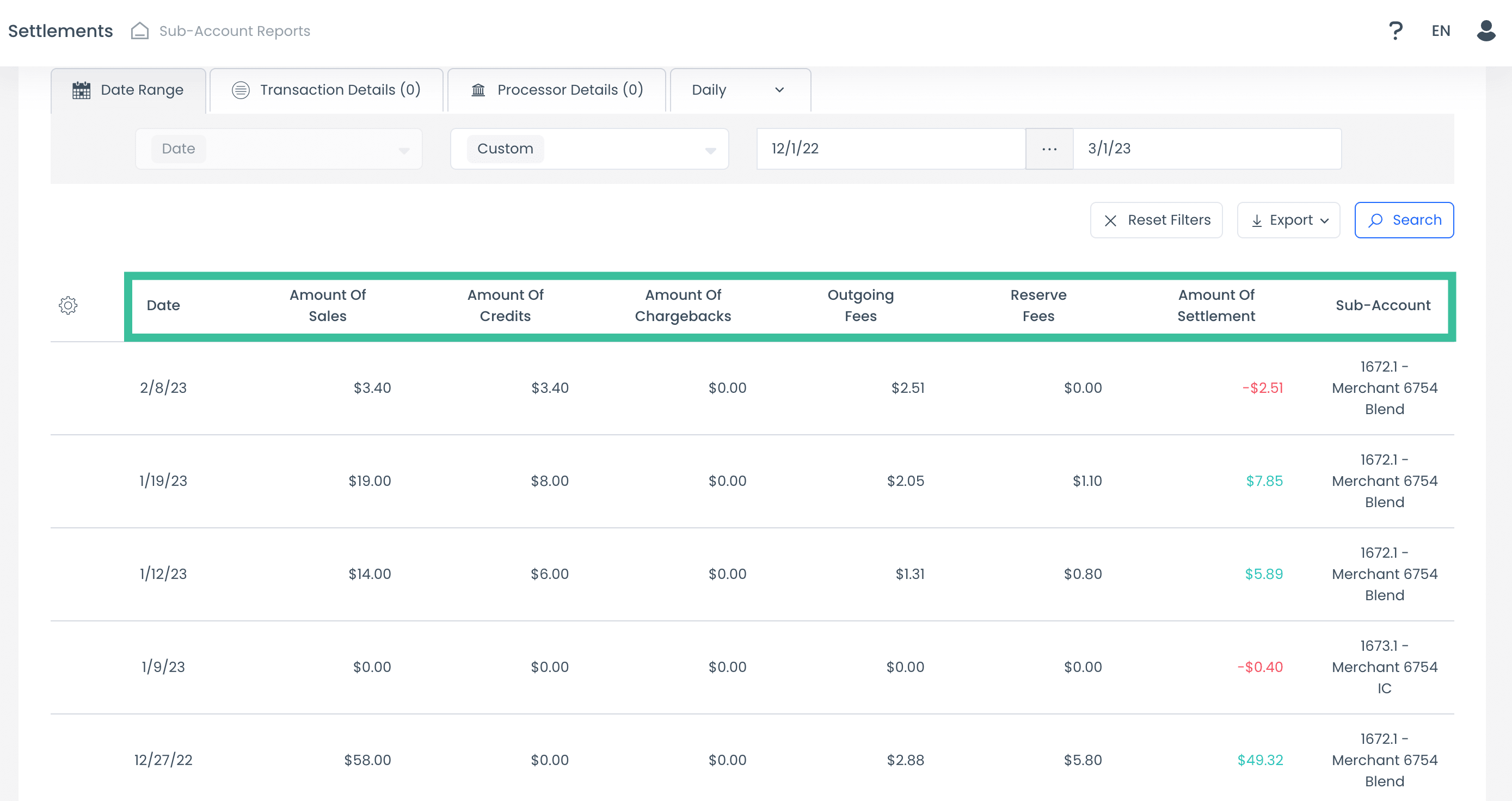
The settlements report highlights the following data:
- Date
- Amount of sales
- Amount of credits
- Amount of chargebacks
- Outgoing fees
- Reserve fees
- Amount of settlement
- Sub-account
Date range view
The Date range view is the first view seen in the upper-left corner tab of your report. In the Date range view, you can search by the following time periods:
- Today
- Yesterday
- Last 2 days
- Current week
- Last 7 days
- Last 14 days
- Last week
- Current month
- Last 30 days
- Last month
- Current year
- Last year
- Customized date range
Note:
The default date range is set to the "Last 2 days" time period.
Transaction details view
The Transaction details view allows you to search by payment method, currency, and terminal ID (the unique transaction ID). Click Transaction details to access this view.