The Opportunity Pipeline is the first big milestone of Guesty's new CRM Lead Management system, where you can follow up on all opportunities in one place. You no longer need to filter your reservations by inquiry or other statuses that need your attention. All guest requests that require action are displayed together in the Opportunity Pipeline, optimizing your ability to convert requests to confirmations.
Note:
Automatically confirmed reservations, like instant booking, are not shown in the Opportunities.
Through the Opportunity Pipeline you can:
-
Track reservation opportunities
- Know which open reservation opportunities require your attention on a day-to-day basis
- Easily toggle between a report view, and a pipeline Kanban view to take action on open opportunities in your sales funnel
- View multiple reservations in one opportunity
If a guest creates more than one reservation request in the same calendar month, for different accommodation types or even different listings, they are combined into one opportunity for easy visibility.
Note:
Reservation requests made in different months by the same guest create separate opportunities. For example:
Guest sends reservation requests for Listing A and Listing B in April = One opportunity
Guest sends reservation request for Listing A in April, and another request for Listing B in May = Two opportunities
- Catch New Leads
When a guest calls or emails about a potential stay, you can create a new opportunity to capture details about the conversation and accommodation options offered for future follow up.
For information about creating custom reports, click here. To use the Opportunity Pipeline to track, manage, and analyze opportunities through your sales funnel, follow the steps below.
Access the Opportunity Pipeline
Step by step:
- Sign in to your Guesty account.
- In the side navigation menu, click
 Marketing and sales to open the dropdown menu.
 - Under CRM, select Lead management.
Opportunities statuses
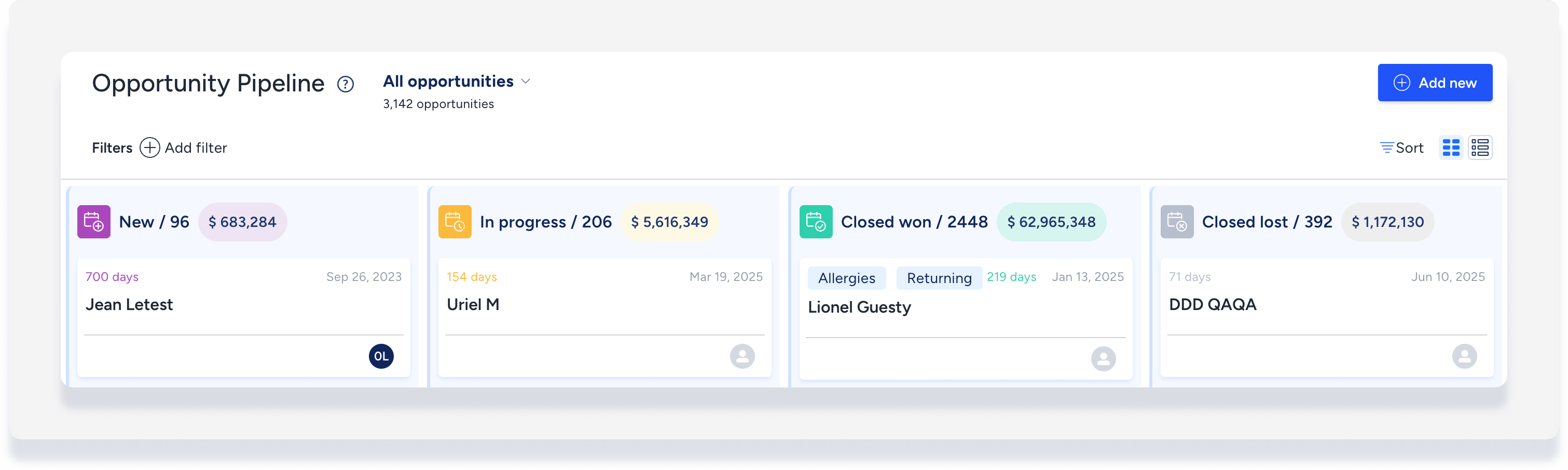
Your opportunities are displayed as cards in columns of four statuses:
- New: New opportunity has been created manually
- In Progress: Reservation has been created, not yet closed
- Closed Won: Reservation status changed to confirmed
- Closed Lost: Reservation status changed to cancelled/declined/closed
Opportunity Pipeline management
Below are some of the specific actions you can take within the Opportunity Pipeline to manage your sales funnel.
- Change display: Switch between the pipeline Kanban view and a report view.
- Update opportunity status: In the pipeline Kanban view, simply drag and drop an opportunity card to another status column.

- Change reservation status: When the opportunity status is changed a pop-up appears with all related reservations, allowing you to update and ensure that the opportunity and reservation statuses are aligned.

-
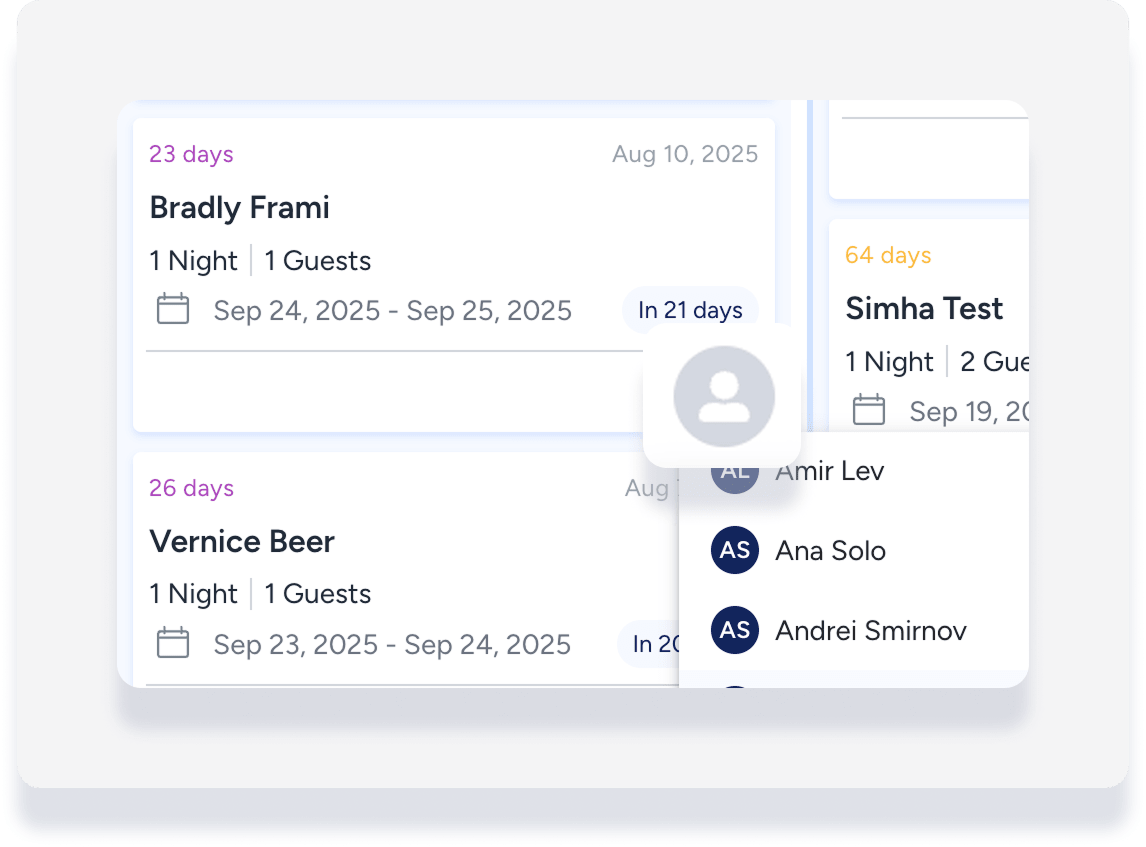
Assign salesperson to an opportunity: On the relevant opportunity card, click the profile icon at the bottom right, then from the dropdown select an assignee.
-
Manage an open opportunity: When you click on a card in New or In Progress status, the opportunity details slide open. Use the details to manage the open opportunity in several ways:
- View all related opportunities and reservations
- View guest contact information as well as details such as allergies, pets, and other preferences.
- View the last five messages in the Inbox
- Send a new message to the guest
- Check availability and send a quote

-
Add filters and save views: For example, create a filter for open opportunities; opportunities from Airbnb; or all opportunities in the month of June.
- Click Add Filter.
- Enter the relevant filter or filters.
- Click Save View.
- To access saved views, click the down arrow to the right of the current view.
-
Create a new opportunity: Create a new opportunity for interested guests that contact you via phone or email.
- At the top right click Add new.
- Fill in the opportunity details.
Assign opportunities via the Inbox
You can manually assign an opportunity to a specific inquiry or reservation directly from your Inbox. This gives you full control over opportunity tracking and ensures accurate attribution.
Step by step:
- Sign in to your Guesty account.
- In the side navigation menu, click
 Inbox.
 - Click the inquiry or reservation you want to assign.
- In the right side panel, click
 .
. - Select Status & Channel from the editing options.
- Click the Opportunity Name dropdown menu.
- Choose from the following options:
- Select an existing opportunity ID from the dropdown list.
- Click New to create a new opportunity and assign it immediately.
- Change the current opportunity assignment by selecting a different ID.
- Click Save.

