Schema.org helps search engines and crawlers understand the content on a web page to provide more accurate search results. Guesty Websites simplifies this process by allowing you to enable Local Business Schema using the information already stored in your content library.
Providing accurate data ensures your schema is valid for Google and other search engines, which can improve how your business appears in search results. Guesty uses your business name, logo, "About us" text, and the first five images from your business images to generate the schema.
Supported fields
Use the table below to understand which fields are required or recommended. Adding more information helps generate a more accurate schema.
| Content library field | Required | Description |
|---|---|---|
| Business Name | Yes | The name of the business as it is represented to customers. |
| Address | Yes | The physical address of the business. If you do not have a physical location, we recommend not enabling schema. |
| Geo | Yes* |
The latitude and longitude of the business. Guesty Websites generates this automatically based on the address provided. |
| Social Networks | No | The social profiles associated with the business. |
| Business Hours | No | The hours the business is open. |
| Image | Yes |
At least one image representing the business. Google validation tools require this. Alt text is limited to 80 characters. |
| No | An email address to contact the business. | |
| Phone | No | A phone number where the business can be contacted. |
| Logo | No | A logo that represents the business. While not required, this is strongly recommended. |
| About Us | No | A short description giving an overview of the business. |
| Business Type | No | Different types of businesses that more closely align with what the actual business does. |
| Custom | No |
Additional fields relevant to your specific business type, such as cuisine for restaurants. Note:Complete Business Type field first. |
Add your business data
Follow the instructions below to add your business data to the CMS.
- In the side panel of the editor, click CMS and click Business data.
- From the dropdown menu, select and update the following sections:
- Select Business info to enter your business details, such as your logo, location, contact details, and social links.
- Select Business text to enter additional business information, such as your company overview and services.
- Select Business images to add images associated with your business.
- Select Find and replace to do a bulk update to your business information site-wide.
- Publish your site for changes to take apply.
Enable Local Business Schema
Once you have added your business information, follow the instructions below to enable Local Business Schema.
- In the side panel of the editor, click CMS and click Business data.
-
Under "Business information", click Manage.
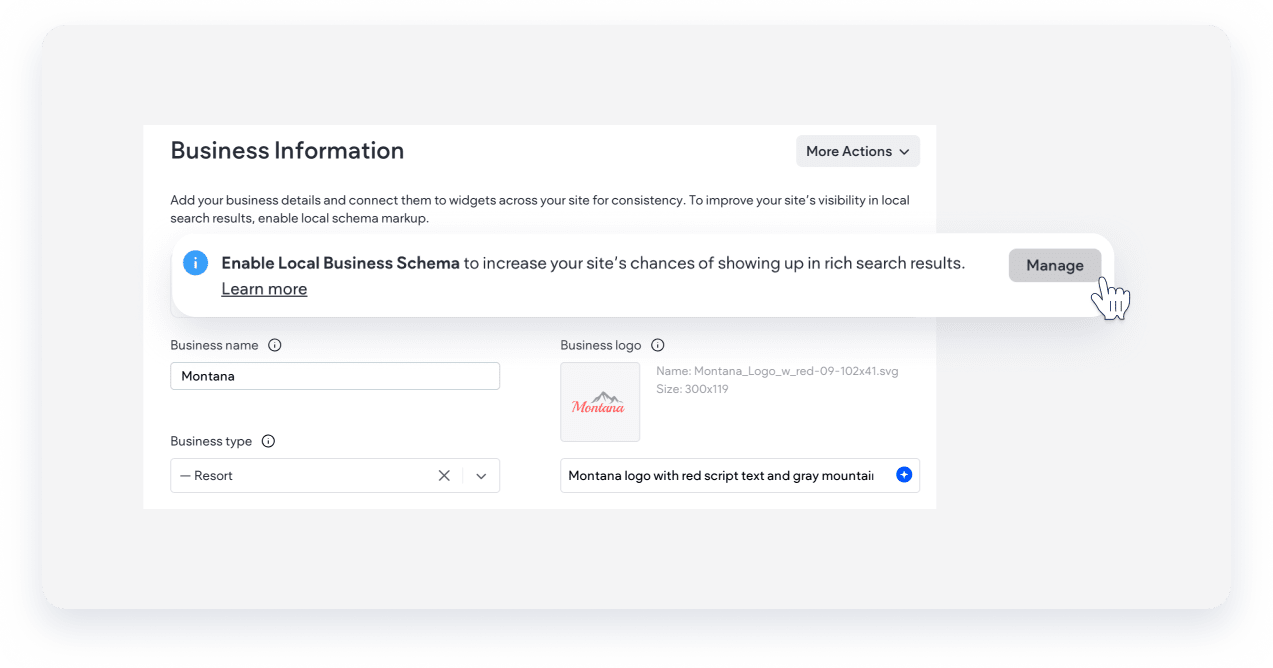
- Click the Validate with Google link to ensure your page support rich results. Alternatively, you can validate the site URL after the site is published using Google's Rich Results tool.
- Return to Guesty, review your information and click Enable schema.
- Publish your site for changes to apply.
Disable Local Business Schema
If you would like to add your own schema, the builder's schema can be disabled.
Follow the instructions below to disable schema and add your own.
- In the side panel of the editor, click CMS and click Business data.
- Under "Business information", click Manage.
- Click Disable schema.
- Confirm the action in the pop-up.
- Publish your site for changes to apply