Assign listings to a business model to ensure they appear correctly in accounting reports, such as owner statements. Move a listing to a different business model when management structures change or a listing has a new owner.
When moving a listing, apply the new rules to new reservations only or reprocess existing reservations to update their financial data.
Move a listing to a new business model
Follow the steps below to move a listing to a different business model.
Step by step:
- Sign in to your Guesty account.
- In the side navigation menu, click
 Accounting to open the dropdown menu.
 - Under Accounting setup, select Business models.
- Click the business model to assign the listing to.
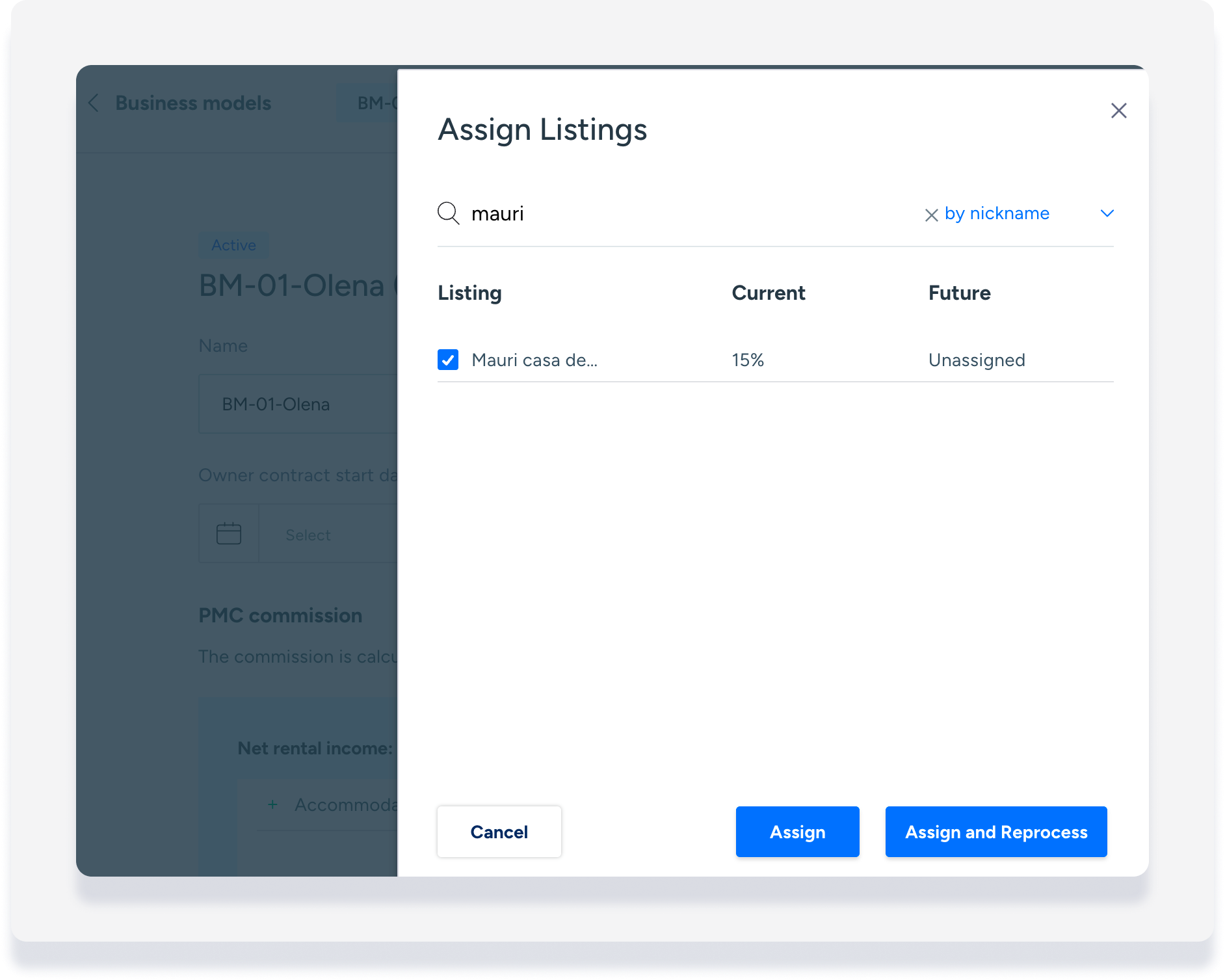
- In the top-right corner, click Assign listings.
- Find the relevant listing and check the box to its left.
-
Choose the assignment type:
Click Assign to apply the model to new reservations only. The original business model remains active for existing reservations.
-
Click Assign and reprocess to apply the model to all reservations. Guesty automatically reprocesses existing reservations using the new business model rules.
Enter the reprocess date. We recommend using the beginning of the current month to avoid disrupting past revenue or owner statements already sent to owners.
Click Assign and reprocess.
Note:
If only the Assign option appears, the business model has a future activation date.
Understanding future activation dates
If a business model has a future activation date, it only applies to reservations created on or after that date.
The system doesn't automatically reprocess existing reservations for future-dated business models. Once the activation date arrives, manually reprocess the reservations or contact Guesty Support to reprocess them in bulk.
Example scenario
On April 23, move a listing to a business model with an activation date of May 1.
The current business model applies to existing reservations and any new reservations created until April 30.
The new business model applies to new reservations created starting May 1.
Wait until May 1 passes to reprocess any existing reservations under the new rules.

