Use the image picker to select and organize images for your website's widgets. You can upload images from your computer, import them from social media and other websites, or choose from a built-in stock collection.
Before you begin
- The editor supports SVG file formats for use with the icon widget.
- The file size limit is 50MB per image.
- You can store up to 15,000 files per site, including images, videos, audio clips, and documents.
Note:
Any file uploaded to the system is publicly available. Don't upload personal or confidential information. To remove a file completely, you must delete it from the picker.
Using the quick image picker
By default, the editor uses the quick picker for a fast way to choose images. You can select images from existing folders or from images already imported into the platform. Use infinite scrolling to reveal more images by scrolling down the window.

With the quick picker open, you can perform the following actions:
- Use the search bar to search for an image.
- Click All images or Images to select a specific folder to view its images:
- All images: All stored images.
- Free images: Stock photos from third-party sources like Unsplash.
- Site images: Images used on your site.
- Uploaded: Images you previously added to your library.
Click + Upload to import an image from your device.
You can add new images to your library using several methods:
- From your computer: Click Upload images and select the files from your device.
- From social media: Click Import images, select From online platform, and choose the relevant platform.
- Click Full view to access additional image sources and management tools.
Add an image
To add an image, click the image to select it. Once selected, its name and size is displayed.
When selecting images for the Image Slider or Photo Gallery widgets, you can select multiple images at one time. As you do, each image will be surrounded by a colored border. When you click Done, all selected images will be added to the widget.
Import a new image
Click Full view to add new images to your library using several methods:
- From your computer: Click Upload images and select the files from your device.
- From a URL: Click Import images and select From a site. Enter the URL, click Show images, and select Import image after reviewing the results.
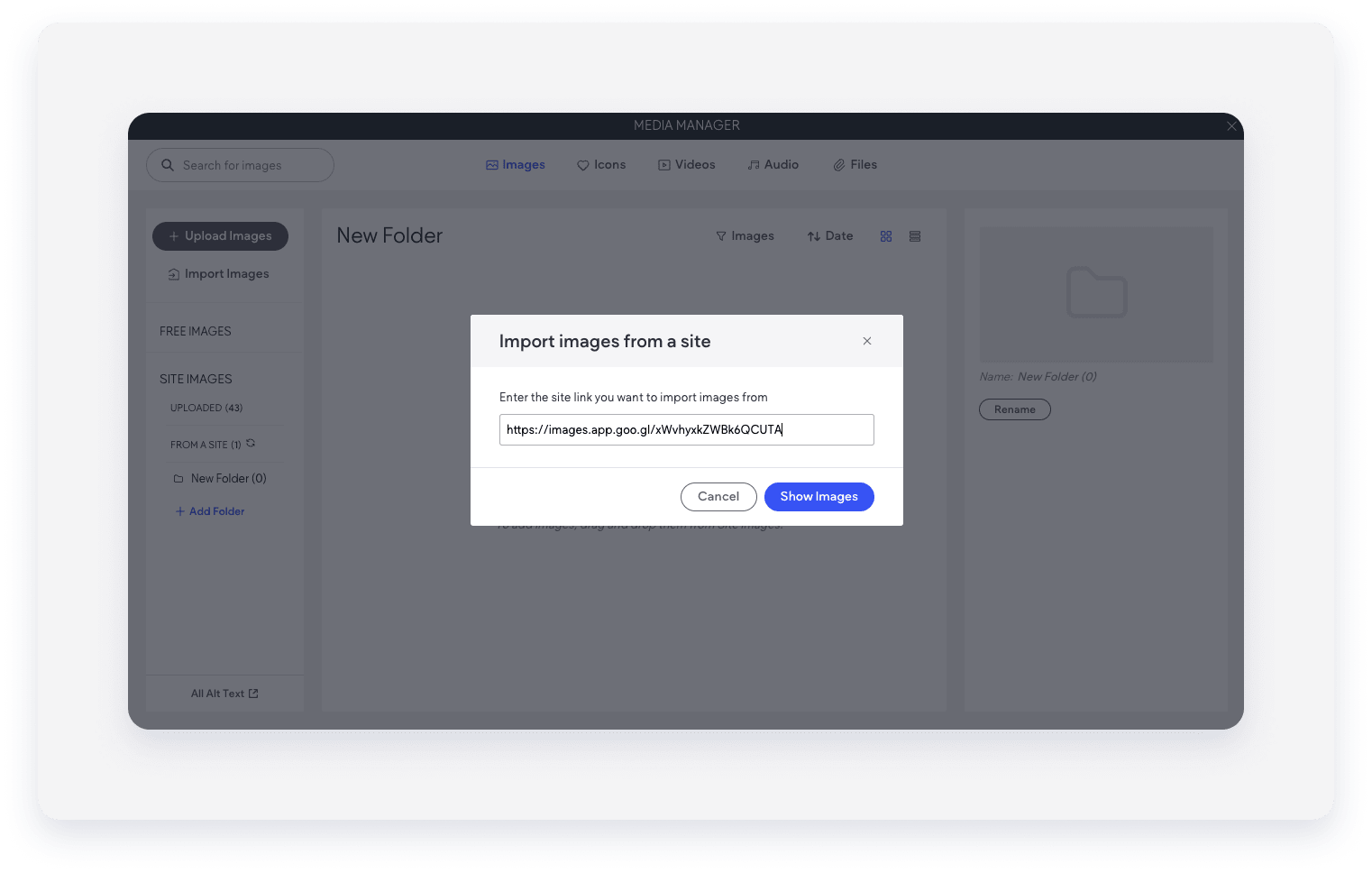
- From social media: Click Import images, select From online platforms, and choose the relevant platform.
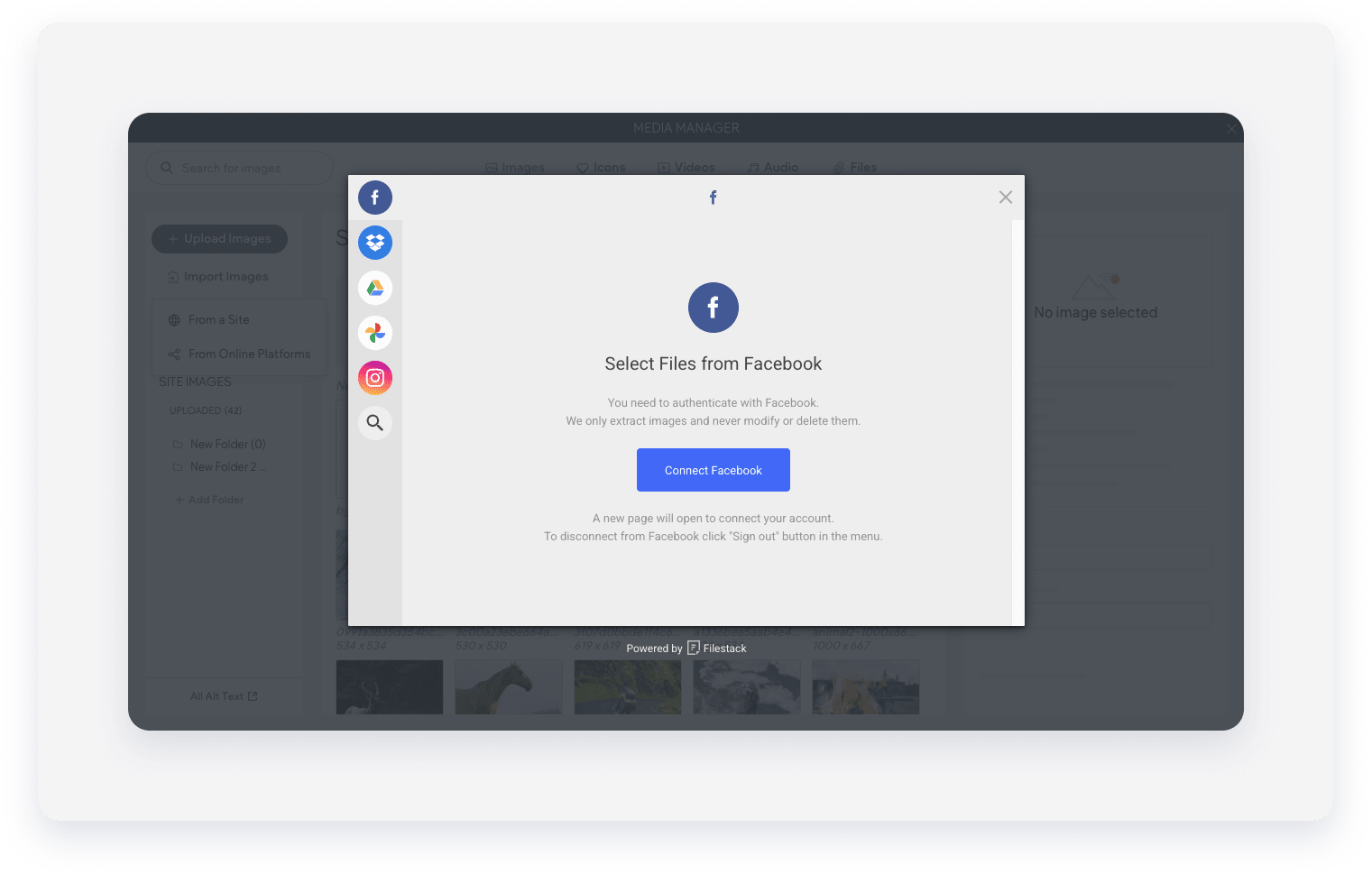
Manage images
Click Full view to organize your library to make updating site content more efficient. With the image picker open, toggle on Manage images to switch modes.
There are many options available in this mode.
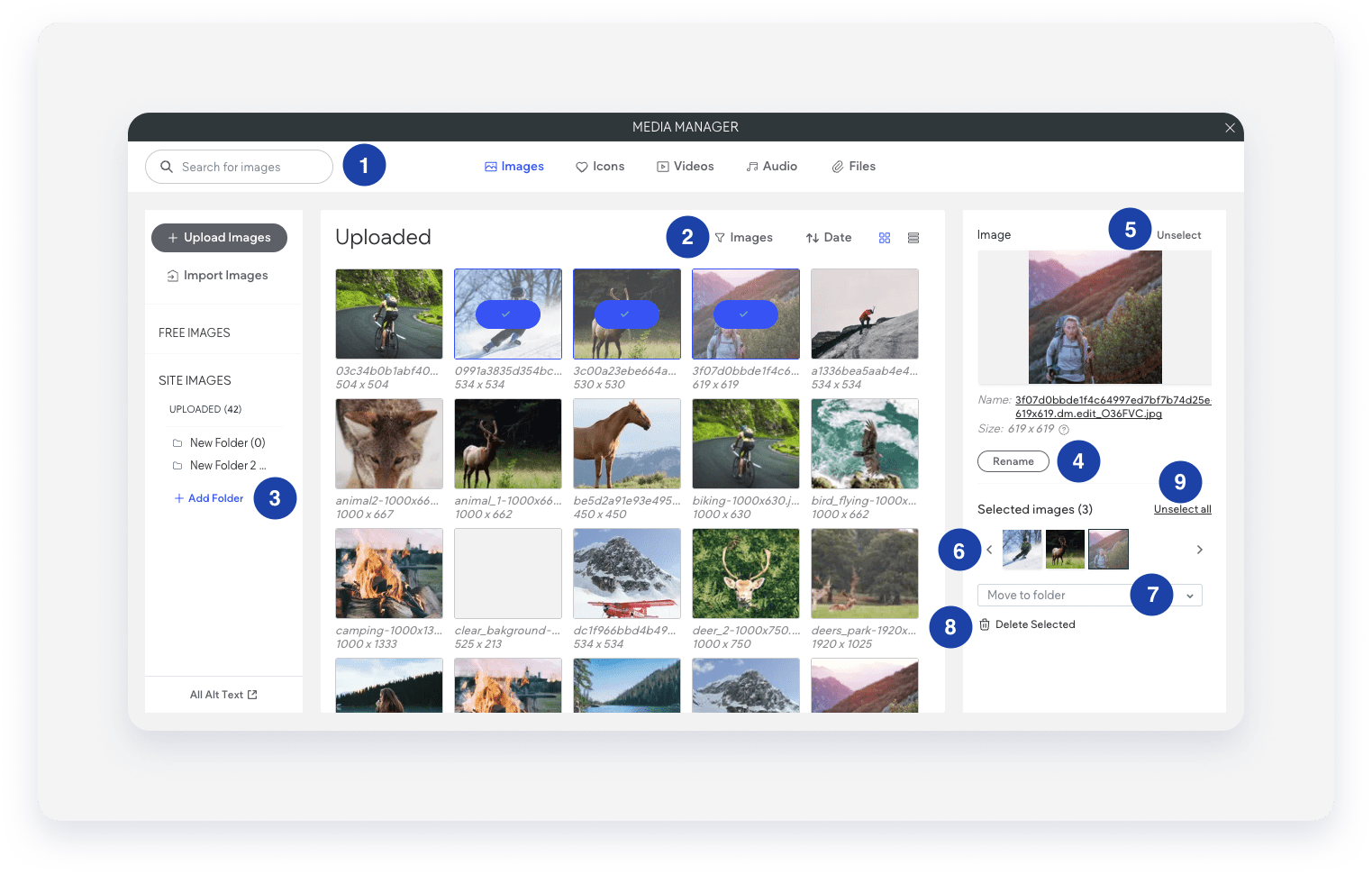
| Number | Option | Description |
|---|---|---|
| 1 | Search all images | Type the name of an image to locate it quickly. |
| 2 | Filter | Narrow down images by type. |
| 3 | Add folder | Create a new folder to group specific images. |
| 4 | Rename | Rename a single image. |
| 5 | Unselect | Remove a single image from your selected images. |
| 6 | Selected images carousel | View all images currently selected for a widget. |
| 7 | Move to folder | Move selected images into a specific folder. |
| 8 | Delete selected | Permanently remove images from your library or folder. |
| 9 | Unselect all images | Clear all current selections. |
