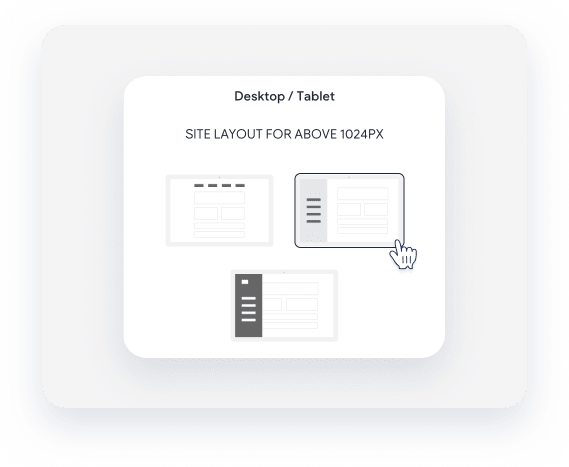
Change your desktop site layout to a sidebar layout to give your site a unique look. The sidebar layout displays the header on either the left or right side of the site. The sidebar header acts as a sticky header, meaning it remains on the screen as a user scrolls. You can add widgets to the sidebar just as you would to any other row.
Before you begin
- When you switch to a sidebar layout, the header keeps the logo but removes all other widgets.
- The background color changes based on the layout you select.
- The shrinking header feature isn't available for sidebar navigation.
- On screens narrower than 1090 pixels, the sidebar content is hidden, except for the first image, and an expand menu icon appears. You can customize the color of this icon in the design editor.
Follow the steps below to change your site layout to a sidebar layout.
- In the left panel, click Theme.
- Click Site layout.
- Select the sidebar layout.
- Hover over the sidebar and click Sidebar in the top-right corner to edit the design.
- Customize the sidebar: Choose a layout, select the left or right side of the screen, and define the width.
- Drag and drop widgets or add rows to the sidebar header as needed.