Inner spacing and outer spacing are the space around a widget. When you adjust the outer spacing and inner spacing of a widget, you change its placement and appearance. This can make your site look more customized and professional.
- Inner spacing is also known as padding, and is the space inside these borders.
- Outer spacing is also know as margin, and is the space outside of the element's border.
Follow the steps below to adjust the spacing of an element.
Step by step:
- Click the element and select the Content tab.
- Select Spacing to open the dropdown menu.
Inner spacing:
To change the inner spacing (padding), click and edit the numbers in the inner box. You can also click on one of these numbers and use the slider to adjust the size.
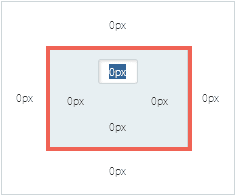
Outer spacing:
To change the outer spacing (margin), click and edit the numbers in the outer box. You can also click on one of these numbers and use the slider to adjust the size.
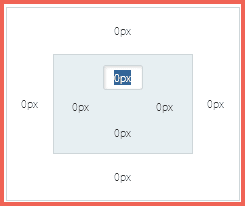
Note:
If you see odd spaces that you cannot remove, be sure to check all parts of the widget, including the column in which it is located.
