You can view, download, or send any credits you’ve been issued.
When credit is applied
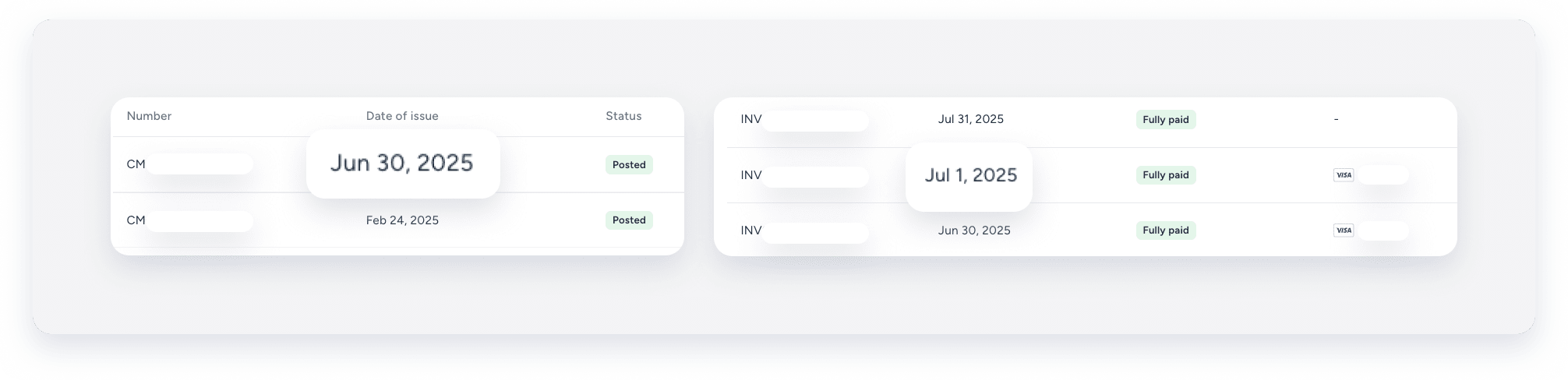
Guesty automatically applies credits and deducts the amount from your next billing statement. The credit appears on your invoice. For example, a credit issued on June 30 applies to the first invoice you receive after June 30.
View, download, or send your credit history
Follow the steps below to view, download, or send your credit history.
Step by step:
- Sign in to your Guesty account.
- In the side navigation menu, click
 Account to open the dropdown menu.
 - Select Guesty billing.
- In the left-side panel, select Credit history.
- Find the relevant credit. You can search by credit ID number or filter by payment status, month, or amount.
- Some credits include a link to the invoice for the original issue that the credit relates to. Click the link to view the invoice.
- Click
 to the right of the credit and select one of the following options:
- View document (includes the total credit, reason, and related invoice)
- Download as PDF
- Send XLSX to email

