Enso Connect is a dynamic guest experience platform for vacation rentals and boutique hotels. With seamless two-way sync to Guesty, Enso empowers hospitality professionals to personalize and monetize every guest interaction.
Enso Connect’s intuitive operating system uses “if this then that” logic, letting you fully customize guest experience features. Integrate a variety of guest engagement tools in one place.
Follow these steps to connect with Guesty.
Copy the Guesty API key
Step by step:
- Sign in to your Guesty account.
- In the side navigation menu, click
 Integrations to open the dropdown menu.
 - Select Marketplace.
- Click the "Enso Connect" thumbnail.
- At the top right click Connect.
- In the pop-up, click
 to copy the API key.
 - Click OK.
Important:
The API key is valid for 4 hours only. Proceed to the steps below to connect the partner immediately.
Connect Enso Connect with Guesty
Step by step:
- Book a demo, or reach out for a quote to get started.
-
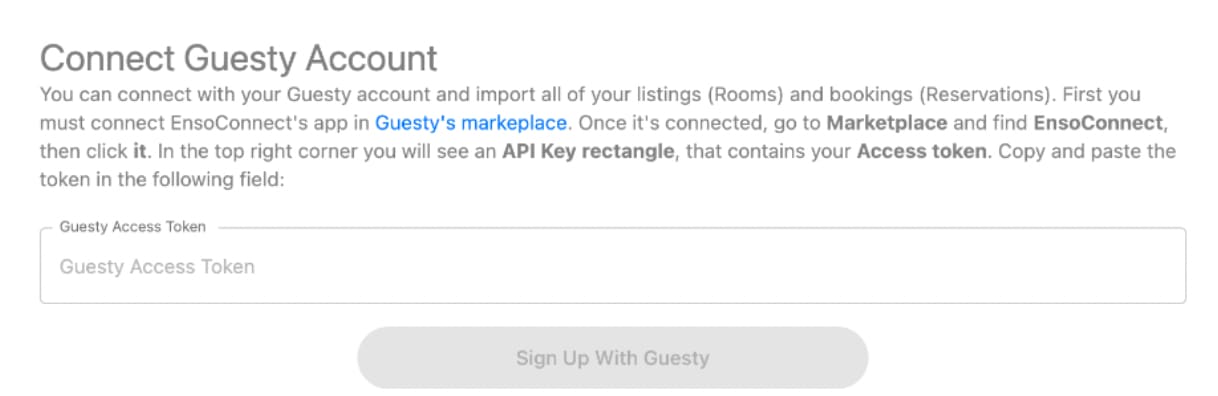
When you receive the Enso Connect account creation link, start the account creation process. The first step is to paste the API key copied in the steps above in the “Guesty Access token” field:
- Complete your account creation by providing all the requested info.
- This will ignite the onboarding process with an email from the Enso Connect team. You'll choose a convenient time for the first onboarding video call, where the Enso Connect team will help you set up your account with your Guesty properties and bookings.
Note:
If you add Enso Upsells, the upsells sync to the guest folio but will not automatically record a payment. Record these payments manually, or disable auto payments when enabling Enso Upsells to avoid duplicate charges.
Manage your notification settings
Manage notification settings directly in Enso Connect, not in Guesty.
If you receive text or SMS notifications from guest messages and want to turn off this setting, follow these steps:
- Check your notification configuration in Enso Connect.
- Update your notification preferences as needed.
- If you need help, contact Enso Connect Support online or email support@ensoconnect.com.
If you have any questions or would like to learn more about Enso Connect, contact their support online or email support@ensoconnect.com.