When an agent runs, it checks the items in your account and flags any issues it finds. Each issue is a finding, and it's tied to the item it's about: a reservation, listing, fee, task, or owner. Report and brief agents are the exception: they deliver reports that aren't tied to an item.
You can review and address findings in two places:
- The Overview page: Findings from all your agents.
- The agent's page: Findings from one specific agent.
Your Guesty homepage also shows your high-priority findings. Click Go to AI hub on the homepage to go to the Overview page. Once a finding is closed, you can find it in the activity log.
Review findings on the Overview page
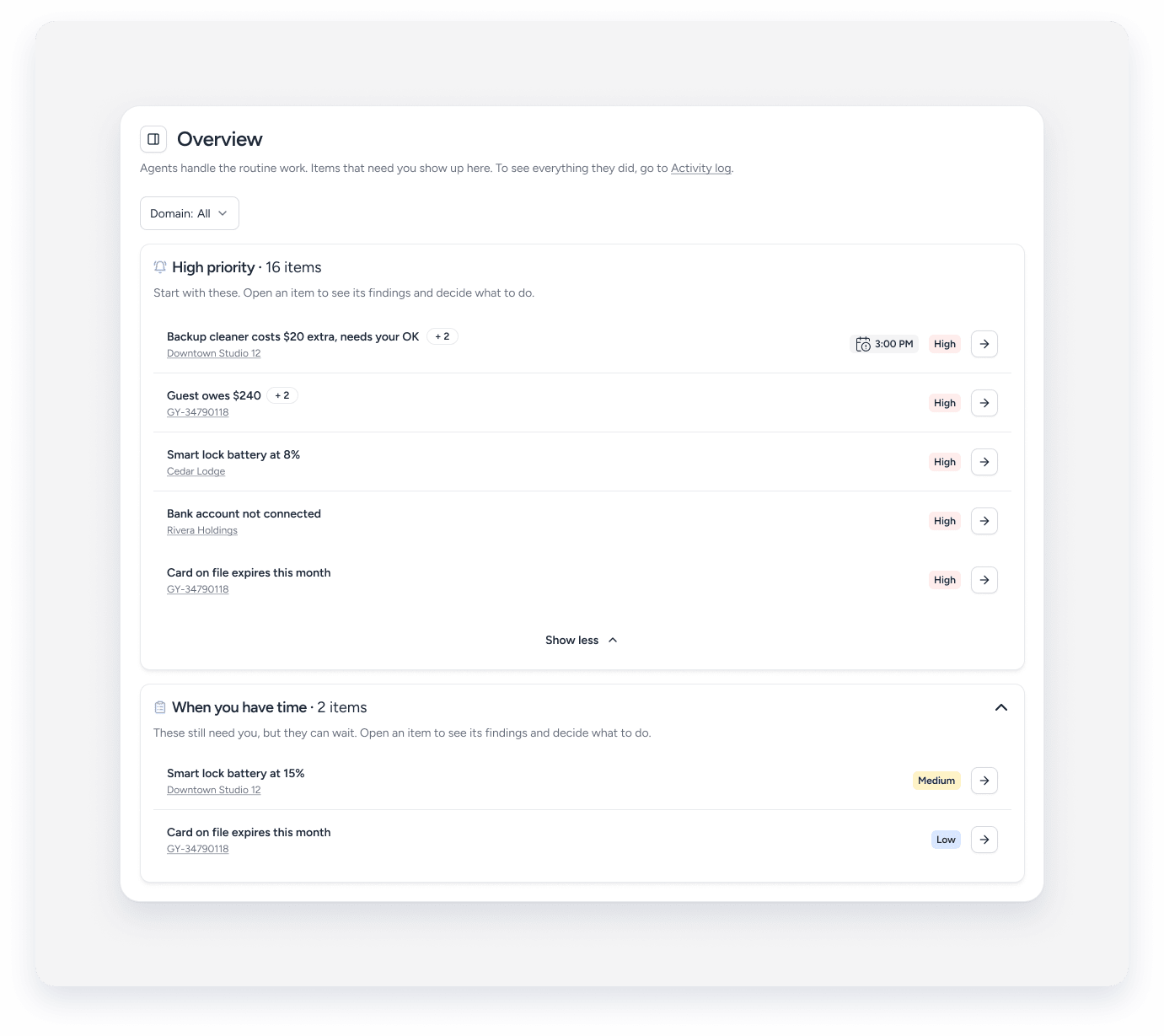
The Overview page lists the findings from all your agents that need you. Findings are organized by the item they're about, not by the agent that flagged them.
Step by step:
- Sign in to your Guesty account.
- In the side navigation menu, click
 AI hub.
- In the left-side menu, click Overview.
Understand severity groups
Findings are grouped by severity, which combines two factors: the issue's impact on the guest and its urgency, based on how soon the reservation starts. Findings appear in these groups:
- High priority: Findings to handle first.
- When you have time: Findings that still need you but can wait.
Each group shows how many items it includes. To see more items in a group, click Show more.
In each group, every row shows the following information:
- A short description of the finding.
- The item the finding is about, such as a reservation code or listing nickname. Click it to open the item.
- The finding's priority: High, Medium, or Low.
To review and act on a finding, click its row.
Filter findings
To show only findings from specific areas of your business, click Domain. You can select more than one domain. The number next to each domain shows how many findings it has.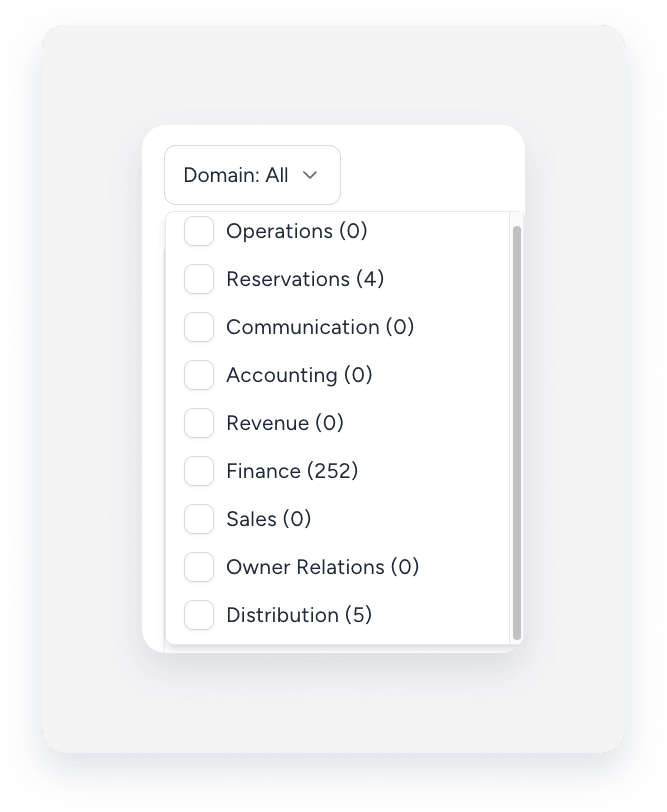
Review a specific agent's findings
Each agent's page lists only that agent's findings that need you.
Step by step:
- Sign in to your Guesty account.
- In the side navigation menu, click AI hub.
- In the left-side menu, under Agents, click All agents or Your agents, and select the agent.
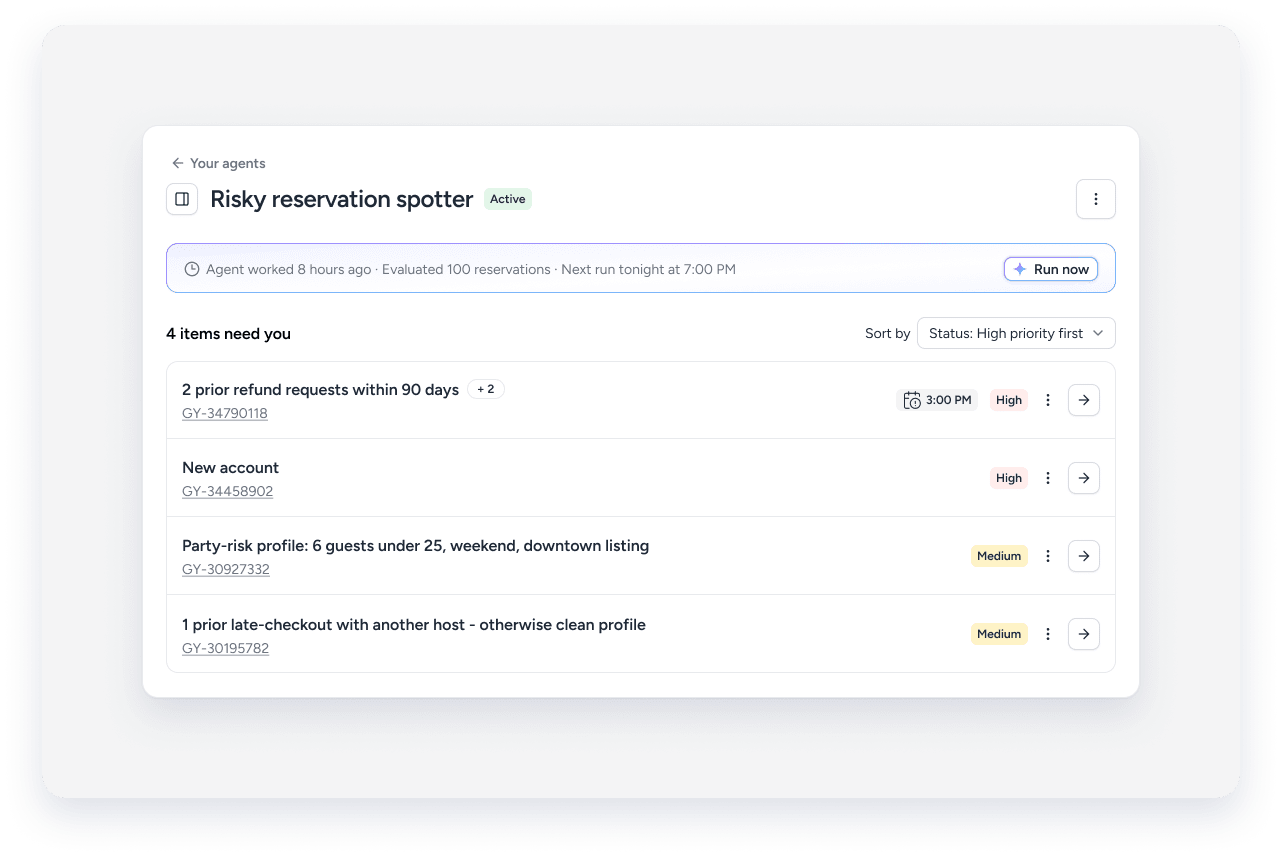
The agent page shows the following information:
- At the top: When the agent last ran and, if it's scheduled, when it runs next.
- Above the list of findings: How many items need you.
To run the agent right away, click Run now. The button is grayed out while a run is in progress.
The findings are listed as rows. Each row shows the following information:
- A short description of the finding and, if applicable, the number of related issues.
- The item the finding is about, such as a reservation code, listing nickname, or fee name. Click it to open the item in a new tab.
- A badge, if the finding won't be relevant after today (for example, because the guest checks in today).
To review and act on a finding, click its row. To dismiss a finding without opening it, click  on its row and select Dismiss.
To deactivate the agent, click in the top-right corner and select Deactivate agent.
Sort findings
To choose the order of the findings, click Sort by.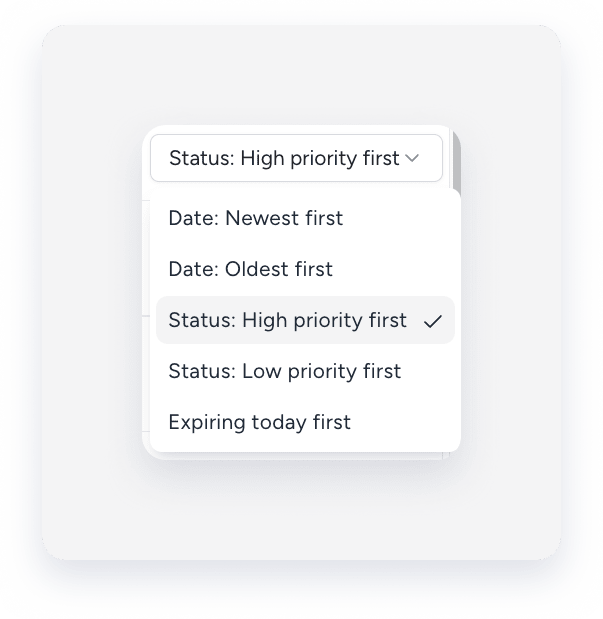
Address a finding
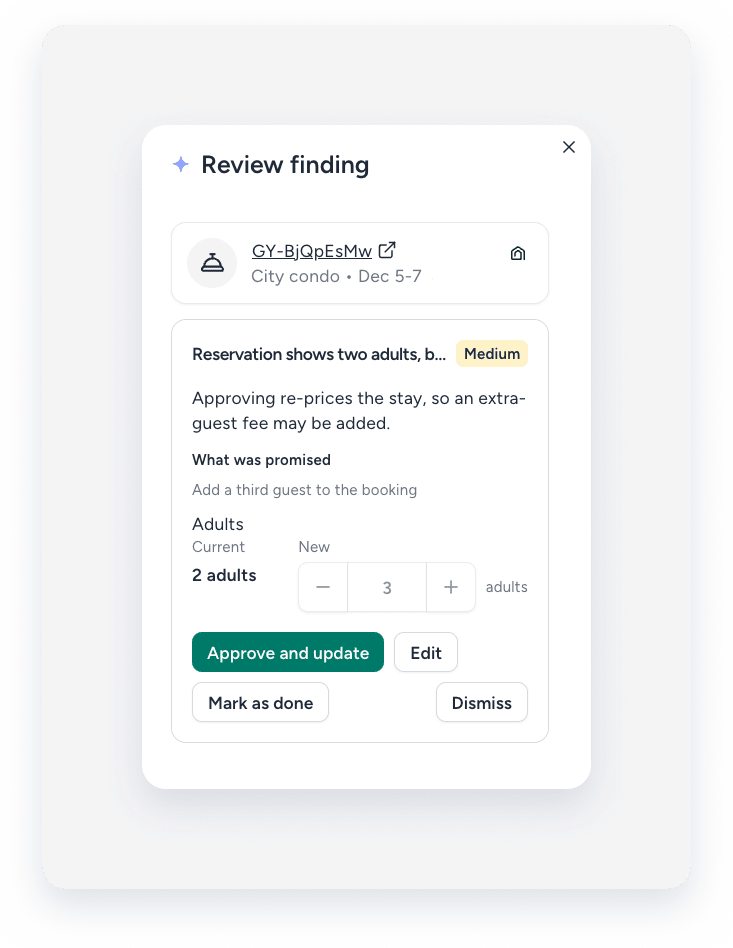
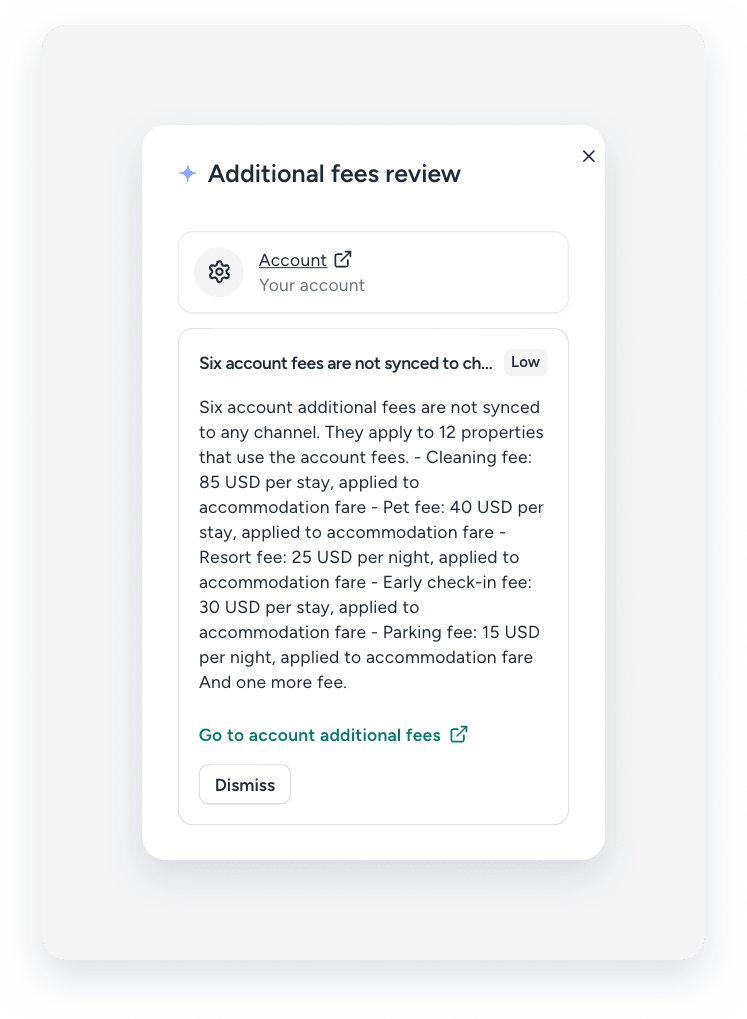
When you click a finding on the Overview page or an agent's page, a right-side panel opens. The panel shows all the open findings about the same item, so you can handle them together.
The panel shows the following information:
- The item the findings are about, such as a reservation or listing. Click its name to open it in a new tab.
- A card for each finding about the item, including findings with a different priority from the one you clicked. Each card shows the finding, its priority, and why the agent flagged it.
Step by step:
- On the Overview page or an agent's page, click a finding row.
- In the right-side panel, read the finding card.
- Do one of the following:
-
If the card has an Edit option: Click Edit, make the relevant changes, and click Approve and update. The item updates right away. To close the finding, click Mark as done.
-
If the card has a link: Click the link and make the changes on that page.
- If no action is needed: Click Dismiss.
-
If the card has an Edit option: Click Edit, make the relevant changes, and click Approve and update. The item updates right away. To close the finding, click Mark as done.
Findings that are marked as done or dismissed stay in the panel and are added to the activity log.
Review closed findings in the activity log
The activity log keeps a history of closed findings from all your agents, so you can check what was handled and when. Open findings stay on the Overview page and on each agent's page.
Step by step:
- Sign in to your Guesty account.
- In the side navigation menu, click AI hub.
- To see the closed findings from all your agents, in the left-side menu, click Activity log.
Closed findings are listed newest first. Each row shows the following columns:
- Finding: A short description of the finding.
- Agent: The agent that flagged it.
- Date closed: When the finding was closed.
- Status: How the finding was closed: Done, Dismissed, or Expired.
Filter the activity log
Use the following filters to find specific findings:
- Agents: Show findings from one or more agents.
- Status: Show findings with one or more statuses: Done, Dismissed, or Expired.
