This article explains how to use the QuickBooks integration to automatically sync GuestyPay payouts from Guesty to QuickBooks as journal entries. When GuestyPay settles a payout tied to a reservation, Guesty’s accounting journal lines are posted into QuickBooks using the mapping rules you configure. This keeps your operational books in QuickBooks aligned with GuestyPay activity without re-entering the same amounts.
Prerequisites and matching data
Before you enable the workflow, make sure of the following:
- You are using Guesty Accounting
- QuickBooks is connected in Guesty's Marketplace.
- GuestyPay is active and producing payouts for your account.
- Your QuickBooks "Chart of Accounts" already includes every destination account you plan to map (for example, Checking, Accounts Payable, Guest Advance Deposits).
- Vendors that appear on Guesty vendor journal lines also exist in QuickBooks with the same "display name" or "company name". This is required when posting to Accounts Payable.
For a GuestyPay payout to sync successfully to QuickBooks, the information must match between the two platforms:
- Reservation reference: Each payout row must include a merchant transaction ID that matches the reservation confirmation code used on Guesty journal entries. Payouts without this reference are skipped.
- Mapping rules: Every Guesty journal line you want to post must match one of your configured rules for "entity type", "ledger", and "charge code", pointing to a QuickBooks account name and account type.
- QuickBooks accounts: The account "name" and "type" in your mapping must exactly match an account that already exists in QuickBooks.
- Vendors (Accounts Payable only): If a line posts to an Accounts Payable account, the vendor name on the Guesty journal line must match a vendor in QuickBooks. Learn more about managing vendors in Guesty.
Note:
We recommend copying QuickBooks account names directly from the Chart of Accounts. Extra spaces or different spelling will cause that line to fail.
Configure account mappings
Connecting GuestyPay payouts requires five settings. Treat them like columns in a spreadsheet: each position (1st value, 2nd value, 3rd value, etc.) is one complete mapping rule. Keep the same number of values and the same order in every field. If a value does not apply for one rule, leave that slot empty separated by commas (like this: value1, ,value3). Do not delete the slot, or later values will line up with the wrong rule.
-
Guesty Accounting Entity type
-
Data to enter: A comma-separated list of who the Guesty journal line belongs to, such as
Vendor,Vendor,Guest,Guest. -
Typical values:
Guest,Owner,Vendor. Add others only when they appear on the journal lines you need to post. - System outcome: The workflow matches each Guesty journal line’s entity to the value in the same position as your other mapping fields.
-
Data to enter: A comma-separated list of who the Guesty journal line belongs to, such as
-
Guesty Accounting Ledger
-
Data to enter: A comma-separated list of Guesty ledger names, such as
Accounts Payable,Cash,Cash,Advanced Deposit. -
Typical values:
Accounts Payable,Cash,Advanced Deposit,Owners,Working capital. - System outcome: The ledger on the Guesty journal line must match the ledger in that rule position (matching is not case-sensitive).
-
Data to enter: A comma-separated list of Guesty ledger names, such as
-
Guesty Accounting Charge Code
-
Data to enter: A comma-separated list of Guesty charge codes (short codes on the journal line), such as
PP,PP,GPC,GPC. -
Typical GuestyPay values:
GPC(GuestyPay Credit Card Payment),PP(Payment To PMC),RR(GuestyPay Rolling Reserve). See the full charge code list below. - System outcome: The workflow uses the charge code (and its related charge type in Guesty) to select the correct mapping rule.
-
Data to enter: A comma-separated list of Guesty charge codes (short codes on the journal line), such as
-
QuickBooks Account Name
-
Data to enter: A comma-separated list of exact QuickBooks account names, such as
Accounts Payable (A/P),Checking,Checking,Guest Advance Deposits. - System outcome: Matching Guesty journal lines post to this account in QuickBooks.
-
Data to enter: A comma-separated list of exact QuickBooks account names, such as
-
QuickBooks Account Type
-
Data to enter: A comma-separated list of QuickBooks account types for those accounts, such as
Accounts Payable,Bank,Bank,DeferredRevenue. -
Typical values:
Accounts Payable,Bank,DeferredRevenue. - System outcome: Used together with the account name to find the correct account in QuickBooks.
-
Data to enter: A comma-separated list of QuickBooks account types for those accounts, such as
When the destination account is Accounts Payable, the workflow also attaches the matching QuickBooks vendor.
Workflow set up example
You can use this example if you want to post common GuestyPay lines to Checking, Accounts Payable, and Guest Advance Deposits. Adjust account names to match your Chart of Accounts.
Example setup requirements
| In Guesty / GuestyPay | In QuickBooks |
|---|---|
| GuestyPay is producing payouts with reservation confirmation codes | QuickBooks Online is connected in Marketplace |
Journal lines use entities Guest or Vendor, ledgers Cash / Accounts Payable / Advanced Deposit, and charge codes PP or GPC
|
Accounts exist named exactly: "Accounts Payable (A/P)", "Checking", "Guest Advance Deposits" |
| Vendor names on AP journal lines | Matching vendors exist in QuickBooks (same display / company name) |
Paste-ready values
| Field | Value to enter |
|---|---|
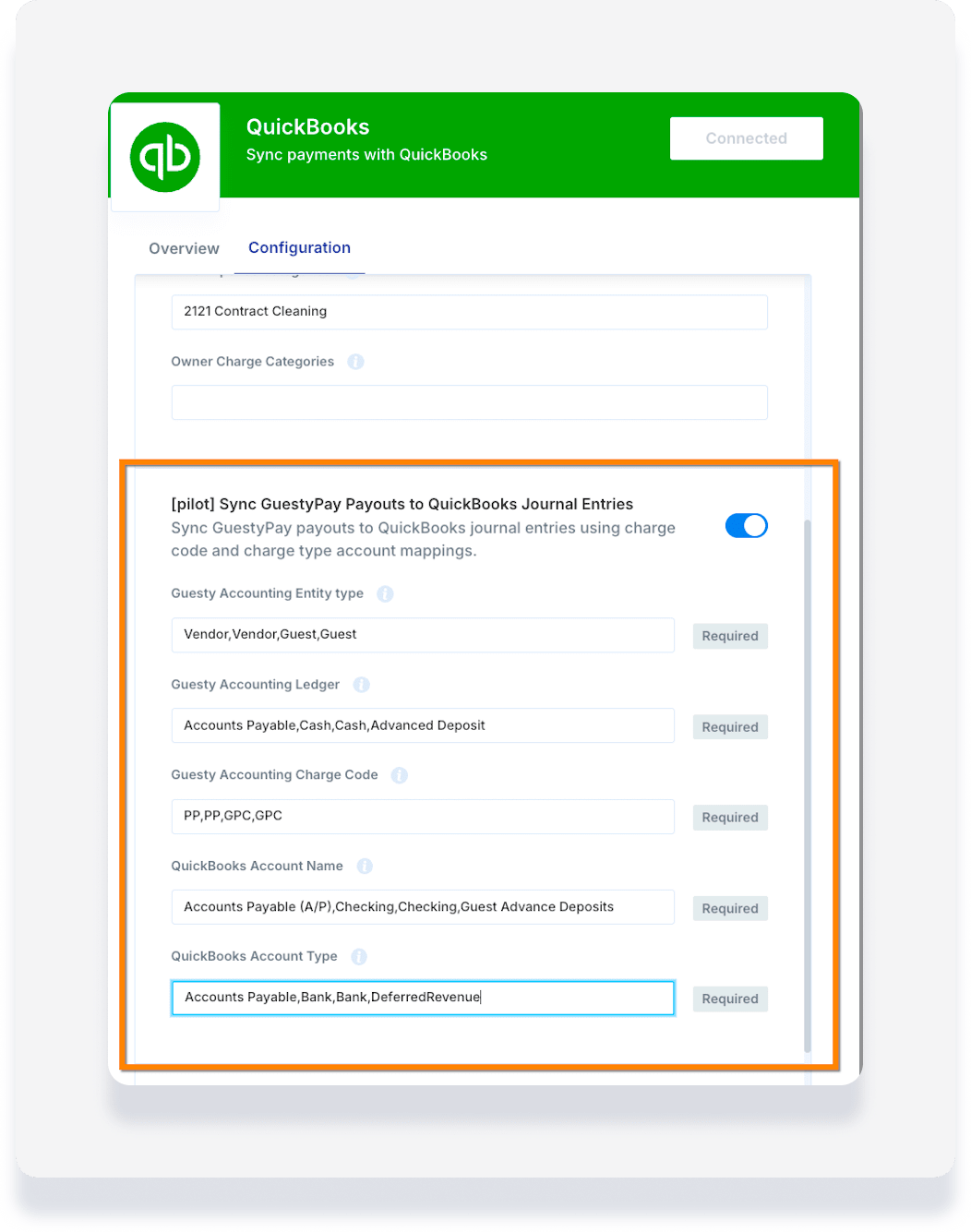
| Guesty Accounting Entity type | Vendor,Vendor,Guest,Guest |
| Guesty Accounting Ledger | Accounts Payable,Cash,Cash,Advanced Deposit |
| Guesty Accounting Charge Code | PP,PP,GPC,GPC |
| QuickBooks Account Name | Accounts Payable (A/P),Checking,Checking,Guest Advance Deposits |
| QuickBooks Account Type | Accounts Payable,Bank,Bank,DeferredRevenue |
What these four rules do
| Rule | When a Guesty journal line looks like… | It posts to… |
|---|---|---|
| 1 | Vendor + Accounts Payable + PP (Payment To PMC) |
Accounts Payable (A/P) (with matching QuickBooks vendor) |
| 2 | Vendor + Cash + PP (Payment To PMC) |
Checking |
| 3 | Guest + Cash + GPC (GuestyPay Credit Card Payment) |
Checking |
| 4 | Guest + Advanced Deposit + GPC
|
Guest Advance Deposits |
To add another rule later (for example, for Rolling Reserve RR), append one new value to every field in the same position. Do not leave a gap unless that slot is intentionally empty.
Activate the GuestyPay to QuickBooks sync
- Sign in to your Guesty account.
- In the side navigation menu, click
 Integrations to open the dropdown menu.
- Select Marketplace.
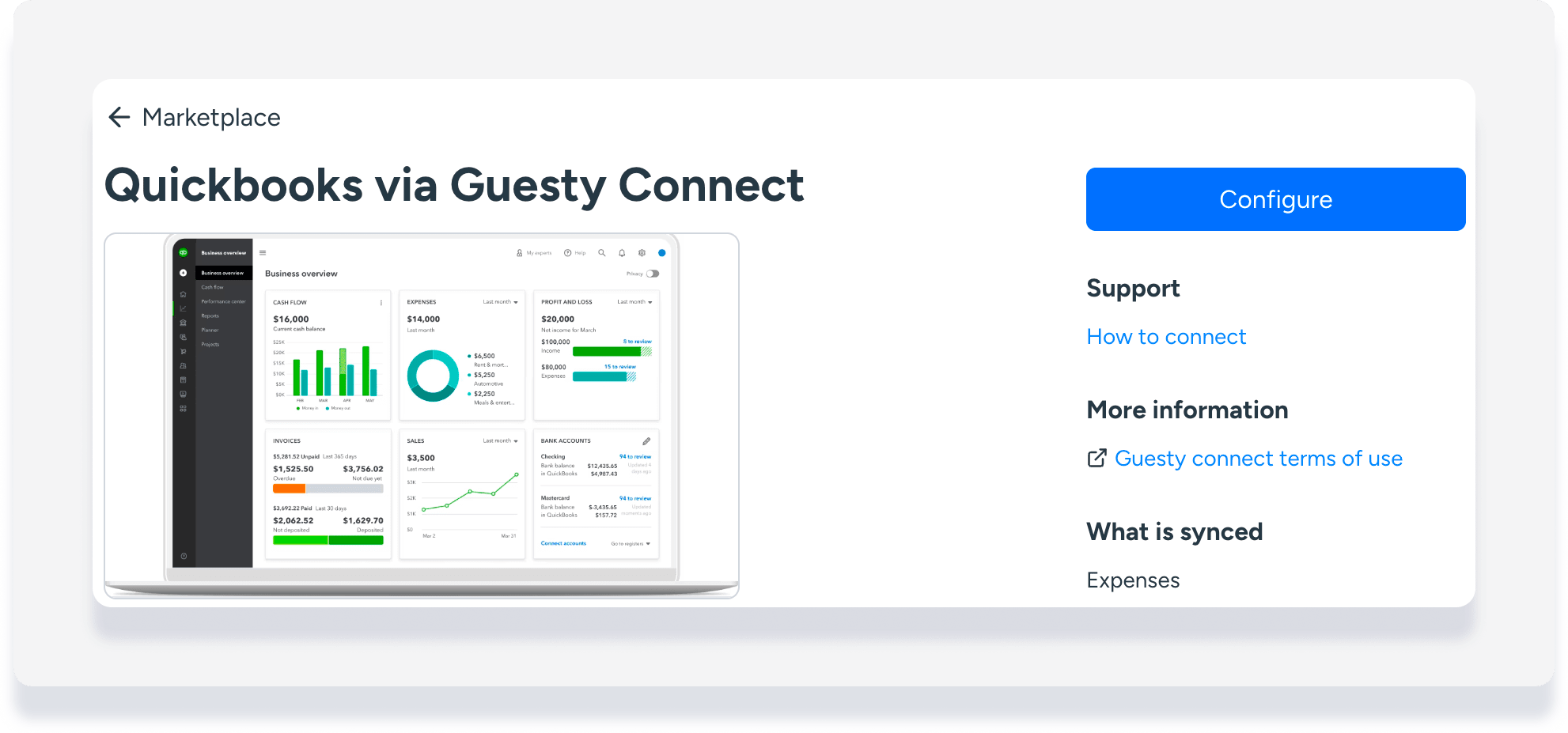
- Click on the QuickBooks thumbnail.
- In the top-right corner, click Configure.
- Click the Configuration tab.
- Toggle on Sync Journal Entries from Quickbooks to Expenses in Guesty.
-
Enter your mapping values in "Guesty Accounting Entity type", "Guesty Accounting Ledger", "Guesty Accounting Charge Code", "QuickBooks Account Name", and "QuickBooks Account Type". Ensure the values are comma-separated and that the positions are aligned across all fields.
- In the top-right corner, click X to close the window.
The workflow runs on a daily schedule. After the first successful run, review a sample journal entry in QuickBooks to confirm accounts, vendors, and amounts look correct.
What syncs and what does not
This workflow is one-way: Guesty (GuestyPay) → QuickBooks. It does not push QuickBooks journal entries back to Guesty.
| Syncs | Does not sync |
|---|---|
| GuestyPay payouts that include a reservation / merchant transaction reference | Payouts with no merchant transaction ID |
| Guesty accounting journal lines that match a configured mapping rule | Lines with no matching mapping rule (the transaction fails until you add or fix a rule) |
| One QuickBooks journal entry per Guesty transaction (grouped debit/credit lines) | Duplicate posts when a matching QuickBooks journal entry already exists for the same date and private note |
| Vendor attachment when posting to Accounts Payable | Creating missing QuickBooks accounts or vendors automatically |
| Go-forward payouts picked up by the daily schedule | Manual edits or voids of prior QuickBooks journal entries when Guesty data changes |
Understand the data workflow
The integration follows a multi-step process to verify and sync each GuestyPay payout to QuickBooks.
- The schedule: Once a day, the workflow looks up recent GuestyPay payouts for the configured date window.
- Load QuickBooks context: The system retrieves your QuickBooks accounts and vendors so names in your mapping can be resolved to real QuickBooks records.
- Build your mapping rules: Your comma-separated configuration fields are turned into one rule per aligned position (entity + ledger + charge code → QuickBooks account).
- Match payouts to Guesty journal entries: For each payout with a merchant transaction ID, the workflow loads the related Guesty journal entries for that reservation confirmation code.
- Apply account mapping: Each Guesty journal line is matched to a rule. Positive amounts post as Debit; negative amounts as Credit. Lines for the same Guesty transaction are grouped into one QuickBooks journal entry. The private note includes the Guesty transaction ID for reconciliation.
- Duplicate check: Before creating a journal entry, the system checks whether one already exists in QuickBooks for the same transaction date and private note. If it does, that entry is skipped.
- Creation in QuickBooks: If no duplicate is found, QuickBooks creates the journal entry using the mappings below.
| Guesty data | QuickBooks journal entry field |
|---|---|
| Journal entry date | Transaction date (TxnDate) |
| Guesty transaction ID | Private note (Guesty Transaction …) |
| Line description + journal date | Line description |
| Mapped QuickBooks account | Line account |
| Line amount (absolute value) | Line amount |
| Sign of amount | Debit (positive) or Credit (negative) |
| Vendor name (when account type is Accounts Payable) | Vendor on the Accounts Payable line |
Charge codes and charge types
Enter the charge code (short code) in the "Guesty Accounting Charge Code" field. The charge type name is what Guesty shows on the journal line for that code. We recommend copying values from a real Guesty journal line when you are unsure.
Most common for GuestyPay:
| Code | Charge type (name) | Typical use |
|---|---|---|
GPC |
GuestyPay Credit Card Payment | Guest cash / bank deposit lines |
PP |
Payment To PMC | Vendor AP or cash lines |
RR |
GuestyPay Rolling Reserve | Rolling reserve lines if you post them |
CCP |
Credit Card Payment | Non–GuestyPay card payments (if present) |
Troubleshooting common misses
| Symptom | Likely cause | What to check |
|---|---|---|
| Nothing appears in QuickBooks after a payout | Workflow is off, or payout has no merchant transaction ID | Confirm the workflow is toggled on; confirm the payout is tied to a reservation confirmation code |
| A transaction fails with “no mapping found” | No rule matches that entity + ledger + charge code | Add an aligned value in every mapping field for that combination; confirm the charge code against the list above |
| Mapping looks correct but account is not found | QuickBooks account name or type mismatch | Copy the exact account name and type from the Chart of Accounts |
| Accounts Payable line fails | Vendor missing or name mismatch in QuickBooks | Create or rename the QuickBooks vendor to match Guesty’s vendor name |
| Same payout seems to create nothing on a later run | Duplicate already exists | Expected—matching private note and date are skipped so amounts are not posted twice |
| Wrong account used for a line | Mapping positions out of alignment | Count commas in each field; empty slots must stay in place so rule positions do not shift |