Manage your Vrbo account connections and listings directly from the Vrbo integration page. Use this page to view account statuses, link listings, and configure booking or payment settings in one central place.
Access the Vrbo integration page
Follow the steps to access the Vrbo integration page in Guesty.
Step by step:
- Sign in to your Guesty account.
- In the side navigation menu, click
 Marketing and sales to open the dropdown menu.
 - Under Channel management, select Distribution.
- Click the Vrbo card.
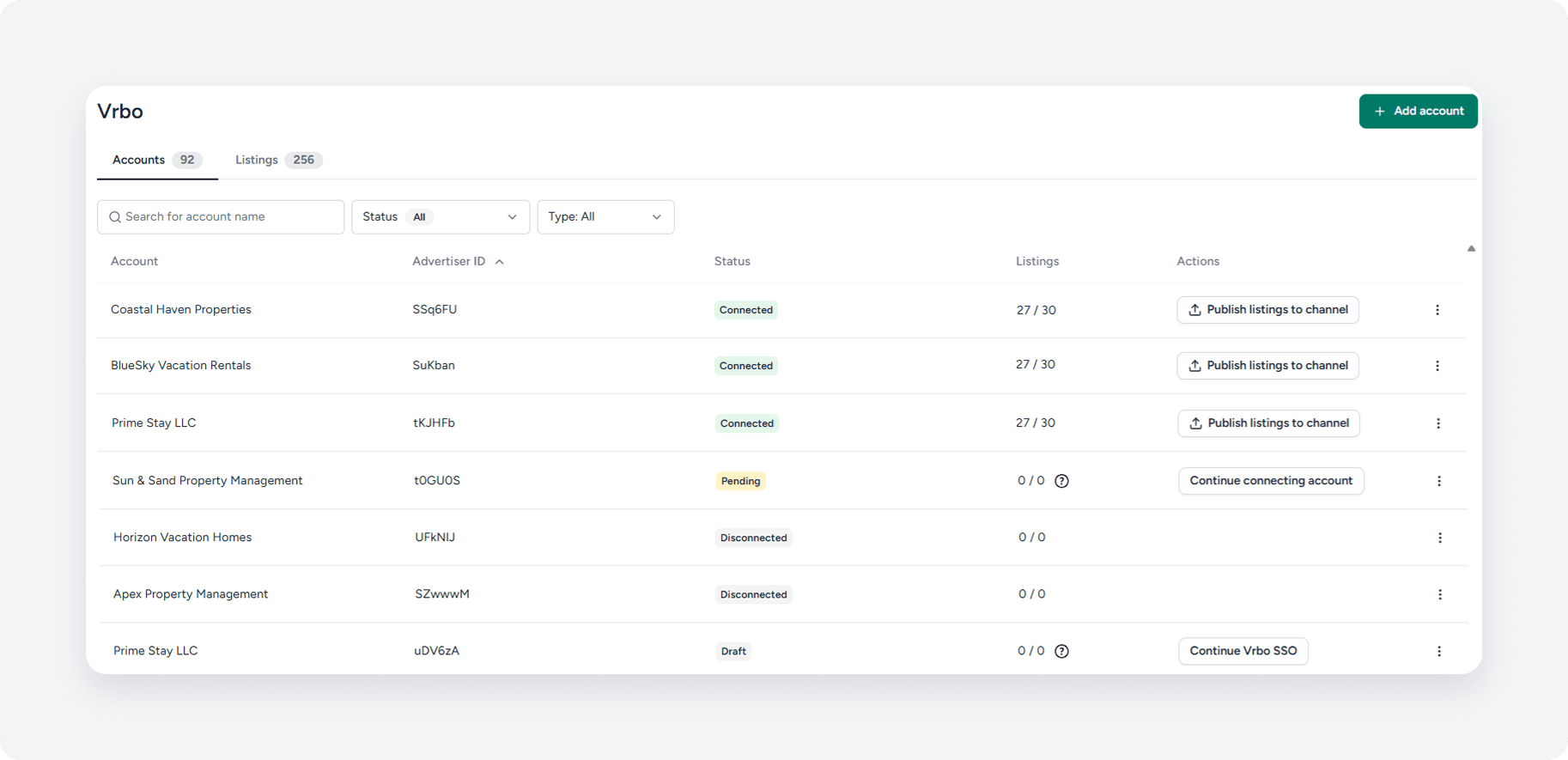
Manage Vrbo accounts
The account list allows you to view and manage all of your integrated Airbnb accounts from a single dashboard. Type the account name in the search box, or filter the accounts by the connection status
- Account name: Identifies the property management company.
- Advertiser ID: Indicates a unique code assigned to each Vrbo account, used for connecting listings, billing, and support.
- Connection status: Displays the current connection state between the account in Guesty and Vrbo ("Connected", "Pending", "Draft" or "Disconnected". The account status determines the actions you can take.
- Listings: Shows the number of listings currently synced to Vrbo out of the total properties in the account.
-
Actions: Displays primary action determined by the account connection status. Click
 to view more actions.
- Publish listings to the channel: Add more listings to an existing Vrbo account, so guests can view and book them.
- Continue Vrbo SSO: Authenticate your identity using Vrbo SSO to link your Guesty account with the account in Vrbo.
- Continue connecting account: Complete the setup process.
- Delete account: Permanently remove the draft account if Guesty didn't receive SSO confirmation from Vrbo, or at least 7 days passed since the initial connection request.
- Account settings: Update the account settings, such as account and integration details, booking settings, and payment configuration.
Create a new account
Connect a new Vrbo account or connect an existing Vrbo account by clicking Add account.
Update the Vrbo account settings
Follow the steps below to update settings for a specific account. The settings apply to all listings in this account.
Step by step:
- Sign in to your Guesty account.
- In the side navigation menu, click Marketing and sales to open the dropdown menu.
- Under Channel management, select Distribution.
- Click the Vrbo card.
- Click next to the relevant account, and select Account settings.
- Account nickname: Internal Guesty name that helps you identify the listing.
- Company name: Property management company name.
- Custom integration email: Email address used in this integration.
- Booking settings: Set the booking policy for all listings. Choose between instant bookings and request to book.
- Rental agreement: Upload the Vrbo rental agreement. Use the Guesty default rental agreement or upload your own file.
- Payments configuration: Set automatic payments or collect the payments manually.
- Click Save.
Manage Vrbo listings
The listings view displays all of the listings connected to Vrbo with their individual connection statuses.
- Guesty property: Guesty property name associated with this Vrbo listing.
- Vrbo listing: Listing's ID to identify the listing in Vrbo.
- Connected account: Guesty account's name associated with this Vrbo listing.
- Connection status: Current listing connection status.
-
Actions: Click to view more actions.
- Listing details: View basic listing details, status and current issues. Fix the issues by clicking Fix missing requirement.
- Listing settings: Access individual listing settings, such as booking settings, cancellation policy and new listing promotion configuration, or restore account settings for this listing.
- Disconnect listing: Disconnect a listing in Guesty.
Restore account settings
Follow the steps below to restore the account settings in the individual listing.
Step by step:
- Sign in to your Guesty account.
- In the side navigation menu, click Marketing and sales to open the dropdown menu.
- Under Channel management, select Distribution.
- Click the Vrbo card.
- Click the relevant account.
- Click next to the relevant listing, and select Listing settings.
- Click Restore account settings.
- Click Save.