This article explains how to give non-admin users access to the Agents Hub. You can grant access by creating a custom role with the specific "Agents Hub access" permission and then assigning that role to any user that needs it. Users can have more than one role, so there is no need to edit individual permissions.
Note:
Only account admins or users with permission to manage roles can perform these actions.
Create a custom role for Agents Hub access
Create a new role specifically for Agents Hub access only. Learn more about Creating custom roles.
- Sign in to your Guesty account.
- In the side navigation menu, click
 Account to open the dropdown menu.
 - Select User management.
- In the top-right corner, Click Manage roles and select Create new role from the dropdown menu.
- Select any existing role as your starting point. (We suggest selecting a role with limited permissions so there is less manual editing needed.)
- In the bottom-right corner, click Next.
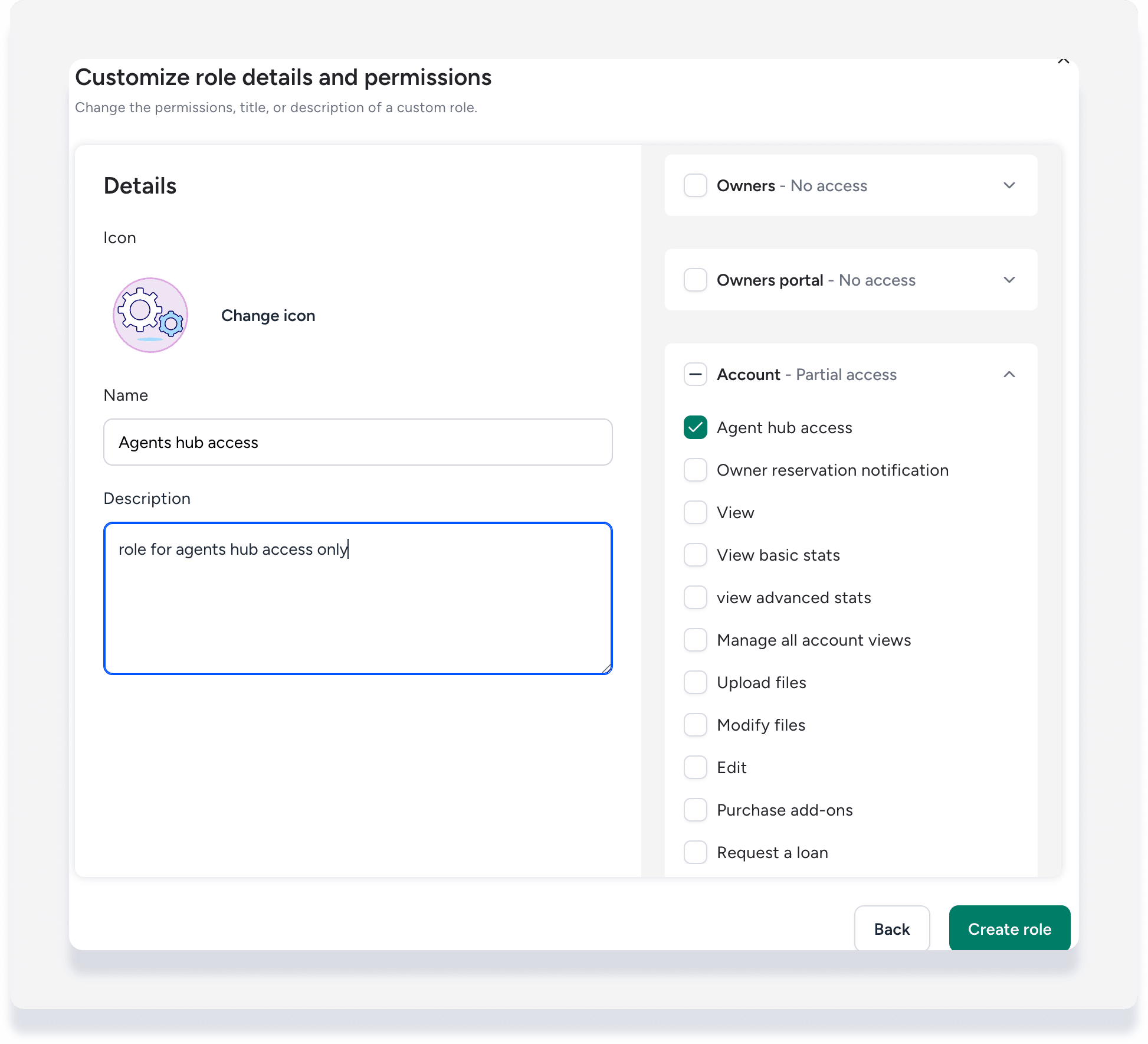
- Add an icon, a unique name such as "Agents Hub access", and a description. These fields are mandatory.
- Under "Permission summary", click to de-select all of the permission sections.
- Click Account to open the dropdown menu.
- Select Agents hub access.
- In the bottom-right corner, click Create role.
Assign the custom role to a user
Once the custom role is created, assign it to any user who needs access to the Agents Hub. Learn more about Managing users.
- From the "User management" page, click the relevant user's name to open their settings.
- In the lefthand menu, click Roles & Permissions.
- To the right of "Assigned roles", click Edit.
- Under "Available roles", select the new role created, e.g. "Agents Hub access".
- In the bottom-right corner, click Select.
- In the top-right corner, click Save changes.
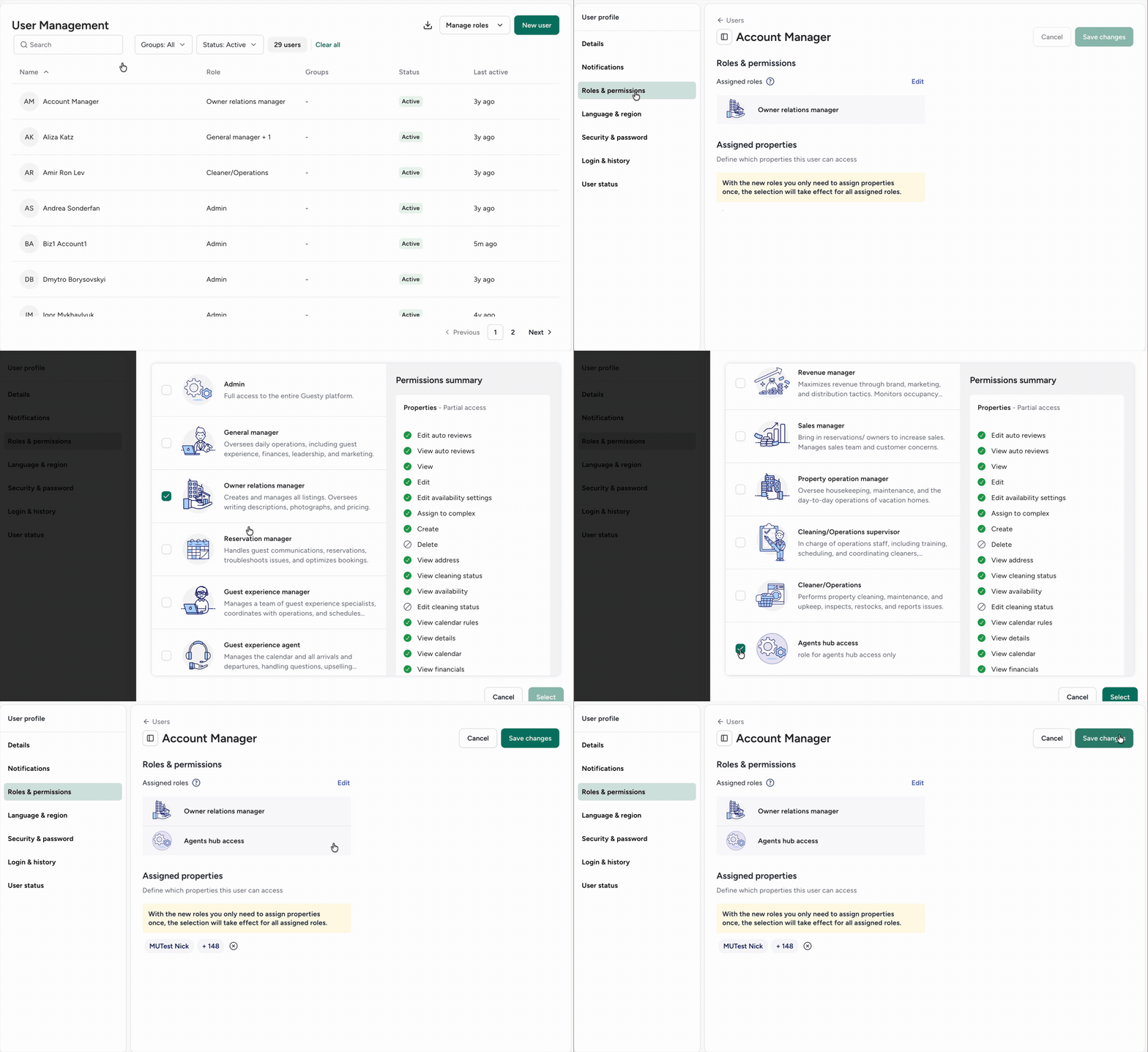
The user will now have access to the Agents Hub along with their existing permissions.
x