Link multiple existing Booking.com listings to your Guesty properties in a single, streamlined process, reducing setup time and simplifying onboarding when your listings already exist on Booking.com.
Before you begin
To avoid publishing errors, ensure each listing meets Booking.com’s minimum requirements.
- Connect your Booking.com account to Guesty.
- Set up at least one rate plan in Guesty. This enables simpler restriction management and more flexibility for revenue strategies on Booking.com.
- Verify all preparation steps to take before linking Booking.com listings to Guesty.
Link multiple listings
Follow the steps below to link multiple Booking.com listings to Guesty.
Step by step:
- Sign in to your Guesty account.
- In the side navigation menu, click
 Marketing and sales to open the dropdown menu.
 - Under Channel management, select Distribution.
- Click the Booking.com thumbnail.
- Choose the relevant account and click Link listing.
- Click Next.
- Enter the Booking.com hotel ID you want to link and click Fetch.
-
For each Booking.com listing, select a corresponding Guesty property from the dropdown.
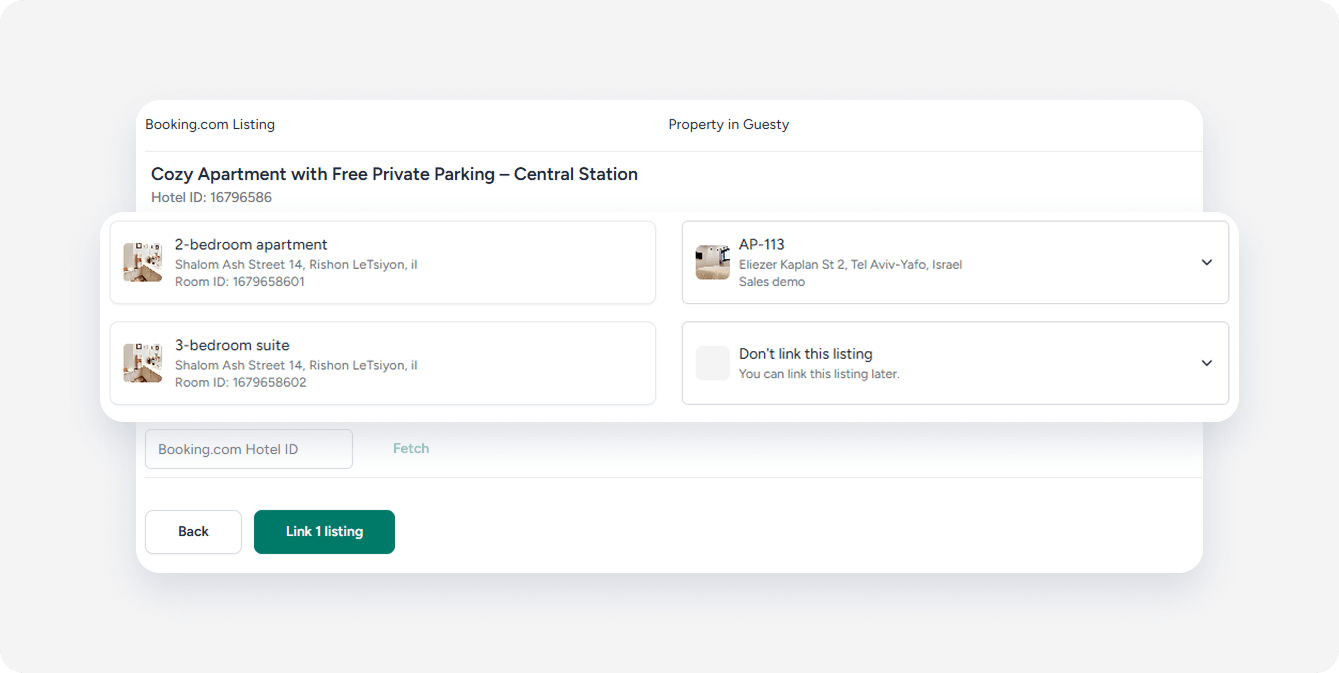
Note:
If you don’t want to connect a listing now, or if no matching Guesty listing is available, select Don’t link this listing from the dropdown. You can link it later.
- To link more listings, enter another Booking.com hotel ID, and click Fetch. Assign Guesty property to each listing.
- Click Link listings.
-
Set up the cancellation policy settings for the selected listings.
- If any selected listing doesn’t have a rate plan: Configure a cancellation policy. You can configure rate plans later.
- If all selected listings have a rate plan: No action is required.
Tip:
Cancellation policies in Guesty automatically create rate plans in Booking.com. You can adjust the property’s cancellation policy later.
- Click Next.
- Review Booking.com listing requirements.
- Eligible: Listings are ready to link
- Not eligible: Listings have missing or invalid information. Check the “Missing requirements” column and update the details in Guesty or Booking.com as needed. Then, click Refresh list.
- Click Link to Booking.com.
Linking takes from a few minutes to 2-3 hours. During this time, the listing status displays “Pending”. Once approved by Booking.com, the listing updates to “Connected” and is ready to receive bookings.
If any listing updates to a “Failed” status, see our Booking.com Troubleshooting Guide.