Add internal notes for your team and client-facing notes for property owners directly to an owner statement. This helps streamline collaboration for your accounting team and provides owners with clear, transparent context for their statements.
Understanding owner statement notes
There are two types of notes you can add to an owner statement, each serving a different purpose.
- Internal notes: This is a dedicated space for you and your team to log, edit, and review the internal history of a statement. Each note includes the author and date, creating a clear audit trail for documenting why a statement was flagged, adjusted, or requires review. These notes are only visible to your team within Guesty, and you can add as many as needed.
- Client-facing notes: This is a dedicated field that is printed directly at the top of the owner statement. Use this to communicate custom messages or provide important context directly to the property owner. Only one client-facing note can be added at a time.
Example of a client-facing note on an owner statement: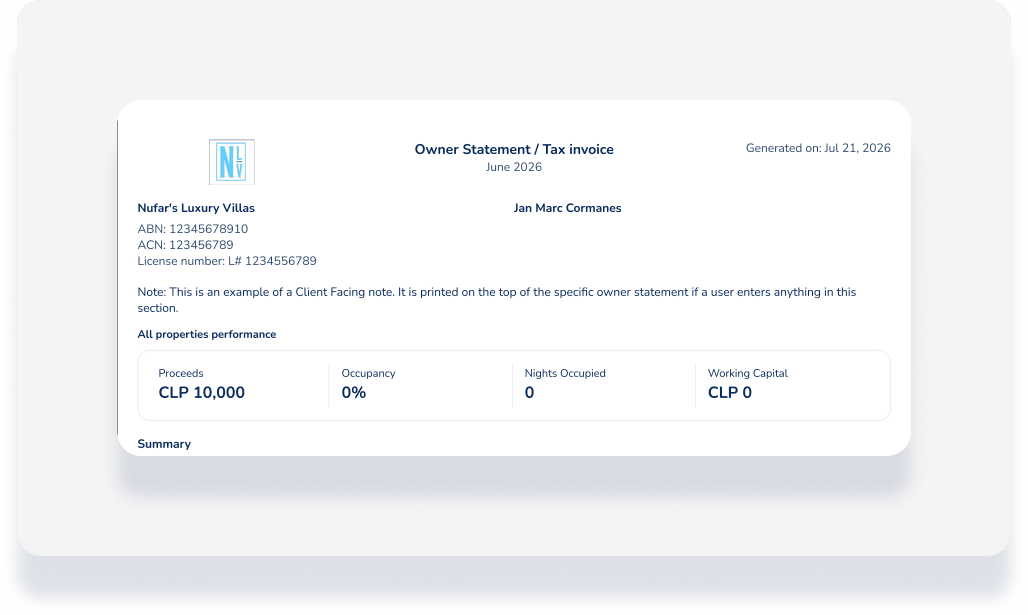
Add notes to an owner statement
Follow these steps to add either internal or client-facing notes to a specific owner statement. You can find more information about the owner statements page in our article on Getting started with owner statements.
- Sign in to your Guesty account.
- In the side navigation menu, click
 Accounting to open the dropdown menu.
 - Under Owner accounting, select Owner statements.
- To the right of the relevant owner statement, click
 then select Notes from the dropdown menu.
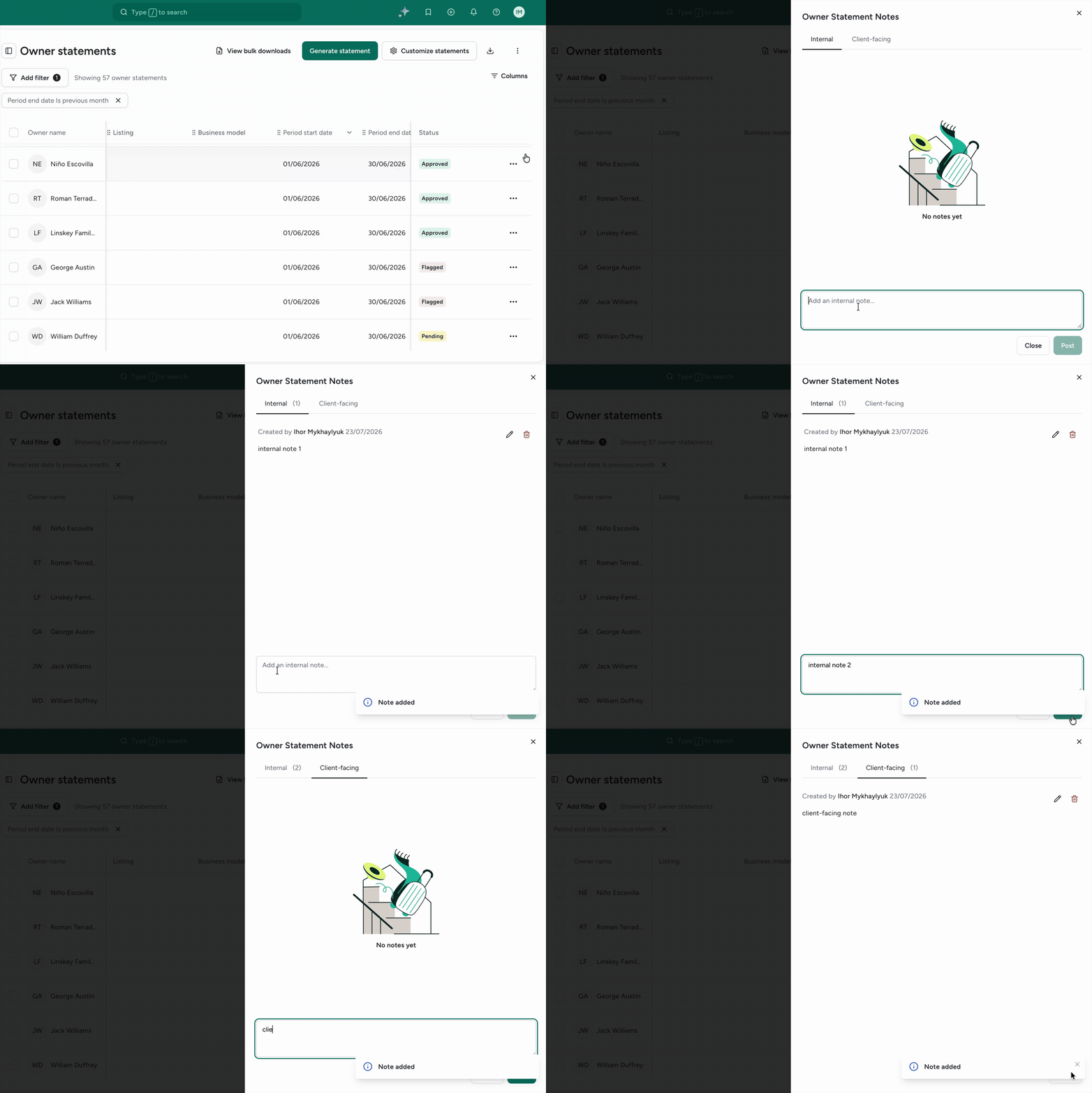
 - In the side panel, click between the "Internal" or "Client facing" tabs. Under the relevant tab enter your notes in the text box.
- Repeat as needed for additional internal notes.
- In the the bottom-right corner, click Post.
Edit or delete an owner statement note
Follow these steps to edit or delete owner statement notes.
- Sign in to your Guesty account.
- In the side navigation menu, click Accounting to open the dropdown menu.
- Under Owner accounting, select Owner statements.
- To the right of the relevant owner statement, click then select Notes from the dropdown menu.
- To the right of the relevant note, click
 to edit, or
  to delete.
 - In the the bottom-right corner, click Close.
