Set up automated, recurring billing schedules for long-stay reservations of 28 nights or longer. Use payment installments to automatically collect weekly, bi-weekly, or monthly rent payments directly through your existing payment automations. This reduces manual scheduling work and helps your team avoid missed or delayed charges.
This article guides you through the process of creating, configuring, and managing a payment installments automation.
Understanding installment rules
Before creating an installments automation, review these core system behaviors:
Payment installments apply exclusively to reservations with a length of stay of 28 nights or longer.
The reservation total balance due forms the baseline collectible amount.
Total scheduled rent charges never exceed the reservation total balance due.
Recurring charges run automatically at 9:00 AM based on the property time zone.
Partial billing periods prorate automatically, regardless of whether you choose equal or custom amounts.
Refundable deposits act as a separate, actual charge and do not replace your existing security deposit configuration.
Create a payment installments automation
Build a new automation template to map out your recurring rent collection schedule.
Follow the steps below to create a payment installments automation.
- Sign in to your Guesty account.
- In the side navigation menu, click
 Guest payments to open the dropdown menu.
 - Under General, select Payment automation.
- In the top-right corner, click Add payment automation then select one of the following options:
Click Add on an Installments template.
Click Create custom automation and select Installments.
Enter a name for the automation.
- Set the conditions:
-
Channels: Select All to apply to every booking channel, or pick specific ones such as OTA, direct, or your Booking Engine.
Tip:
If you select All, Guesty will automatically include new channels you add in the future. If you select specific, new channels will not be added automatically—you will need to update the automation if you want to include them.
- Properties: Select All or choose specific properties. Exclude properties if needed.
- Length of stay: Set to 28 nights and over by default. The system blocks activation if this value is lowered under 28 nights.
- Advance notice: (Optional) Set how far in advance a reservation must be confirmed before check-in to qualify for this payment schedule. Applies only to manual sources.
-
At the bottom-right corner, click Continue.
-
Configure your payment cycle (Learn more in Understanding payment installment calculations):
Select recurring timing: monthly, weekly, or every 2 weeks.
Choose how to calculate recurring amounts: In equal installments or a custom recurring amount.
Choose the charge timing: For example, charge monthly on the same day as check-in, or a specific day.
At the bottom-right corner, click Continue.
-
Charge optional move-in costs:
Toggle on Upfront payment to charge a part of the reservation total before check-in. Learn more in Understanding payment installment calculations.
Toggle on Refundable security deposit to charge an amount on top of the reservation total to cover potential damage. Learn more in Collecting and refunding deposits for long-term stays.
At the bottom-right corner, click Activate.
Review the schedule preview to confirm upcoming charge dates, payment amounts, prorated periods, upfront rent credits, and deposit details.
Click Activate.
Review your automation list
Track, edit, and audit your long-stay schedules alongside your short-term payment rules.
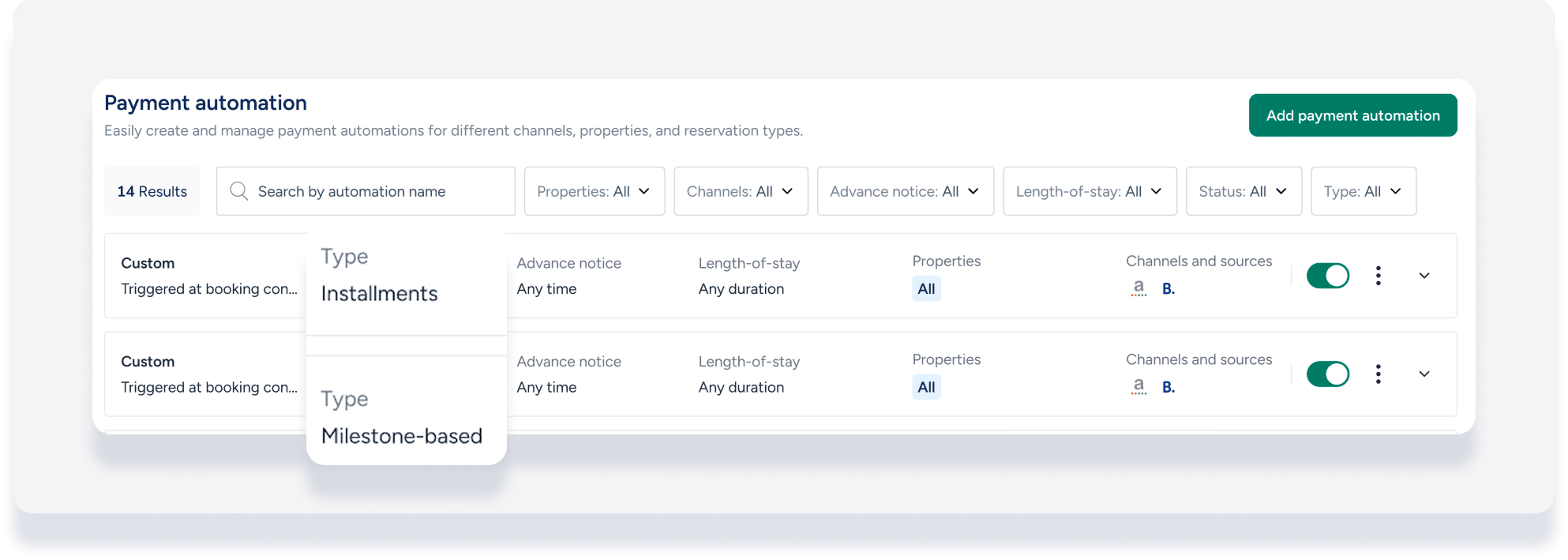
The payment automation dashboard displays the automation type as "Installment" so you can quickly distinguish long-stay plans from standard "milestone-based" rules. Use this central area to view details, edit fields, toggle activation status, or open the activity log.