Custom workflows help you tailor the guest experience to fit your unique business operations. Connecting different features allows you to gather specific guest information automatically and track it easily.
This article guides you through combining custom fields, the Guest App check-in form, and custom reservation reports to build a seamless workflow. Use this strategy to manage specialized premium services, track activity sign-ups like guided hikes, or capture specific guest preferences.
Building the workflow components
Connecting these features requires setting up the components in a specific order so the data flows smoothly from the guest directly into your reports.
Define the information you need
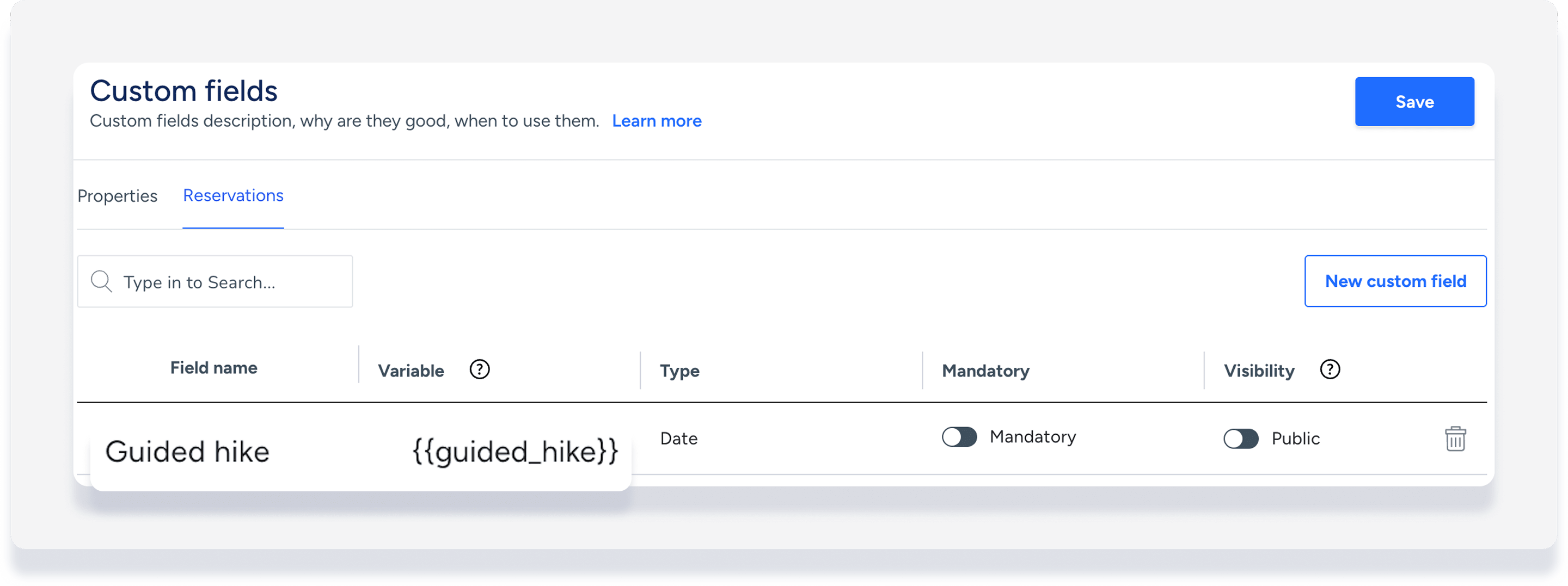
Create reservation custom fields to act as data slots for the specific information you want to collect. For a premium service workflow, you might create a custom field named "White glove service" with a "Yes/No" type. For an activity, you might create a text field named "Guided hike" with a date field to sign up.
Collect the data from guests
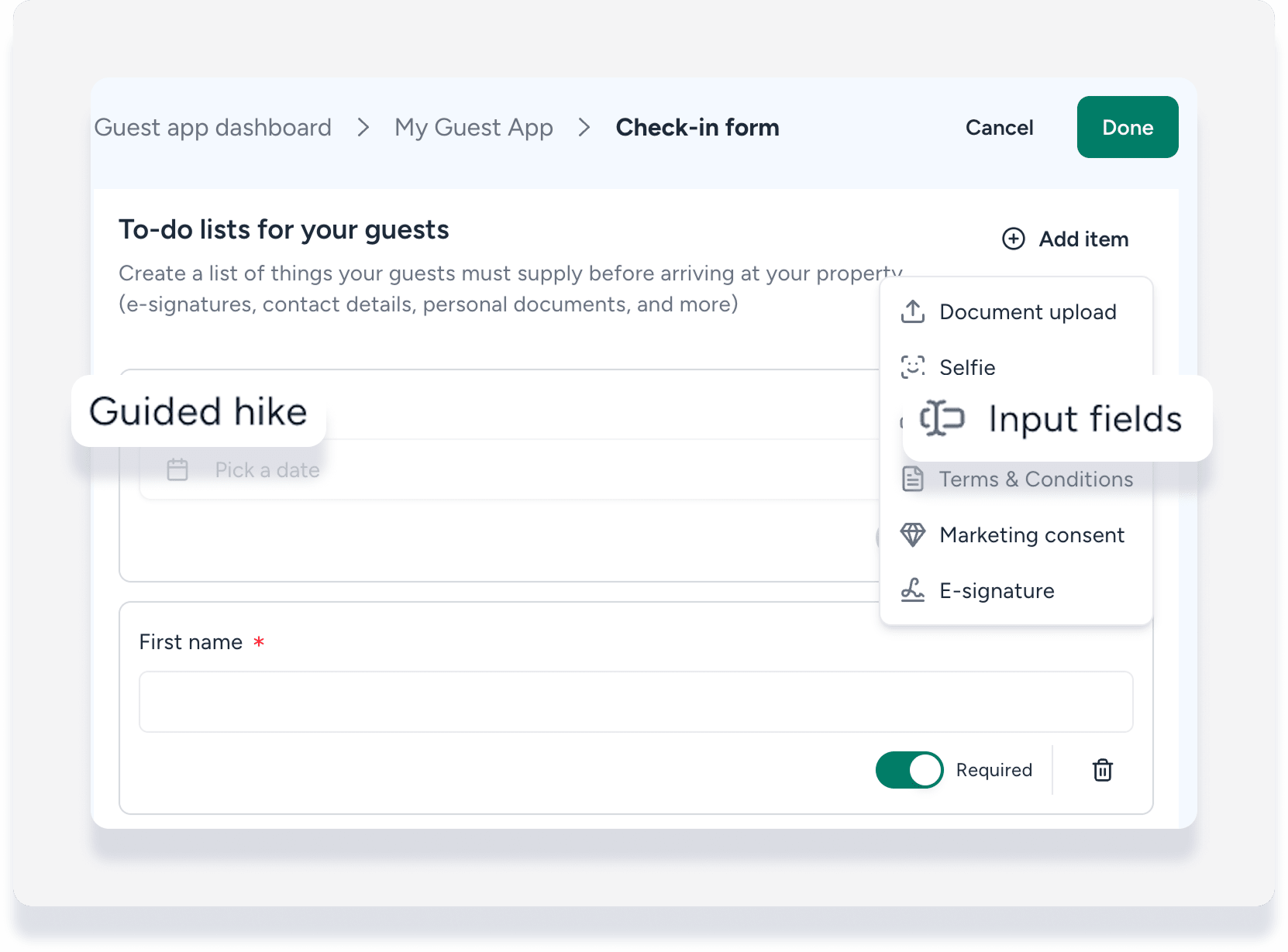
Add your new custom field to the Guest App check-in form. When creating or editing the form, add a new input field and select your custom field. The guest fills out this information before arrival, and Guesty automatically saves their answers directly to the reservation.
Track and manage the responses
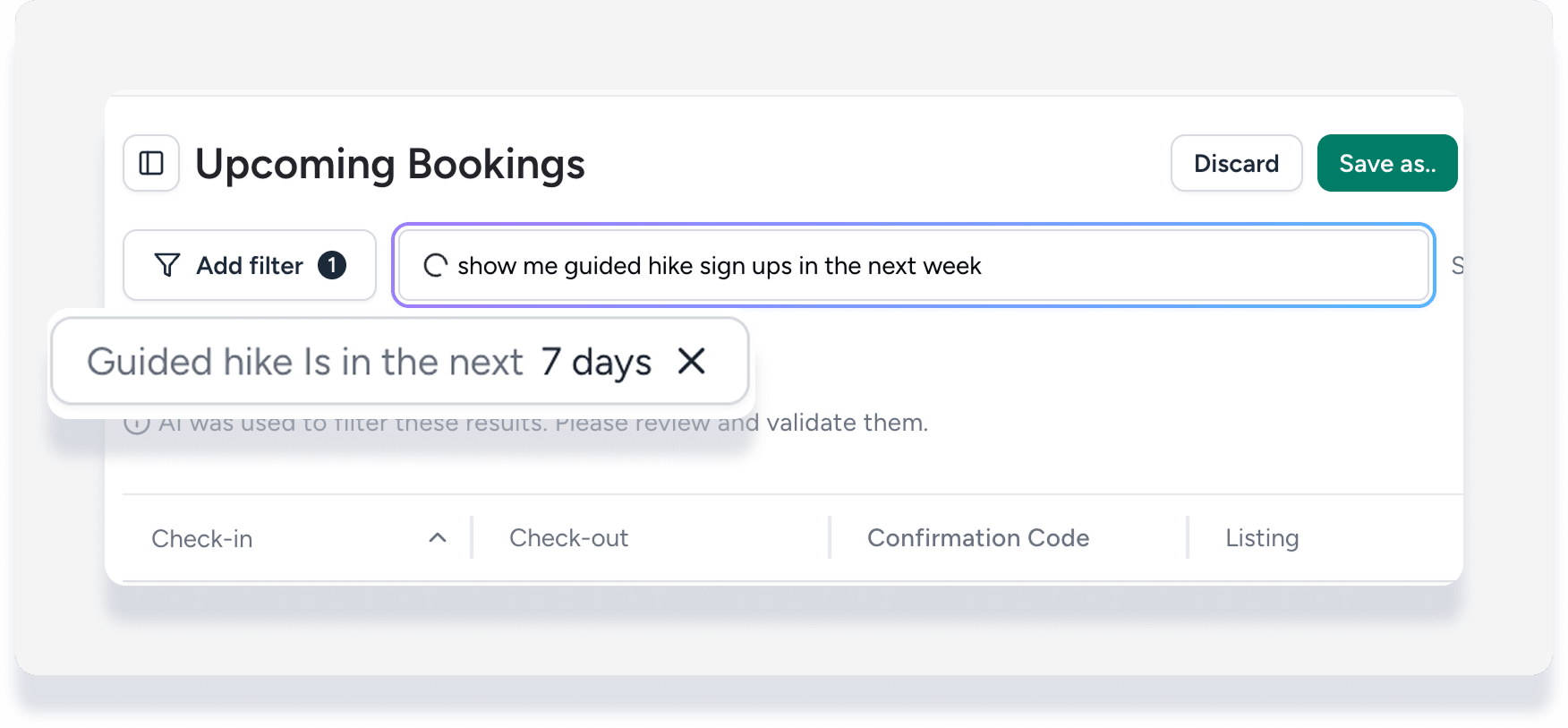
Use the prompt in your reservation report to compile the data. Type a request in everyday words to view the specific custom field data across all bookings. For example, you can type "Show me guided hike sign-ups in the next week" to see your upcoming schedule instantly.
Tip:
Save your custom reservation report after applying the filters, so your team can access this workflow overview with a single click in the future.
