This article explains how to use the QuickBooks integration to automatically sync new purchases from QuickBooks to Guesty as manual expenses for users that are on the new expense infrastructure. You will learn about the data matching requirements, how to configure the settings, and how the sync process works.
Prerequisites and matching data
For a purchase to sync successfully from QuickBooks to Guesty, you must ensure the information matches between the two platforms:
- Vendors: The "Vendor name" in QuickBooks must exactly match the "Company name" of a vendor in Guesty. If a matching vendor doesn't exist in Guesty, the system skips the sync for that expense. Learn more about managing vendors in Guesty.
- Categories: The item or account category name for the purchase line in QuickBooks must match a Category ID in Guesty. The system automatically performs a smart search that removes extra spacing and matches names regardless of capitalization.
- Property listings: The "Class name" in QuickBooks must exactly match the "Listing nickname" in Guesty to assign expenses to properties.
Assign charge categories
Connecting to QuickBooks in Guesty Connect requires configuring two settings that determine how Guesty assigns financial responsibility for an expense.
PMC charge categories
- Data to enter: A comma-separated list of category names, such as "Cleaning Supplies, Office Rent, Repairs". You can copy existing category names from Guesty or create new ones matching your QuickBooks categories in Accounting setup in your Guesty account.
- System outcome: If a purchase from QuickBooks has a category that is on this list, Guesty records it as a PMC expense.
- Financial breakdown: The PMC pays the vendor. Guesty records it as a 100% payment share to the PMC and a 100% revenue share to the vendor.
Owner charge categories
- Data to enter: A comma-separated list of category names, such as "Plumbing Emergency, New Linens, Pest Control". You can copy existing category names from Guesty or create new ones matching your QuickBooks categories in Accounting setup in your Guesty account.
- System outcome: If a purchase from QuickBooks has a category that is on this list, Guesty records it as an Owner charge.
- Financial breakdown: The property owner reimburses the PMC. The system records it as a 100% payment share to the owner and a 100% revenue share to the PMC.
Activate the expense sync
Follow the steps below to activate the automated QuickBooks purchase sync.
Step by step:
- Sign in to your Guesty account.
- In the side navigation menu, click
 Integrations to open the dropdown menu.
 - Select Marketplace.
- Locate the QuickBooks integration and click Configure.
- Switch to the Configuration tab.
-
Toggle on the workflow titled "[New Expenses API] New purchase in QuickBooks to create an Expense in Guesty".
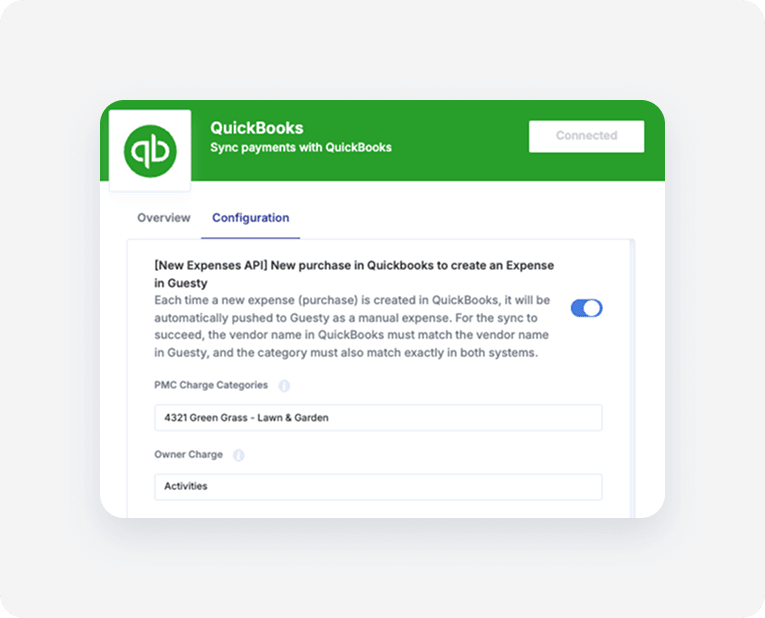
Enter the relevant categories in the PMC Charge Categories and Owner charge fields.
Expenses synced from QuickBooks appear in the posting journal for each listing according to the entered categories.
Understand data workflow
The integration follows a multi-step process to verify and sync each purchase from QuickBooks to Guesty.
The trigger: The process begins immediately when a new purchase appears in your QuickBooks account.
Vendor verification: The system checks that the purchase is linked to a valid "Vendor". The process stops for that expense to prevent incomplete data if the system can't find a matching vendor in Guesty.
Fetching categories and listings: The integration retrieves all available expense "Categories" from Guesty and all active "Property listings".
Purchase and property matching: The workflow processes each individual item in a QuickBooks purchase to match the QuickBooks account or the item name with a Guesty category and a corresponding Guesty "Listing ID".
Cost share assessment: The system checks the matched category against your configured "PMC Charge" and "Owner Charge" categories to determine the correct financial entity responsible for the expense.
-
Creation in Guesty: The system targets the Guesty's Expense API (
/expenses-api/expenses) to generate an expense document using the following field mappings:QuickBooks Data Field Guesty Expense Field Transaction Date ( TxnDate)Expense Date Matched Category ID Category ID Line Amount ( Amount)Chargeable Amount Currency Currency Matched Vendor ID Vendor ID Document Number ( DocNumber)External Reference ID Line Description Description Matched Class Name Listing IDs