This article explains how to set seaonal pricing for a specific date range for your additional fees, with the option to recur on a yearly basis. For example, charge a higher rate for activities during the summer months.
Fee conditions work for direct bookings made through the Guesty Booking Engine, Booking Engine API, or added manually. Conditions are in pilot for Airbnb, Vrbo, and Booking.com.
Note:
You can add date ranges and change the fee amount when editing seasonal conditions. However, you can't change the fee type from a flat dollar amount ($) to a percentage (%) or vice versa.
Set date range conditions for all supported channels
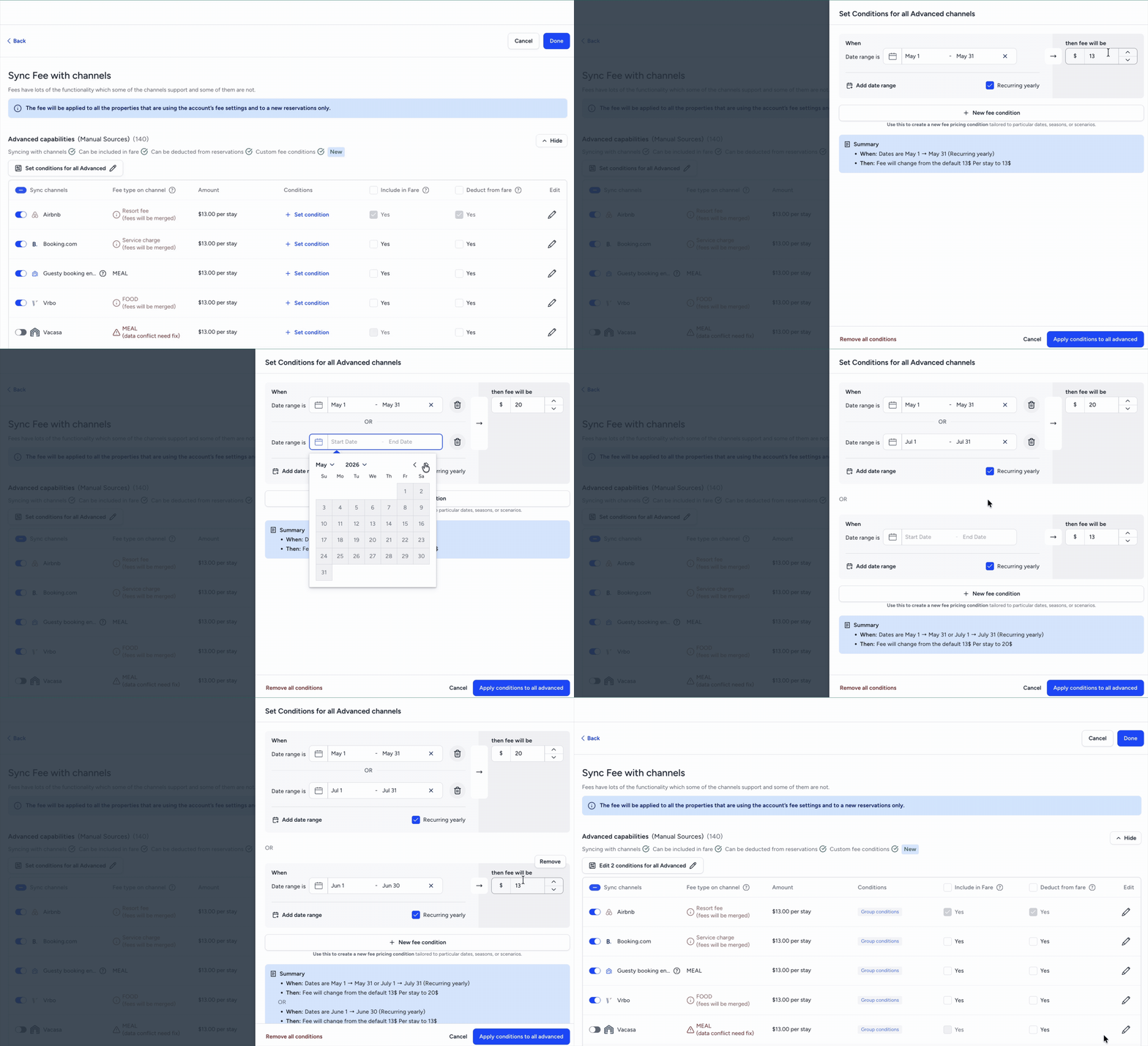
Follow the steps below to set conditions for all supported channels with advanced capabilities. Once set, edit on a channel basis to set custom conditions or exclude from the group conditions.
Step by step:
- Create a new fee or edit an existing one. For a full guide on creating fees on the account or listing level, see Additional fees: Creating and syncing with channels.
- At the top-right corner, click Next to access the "Sync fee with channels" settings.
- Click Set conditions for all advanced
 .
.
- Enter a date range.
- Enter the fee amount to apply for this date range.
- To add more dates for the same fee amount, click Add a date range.
- To set a new amount and date range, click New fee condition.
- (Optional) Check the Recurring yearly for each condition.
- Review the summary information for accuracy.
- At the bottom, click Apply conditions to all advanced.
Step by step:
- To the far right of the relevant channel, click .
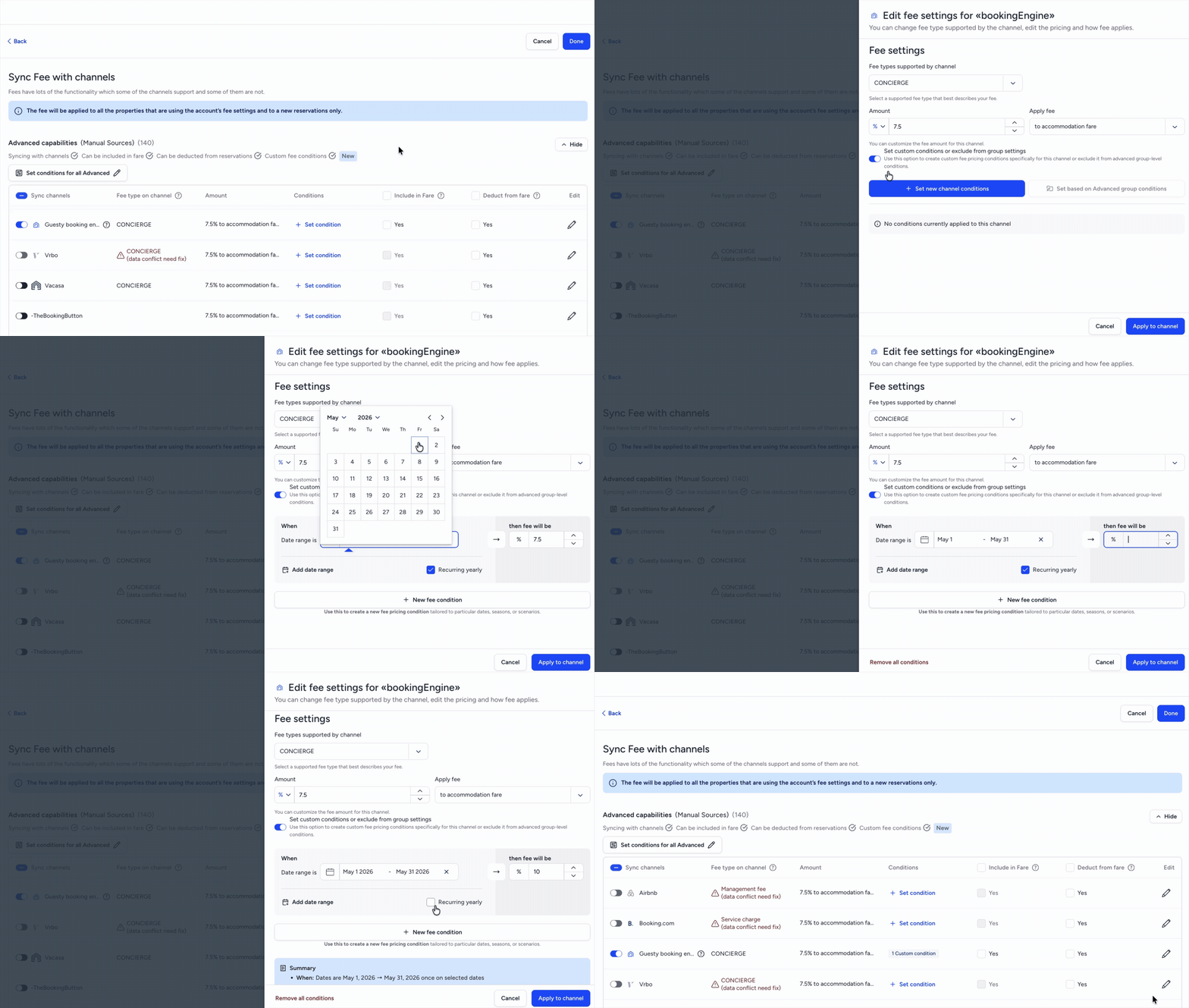
- Toggle on Set custom conditions or exclude from group settings.
- Click Set new channel conditions.
- Enter the custom date rates and amounts.
- At the bottom, click Apply to channel.
Step by step:
- To the far right of the relevant channel, click .
- Toggle on Set custom conditions or exclude from group settings.
- At the bottom, click Apply to channel.
Set date range conditions for one channel
Follow the steps below to set conditions for a single channel.
Step by step:
- Create a new fee or edit an existing one. For a full guide on creating fees on the account or listing level, see Additional fees: Creating and syncing with channels.
- At the top-right corner, click Next to access the "Sync fee with channels" settings.
- On the relevant channel line, click Set condition.
- Toggle on Set custom conditions or exclude from group settings.
- Click Set new channel conditions.
- Enter a date range.
- Enter the fee amount to apply for this date range.
- To add more dates for the same fee amount, click Add a date range.
- To set a new amount and date range, click New fee condition.
- (Optional) Check the Recurring yearly box for each condition.
- Review the summary information for accuracy.
- At the bottom, click Apply to channel.
In beta: Using conditions for Airbnb, Vrbo, and Booking.com
These channels appear under "advanced capabilities". You can apply group conditions or set up conditions on a channel-by-channel basis using the steps above.
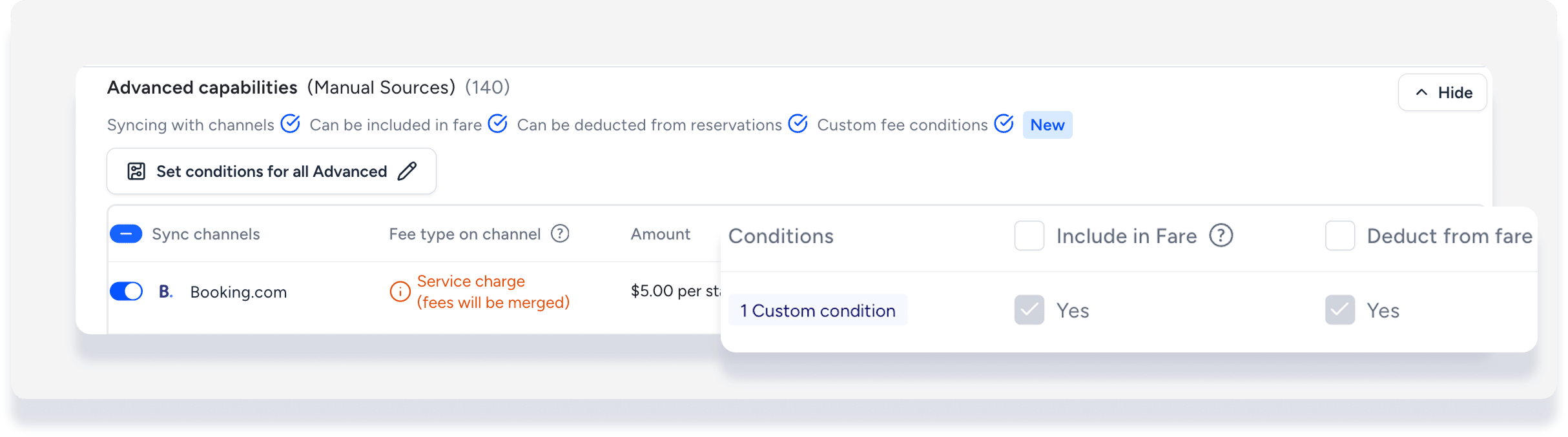
Applying date range conditions to Airbnb or Booking.com listings will automatically bundle the fee into the total accommodation fare. The fee will be hidden from the guest on the booking channel, and reverse mapping will not apply to these fees.
Including the fee in the accommodation fare is a requirement by Airbnb for all fees. Learn more about Syncing basic and additional fees with Airbnb.
Important:
This setting can't be changed. If you don't want to bundle the fee into the accommodation fare for Booking.com reservations, remove the conditions for Booking.com.
