The Reservation page centralizes all information for guest stays. Customizing this page helps accounting users view guest folios, accounting folios, and payments on a single overview screen without navigating separate tabs.
Customized views save automatically for each individual user, allowing team members to tailor their workspace without affecting other accounts.
Access a reservation
Access a reservation's page through the reservations report, Multi-Calendar, and Inbox.
Follow these steps to access a reservation from the main reservations report:
Step by step:
- Sign in to your Guesty account.
- In the side navigation menu, click
 Reservations.
 - Click the relevant reservation.
Follow these steps to access a reservation from the Multi-Calendar or Inbox:
Step by step:
- Sign in to your Guesty account.
- In the side navigation menu:
- Click
 Multi-calendar.
 - Click
 Inbox.
- Click
- Select the relevant calendar block or conversation thread.
- In the side panel, click
in the Multi-Calendar, or click
 in the Inbox.
 -
Next to the reservation number, click
 to open the reservation's page.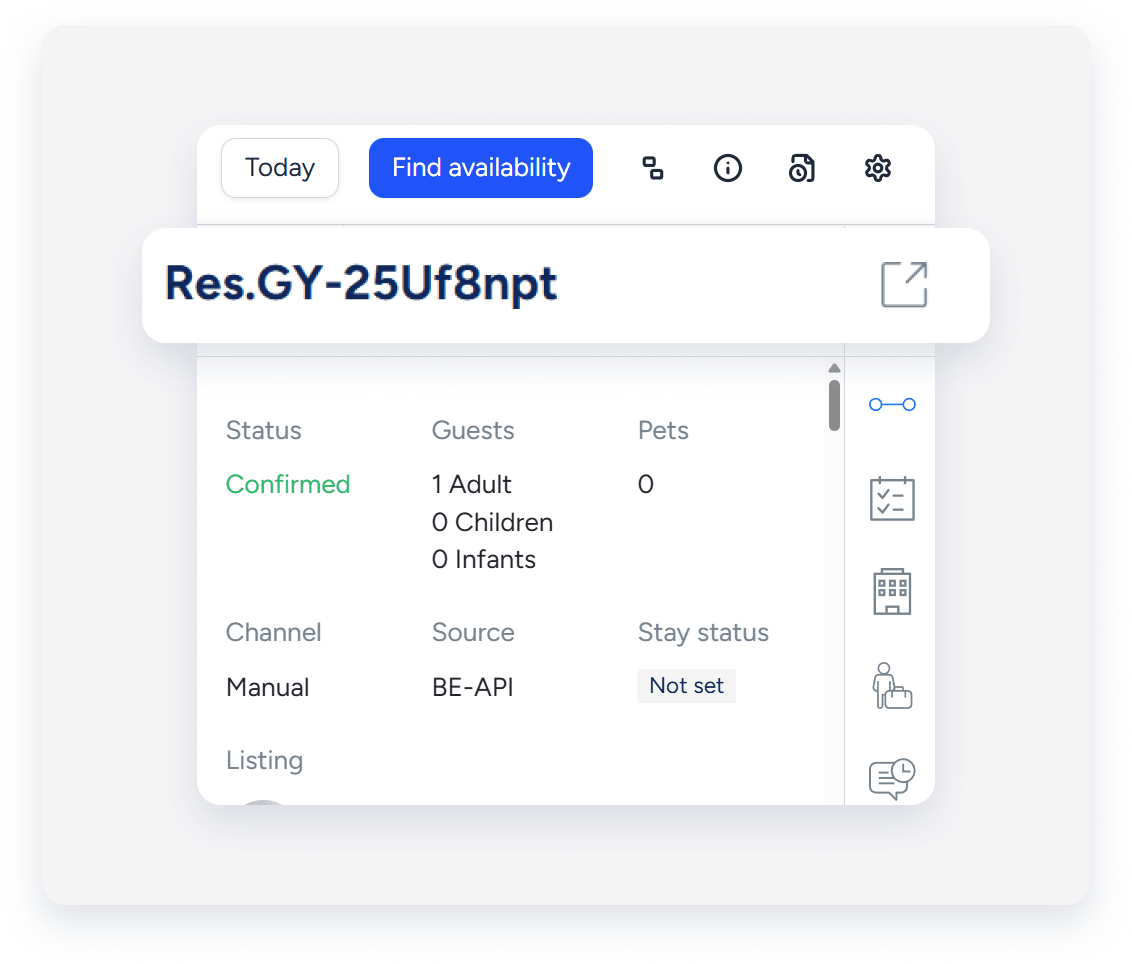
Customize the Reservation page for accounting
Tailor the layout to display financial sections on the main overview screen. This layout allows accounting users to scroll through financial details quickly.
Follow the steps below for a suggested customized the view for accounting.
Step by step:
- At the top-right corner, click Customize.
- In the sid panel, click Add sections.
- Click
 to the right of Guest folio and invoice, Accounting, and Payments.
 - Click Next.
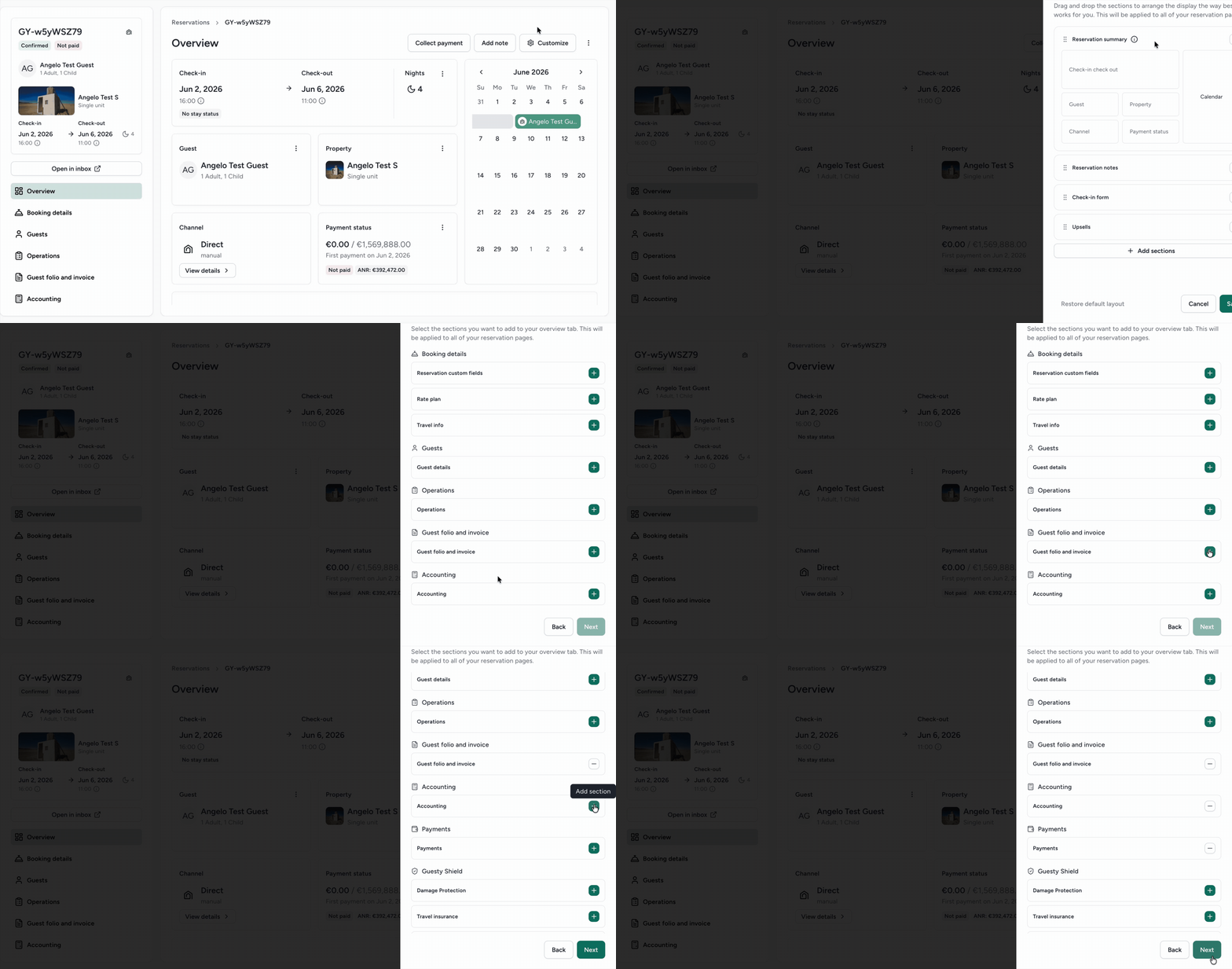
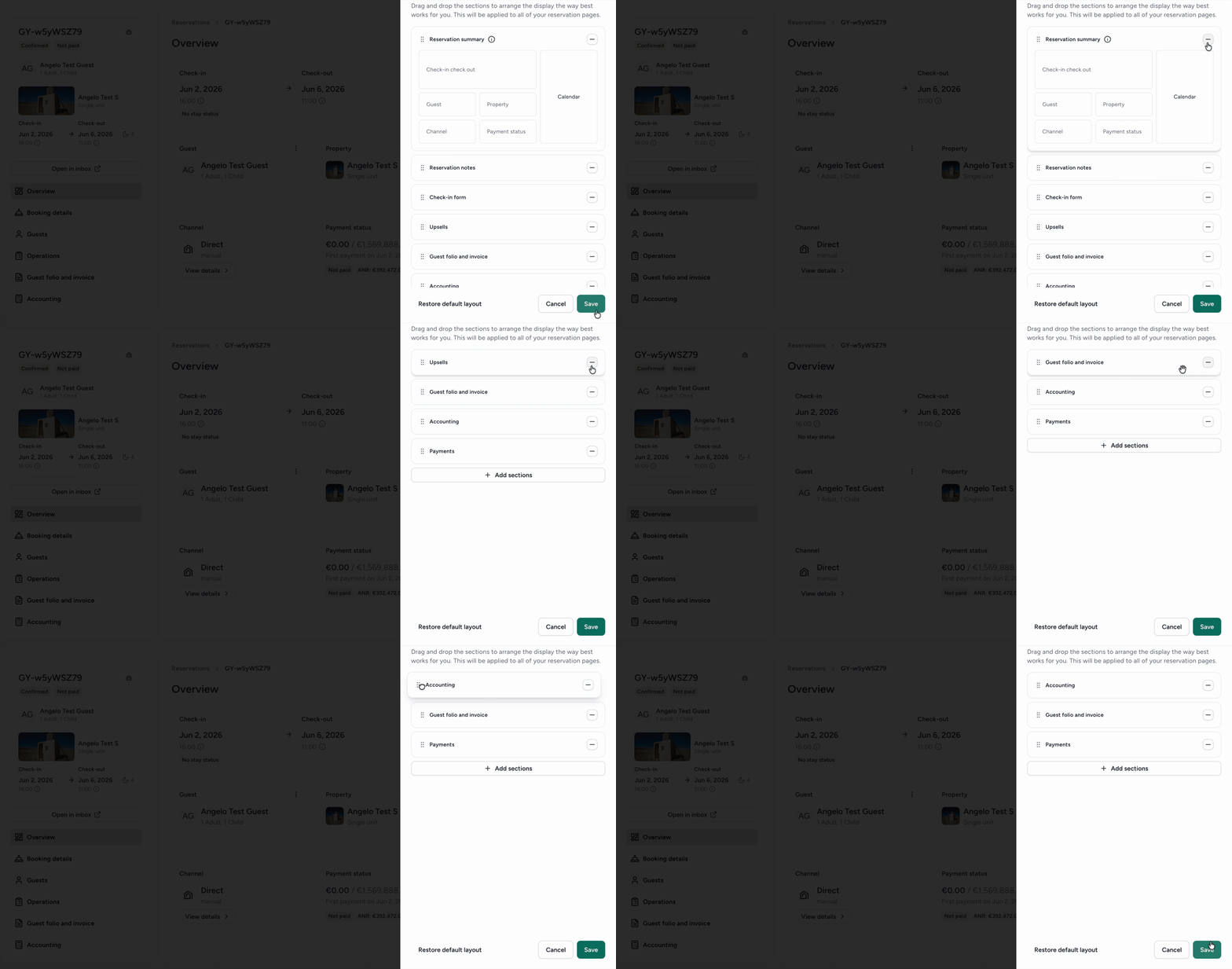
- Click the minus icon to the right of each section you want to remove.
- Drag-and-drop to reorder the sections as needed.
- Click Save.
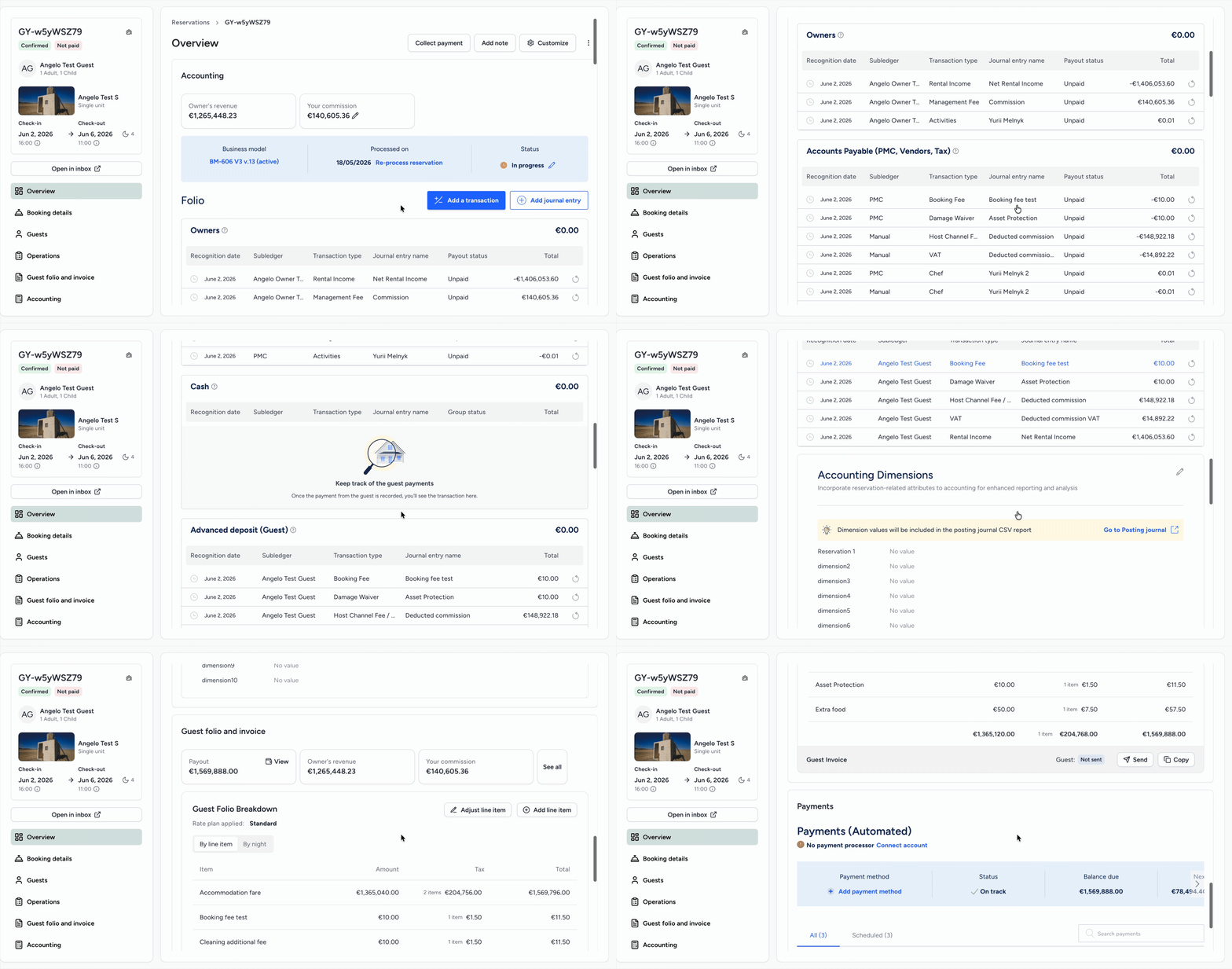
Every opened reservation displays this customization until you change the layout again. Scroll down on the overview page to view the different folios.
Restore original view
Revert to the original Reservation page layout at any time following the steps below.
Step by step:
- At the top-right corner, click Customize.
- At the bottom, click Restore default layout.
- Click Save.