Give property owners flexibility by adding trusted individuals as additional contacts to their Owners Portal. Additional contacts can access and manage portal information on behalf of the owner. You can now add an additional contact to multiple owner entities. With our new Centralized Login and Owner Switcher experience, additional contacts have unified and secure access across all linked portals.
Before you begin
Note:
Each additional contact uses a single email address for all Owners Portal accounts they need to access. Now, you no longer need to create a separate email for each portal. The same contact can be invited to multiple owner entities using one email address.
- Additional contacts have the same permissions as the property owner and can view, update, or manage portal information, reservations, and financial details.
- There are no predefined role restrictions for additional contacts. All features visible to the owner are available to additional contacts.
- Use descriptive role names (like "Accountant," "Assistant," or "Property Manager") to help clarify each contact’s purpose.
Tip:
Monitor portal activity through standard reporting tools. Communicate responsibilities to additional contacts directly to set expectations.
Centralized access for additional contacts
With the new pilot:
- Unified access: Additional contacts sign in only once to reach all Owners Portal accounts tied to their email. After logging in, they use the Owner Switcher dropdown to switch between different owner entities they’re linked to, such as multiple LLCs or owners. This is helpful for accountants and managers working with several portfolios.
- Streamlined onboarding: The first invite to the Owners Portal lets a contact set their password. Any subsequent invitations prompt a simple "accept," reducing onboarding steps for contacts with access to multiple owners.

Create and manage additional contacts
To add an additional contact:
- Sign in to your Guesty account.
- In the side navigation, click
 Operations to open the dropdown menu.
 - Under Portfolio, select Owners.
- Select the relevant owner entity.
- In the left sidebar, click Additional contacts.
- Click + Add contact.
- Enter the relevant contact information and use a role name for clarity.
- Switch the toggle on to activate Owners Portal access and send an email invitation. You can also do this later.
- Click Save.
Once an additional contact is invited:
- They receive an email invitation. The first invite lets them set their password and log in. For any additional portals, they receive a simple accept invite.
- Contacts can access multiple Owners Portal accounts with a single set of credentials and switch between owner entities.
Manage existing additional contacts
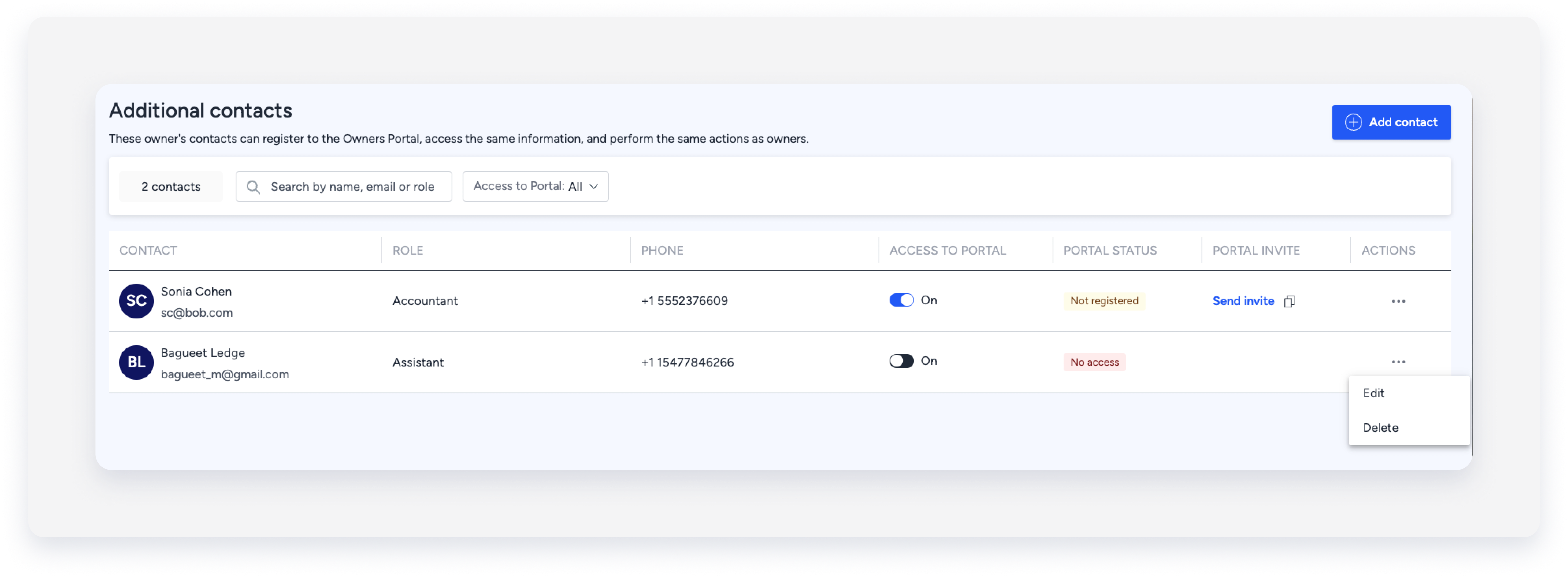
- Filter: Search contacts by name, email, role, or access status.
- Provide access: Turn the Access to portal toggle on or off to grant or revoke access, and confirm in the pop-up.
- Send invite: Click Send invite to resend the registration email. Copy the invitation link if you prefer to send it through another communication channel.
- Edit or delete: Click the actions icon next to the contact and choose your action. Confirm in the pop-up.
Important:
You cannot edit an additional contact’s email address after creation. To change it, remove the contact and add a new one with the correct email address.
Owner reservations as an additional contact
When additional contacts create reservations in the Owners Portal, they can choose:
- Owner reservation – Tagged as created by the owner.
- Owner-guest reservation – Tagged as an owner stay with the owner as the guest.
Reservations by additional contacts do not show a separate label. They appear as created by the owner entity.
