Connecting your Airbnb account to Guesty allows you to manage listings, reservations, guest communication, pricing, and availability from a single platform. Once connected, Guesty syncs key data with Airbnb to help streamline daily operations and reduce the need to manage multiple systems.
Guesty offers four connection methods depending on your setup and business needs. Use this guide to understand your options and choose the approach that works best for you.
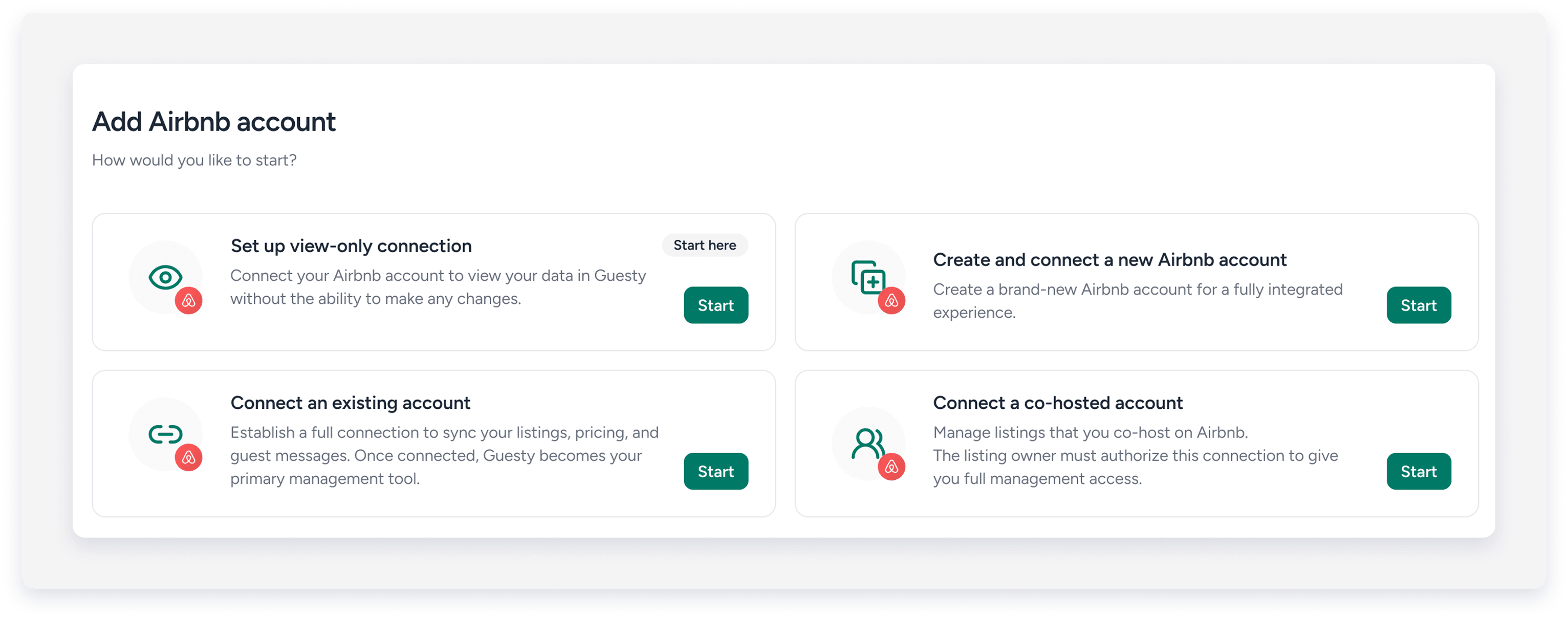
Quick comparison of connection methods
Connection method |
Best for |
Key purpose |
|---|---|---|
| Set Up a View-Only Connection | Users exploring Guesty before fully switching | View Airbnb listings and data in Guesty without affecting the existing setup |
| Create and Connect a New Airbnb Account | New hosts starting from scratch | Create a new Airbnb account and connect it directly to Guesty |
| Connect an Existing Airbnb Account | Property managers migrating to Guesty | Establish a full two-way sync between Airbnb and Guesty |
| Connect a Co-Hosted Airbnb Account | Co-hosts managing listings owned by others | Manage listings as an authorized co-host with owner approval |
Connection methods
Set up a view-only connection
A view-only connection, also known as pre-onboarding, allows you to import Airbnb listings and data into Guesty without a activating full sync. This means you can explore the platform using your listings and reservations while your current system continues managing Airbnb.
When to choose this option:
- You want to test Guesty before fully migrating.
- You currently use another PMS or channel manager.
- You need time to evaluate automation features.
- You want to ensure a smooth transition before switching systems.
Important things to note:
- Changes made in Guesty don't sync to Airbnb.
- Automated messaging is not supported.
- Listings remain view-only until a full connection is activated.
- Once the account is fully connected, it can't revert to view-only mode.
How the connection works:
- Authorize Guesty to access your Airbnb account.
- Guesty securely imports listing data, reservations, and messages.
- Listings appear in Guesty as view-only, allowing you to explore the platform safely.
- When you're ready, convert the connection to a full integration.
Create and connect a new Airbnb account
This option allows you to create a brand-new Airbnb account directly through Guesty and connect it immediately to the platform.
When to choose this option:
- You are new to Airbnb.
- You are launching a new short-term rental business.
- You want to start managing listings through Guesty from day one.
Important things to note:
- You must provide personal details required by Airbnb to create an account.
- Airbnb requires identity verification, including a government-issued ID, email verification, and phone number verification.
- The email used during setup is linked to Airbnb login and communication.
How the connection works:
- Begin the integration process inside Guesty.
- Enter the required details to create a new Airbnb account.
- Airbnb sends a verification email to activate the account.
- Once verification is complete and you create a password, the account automatically connects to Guesty.
Connect an existing Airbnb account
This method connects your current Airbnb host account to Guesty and establishes a full two-way integration. Once connected, Guesty becomes your primary management platform, syncing listings, reservations, availability, pricing, and guest communication.
When to choose this option:
- You already have active Airbnb listings.
- You want to fully manage properties through Guesty.
- You are migrating from another Property Management Software (PMS) or channel manager.
Important things to note:
- If another PMS or channel manager is connected to Airbnb, disconnect it before connecting Guesty.
- Avoid refreshing the page or repeating actions during setup to prevent connection errors.
- Listings initially appear as "Not connected" until you complete the sync process.
How the connection works:
- Log in to your Airbnb account during the integration process.
- Authorize Guesty to access your Airbnb data.
- Guesty imports your listings into the system.
- Finalize the connection by syncing listings, reservations, and messaging.
Connect a co-hosted Airbnb account
This option allows Guesty to manage listings where you are an authorized co-host rather than the primary host. It enables property managers to operate listings owned by another Airbnb user while maintaining the owner’s account ownership.
When to choose this option:
- You manage properties on behalf of another Airbnb host.
- You operate as a co-host or property manager.
- You need to manage reservations, pricing, and communication for listings you do not own.
Important things to note:
- Guesty only supports listings where the co-host has "Full Access" permissions.
- If the listing owner uses another PMS, Airbnb may restrict certain controls, such as pricing or availability updates.
- If both the host and co-host accounts are connected to the same Guesty account, connect the host account first.
How the connection works:
The process varies depending on the owner’s setup:
- If the owner does not use a PMS, send them a secure authorization link that grants Guesty access.
- If the owner uses another PMS, specific listings can be imported with limited synchronization.
Choosing the right connection method
Use the following guidelines to help you decide which option to use:
Intention |
Method |
|---|---|
| You're migrating from another PMS but want to test Guesty first | Set up a view-only connection |
| You want to explore the platform using real listings before committing | Set up a view-only connection |
| You're new to Airbnb or starting a new hosting business | Create and connect a new Airbnb account |
| You have active listings and want Guesty to be your primary system | Connect an existing Airbnb account |
| Manage listings owned by another Airbnb host | Connect a co-hosted Airbnb account |
