Check the "realization date" before you save
Every time you add a fee or adjust a price in the guest folio, the realization date you choose tells the system which month that money belongs to.
If you choose the wrong date, you could accidentally move money into a month that is already closed, causing the owner statement to be incorrect and delaying the owner's payout.
The golden rule: Match the business model
Don’t just leave the date as "today." To ensure the accounting stays accurate, the best option is to check the related business model and apply the same logic for the recognition date: check-in, check-out, or nightly. If that's not possible, follow this one simple step:
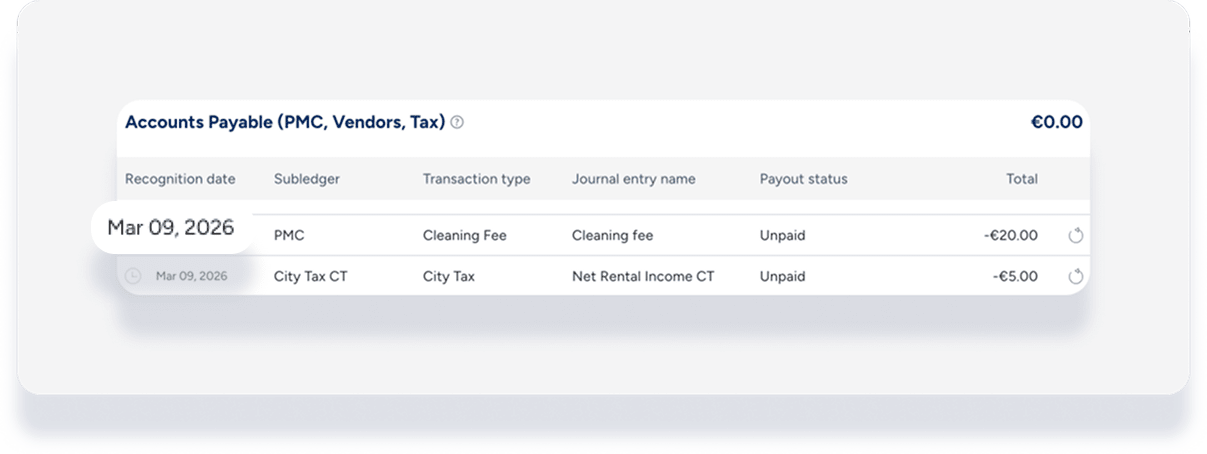
Scroll down to the Accounting Folio (located below the guest folio).
In the PMC subledger, find the item you're adjusting (e.g., if you are adjusting the "Cleaning Fee," find the "Cleaning Fee" line).
Look at the "Recognition Date" listed for that item.
Use that same date for your adjustment in the Guest Folio.
Why this matters
Locked Months: If you select a date in a month that the Accounting team has already "locked," your change won't show up on their reports without manual (and time-consuming) fixes.
Owner Trust: If a guest checks out in June, but you set the realization date to July, the owner won't see that revenue until a month later.
Nightly Split: If a reservation spans two months (e.g., June 28 – July 3), it is usually best to click "Break nightly" so the money is distributed correctly between the two months.
Quick cheat sheet
| Situation | Best Date to Use |
|---|---|
| Adding a fee before check-in | Use the check-in date |
| Adjusting a fee during the stay | Match the date of the original item in the Accounting Folio |
| Refunding a stay that already ended | Consult with your Accounting team first (the month may be locked!). |
Note:
⚠️ Adjusting the folio changes the bill, but it does not automatically charge or refund the guest's credit card. You must still process the payment or refund in the Payments section.