Guesty Copilot is an AI-powered analytics assistant designed to help you understand your business performance through natural language. Instead of manually building reports or exporting spreadsheets, you can ask questions in plain English to get instant insights, downloadable reports, and interactive visualizations.
This article explains how to access Guesty Copilot, what questions it can answer, and how to use its data tools to manage your portfolio.
Understanding Guesty Copilot
Guesty Copilot transforms your operational data into actionable answers. It focuses on several key areas of your account:
Reservations: Details on bookings, check-in/out dates, guest information, and stay length
Revenue and payments: Insights into net income, channel commissions, cleaning fees, and taxes
Properties: Information regarding listing status, locations, amenities, and property types
Calendar and occupancy: Data on availability, nightly rates, and occupancy trends
Guest reviews: Analysis of ratings, sentiment, and category-level scores like cleanliness
Important:
To ensure data security, Guesty Copilot is currently available only to users with Admin permissions. It only accesses data within your specific Guesty account and does not have access to personally identifiable information (PII).
Access Guesty Copilot
Follow the steps below to open the assistant:
Step by step:
Sign in to your Guesty account.
In the top navigation bar, click

A side panel labeled "Guesty Copilot" will open.
Each time you open the side panel, a new session begins. Guesty Copilot does not save your conversation history once the panel is closed.
Ask questions and getting insights
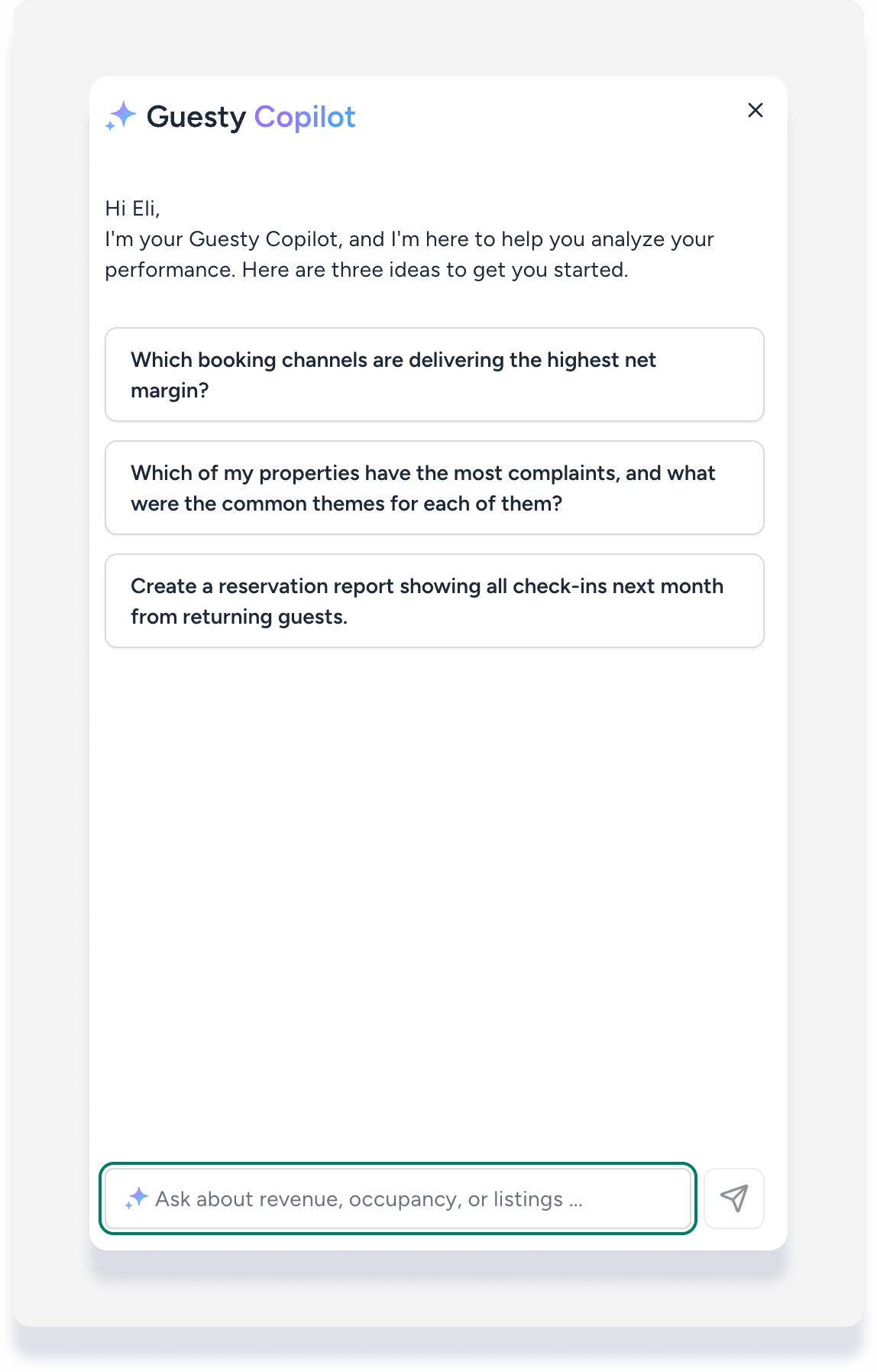
When you open the side panel, Guesty Copilot greets you by name and offers suggested questions to help you get started. You can click a suggestion or type your own question in the chat field at the bottom of the panel.
Use suggested questions
If you aren't sure where to start, try one of the built-in prompts:
"Which booking channels are delivering the highest net margin?"
"Which of my properties have the most complaints, and what were the common themes for each of them?"
"Create a reservation report showing all check-ins next month from returning guests."
Interact with results
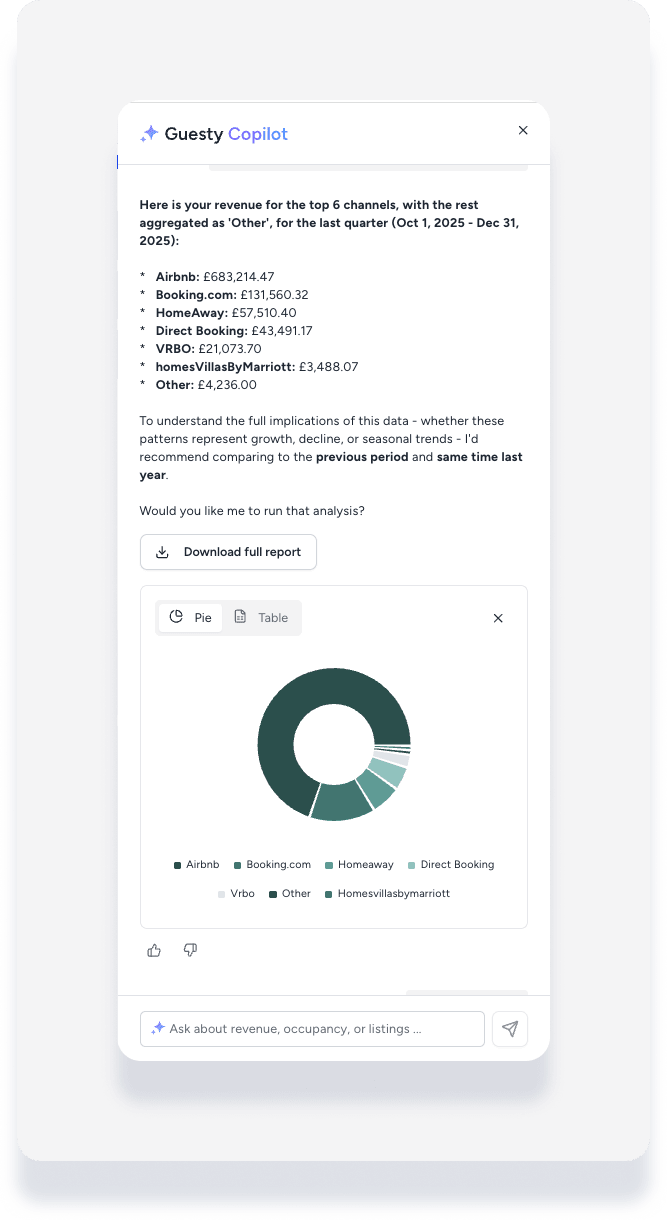
Once Guesty Copilot provides an answer, you can manage the data using the following tools:
Expand text: For long analyses, click See more to view the full response or See less to collapse it.
Download reports: If the answer contains a table, click Download full report to save the data as a CSV file.
Visualize data: Click Visualize to turn the data into a chart.
Change chart types: Use the switcher to toggle between Bar chart, Line chart, Pie chart, or Table view.
Provide feedback: Click the Thumbs up or Thumbs down icons to let us know if the answer was helpful. This helps improve the accuracy of the assistant.
Tips for best results
To get the most accurate insights from Guesty Copilot, keep these points in mind:
Be specific: If a question is too vague or complex, try rephrasing it with specific dates or listing names.
Check your scope: Remember that the assistant only answers questions about the data domains listed above.
Start fresh: Because history doesn't persist, ensure you have all the information you need before closing the side panel.
