Assigning a listing to a business model ensures it's included in the Guesty Accounting solution. Select specific listings, or assign all listings to automatically include future listings. Alternatively, create a rule using filters such as city, owner, or tag to automatically include any future listings that match the criteria.
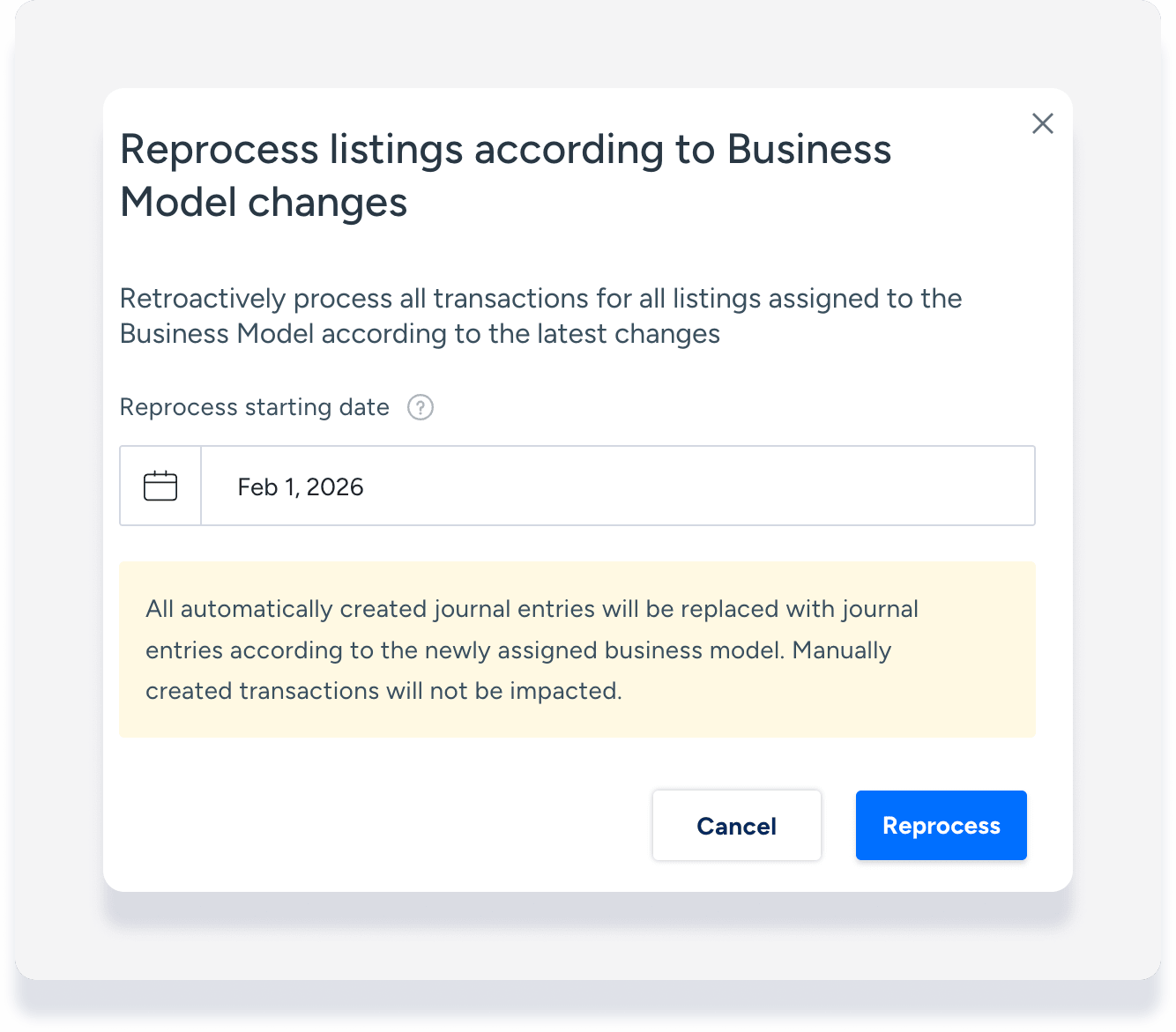
When assigning listings, choose whether to apply the business model to existing reservations. Reprocessing is limited to reservations from the last two months. To reprocess reservations older than two months, contact us.
Note:
Once you assign a listing to a business model, the revenue share set up under commission calculations no longer applies to it.
Assign multiple listings to a business model
Follow the steps below to assign listings to a business model.
Manage owner assignments
Before you begin, ensure every listing has at least one owner assigned. If a listing with no owners is assigned to a business model, Guesty won't create journal entries for new reservations. In these cases, the error message "No accounting info available" appears in the reservation.
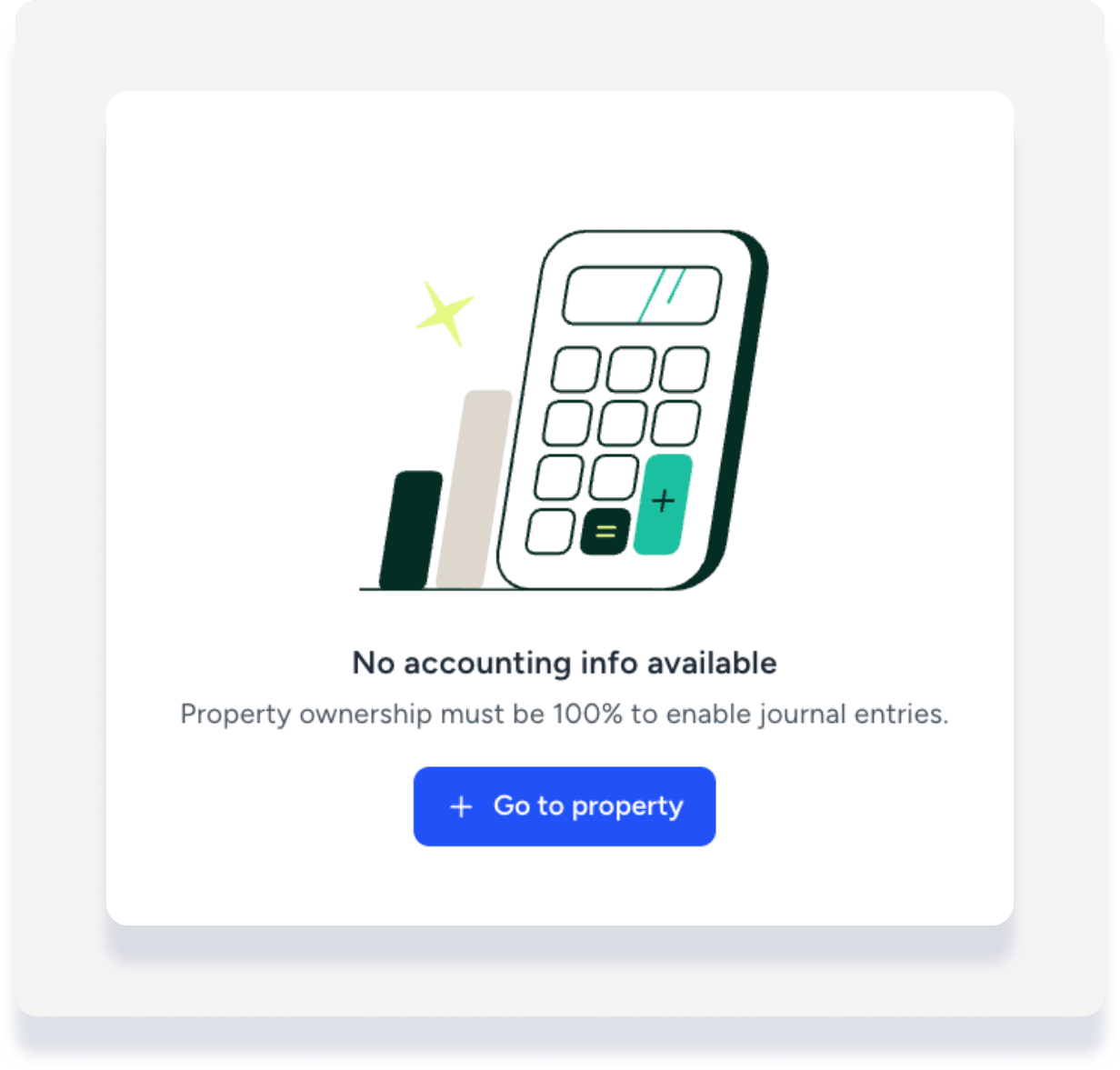
To resolve this, assign at least one owner to the listing and reprocess the reservation.
Assign listings to business model
Step by step:
Sign in to your Guesty account.
Verify the listing has at least one owner assigned.
In the top navigation bar, click the mode selector and select Accounting mode.
Click Business models.
Click the relevant business model.
In the top-right corner, click Assign listings.
-
In the side panel, select the relevant option:
All: Include all current properties and automatically assign all future properties. Click the Dropdown menu to exclude specific properties.
Specific properties: Manually select properties. To add more properties, click Unassigned and check the boxes for the properties to add.
Assign by rule: Click Add filters to define your rule, such as by city or by tag. You can add multiple filters.
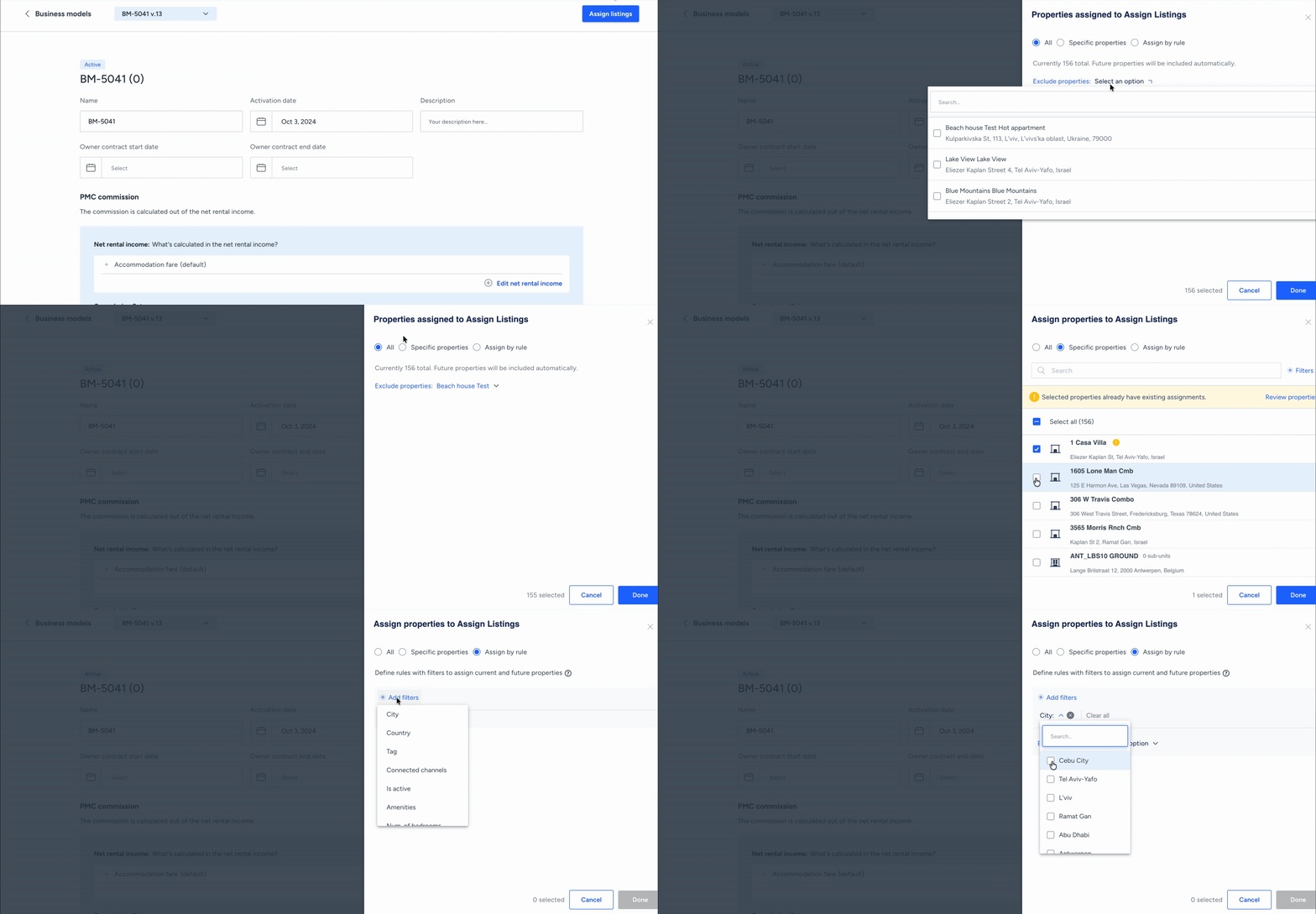
Click Done in the bottom-right corner.
-
In the pop-up, choose how to handle existing reservations:
To retroactively apply the business model to all existing reservations from the last two months, click Reprocess.
If you only want to apply the business model to some existing reservations, click Cancel then follow the steps to manually reprocess each reservation.
To apply the business model only to new reservations, click Cancel.
Important:
Set the "Reprocess starting date" to the beginning of the current month. This avoids disrupting past revenue or owner statements already sent.