The Guesty notification center is your central hub for all important account updates and actionable alerts. It is designed to help you quickly understand what is happening in your account and take action when necessary.
This article guides you through the Notification Center, its different types of messages, and how to customize your preferences.
Using the notification center (the bell icon)
Click  in the top-right corner to access the notification center side panel. The icon's appearance updates in real-time to reflect the status and severity of any unseen notifications.
The state of the Bell icon helps you quickly identify new information:
- No badge or dot: All notifications have been seen.
- Blue dot: You have new, unseen Updates.
- Yellow badge with a number: You have new, unseen Alerts. The most severe alert is Important.
- Red badge with a number: You have new, unseen Alerts. The most severe alert is Critical.
Navigating the tabs
The notification center is organized into two tabs. A number next to the tab name shows how many unread notifications are within that section.
- Alerts: This is the default tab. It holds actionable items that may require your attention. Alerts are categorized by severity:
- Important: An issue that requires action from you or your team.
- Critical: An issue that is severely disrupting the operation of your Guesty account.
- Updates: Contains informational messages and general confirmations that do not require immediate action.
Track notifications: seen, read, and archived
The system uses two key statuses—seen and read—to help you track what you have reviewed.
Seen or unseen
The bell icon displays a badge or dot only if you have notifications you have not yet seen (you haven't opened the notification center since they arrived).
When you open the center, all items in the currently active tab ("Alerts" or "Updates") are marked as seen.
Read or unread
Unread notifications are marked with a blue dot in the list.
Mark notifications as Read:
- For the Alerts tab, click the notification. This takes you to the target page to address the issue.
- For the Updates tab, click the notification or hover over the notification and click
 to mark as read.
Mark notifications as unread:
For both Alerts and Updates, hover over the notification and click  to mark as unread.
Archiving notifications
To archive: Hover over any notification in the Alerts or Updates tab and click  .
.
To unarchive: Click  in the pop-up menu select View archived, hover over the item and click
  to restore it to its original tab.
Filtering and managing notifications
The notification center provides tools to help you efficiently sort and manage your messages.
Alerts are always shown in chronological order and cannot be filtered.
Notification under the "Updates" tab can be filtered, filter updates by:
- Category: Click on the relevant label to filter updates by Reservations, Payments, Channels, Tasks, Nightly rate, or Properties.
- Read Status: Toggle on "Unread only" to focus on new updates.
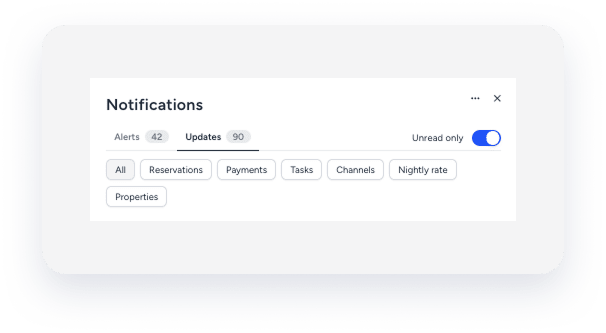
Bulk Actions Menu
In the top-right corner click to perform bulk actions:
-
Mark all updates as read: Marks all updates as read in bulk.
-
Archive all: Archives all current notifications in both the Alerts and Updates tabs.
-
Archive all read: Archives only the notifications you have already marked as read.
-
View archived: shows all archived notifications.
-
Preferences: Opens the notification preference page, where you can customize delivery channels.
Customizing your notification references
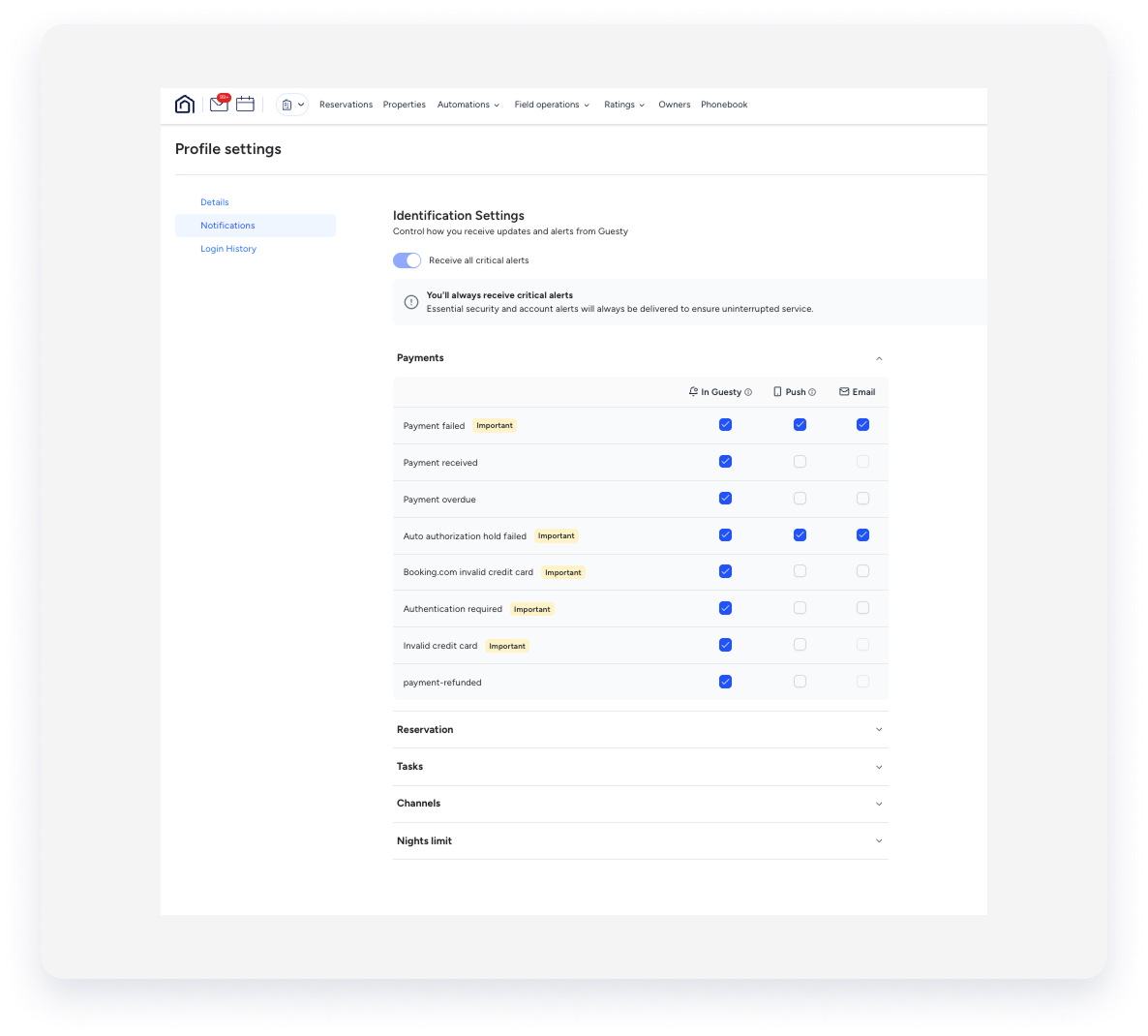
Use the notification preference page to control how and where you receive messages.
This page unifies all your consumption channels: In Guesty, push notifications, and email.
Notifications are sorted by category:
Reservations, Payments, Channels Tasks and Nights limit
For each notification, choose the channel you want to use:
- In Guesty: Delivers the notification to the bell icon (desktop and mobile app).
- Push: Delivers a mobile push notification (requires the Guesty mobile app installed).
- Email: Sends the notification to your registered email address.
If a delivery channel is not available for a specific notification, the corresponding checkbox will be disabled.
Note:
Critical notifications do not appear in your settings. These are mandatory alerts that you cannot opt out of, ensuring that all users with the proper permissions are immediately notified of severe account issues.
Available notifications