Keyless turns your guest’s mobile phone into a smart key, giving them secure, convenient access to your rental properties. Connect Keyless with Guesty to automatically sync your reservations and provide guests with the right door access at the right time.
Before you begin
Complete these steps before connecting the integration:
- Set up your locks in your Keyless account.
- Locate your Guesty listing IDs. For multi-unit properties, you must connect the sub-units.
Step 1: Connect your listings in Keyless
Connect your Guesty listings to your locks in Keyless so that reservations are assigned to the correct lock.
- Sign in to your Keyless account.
- In the left-side menu, click Locks.
- Select the relevant lock, click Actions.
- Select Edit unit.
- In the "Unit Unique Code" field, enter the Guesty listing ID.
- Click Save.
Step 2: Get your secret key from Keyless
- In the left-side menu, click Settings.
- Click Integrations.
- Click + Create integration.
- Click View details.
- Copy the "Secret key".
Step 3: Connect Keyless with Guesty
- Sign in to your Guesty account.
- In the side navigation menu, click
 Integrations to open the dropdown menu.
 - Select Marketplace.
- Click the "Keyless" thumbnail.
- In the pop-up, review the terms and conditions.
- Click Connect.
- Paste the secret key you copied from Keyless.
- Click Continue.
- Your Keyless and Guesty accounts are now connected.
Tip:
For best performance, leave all workflows enabled.
How the integration works
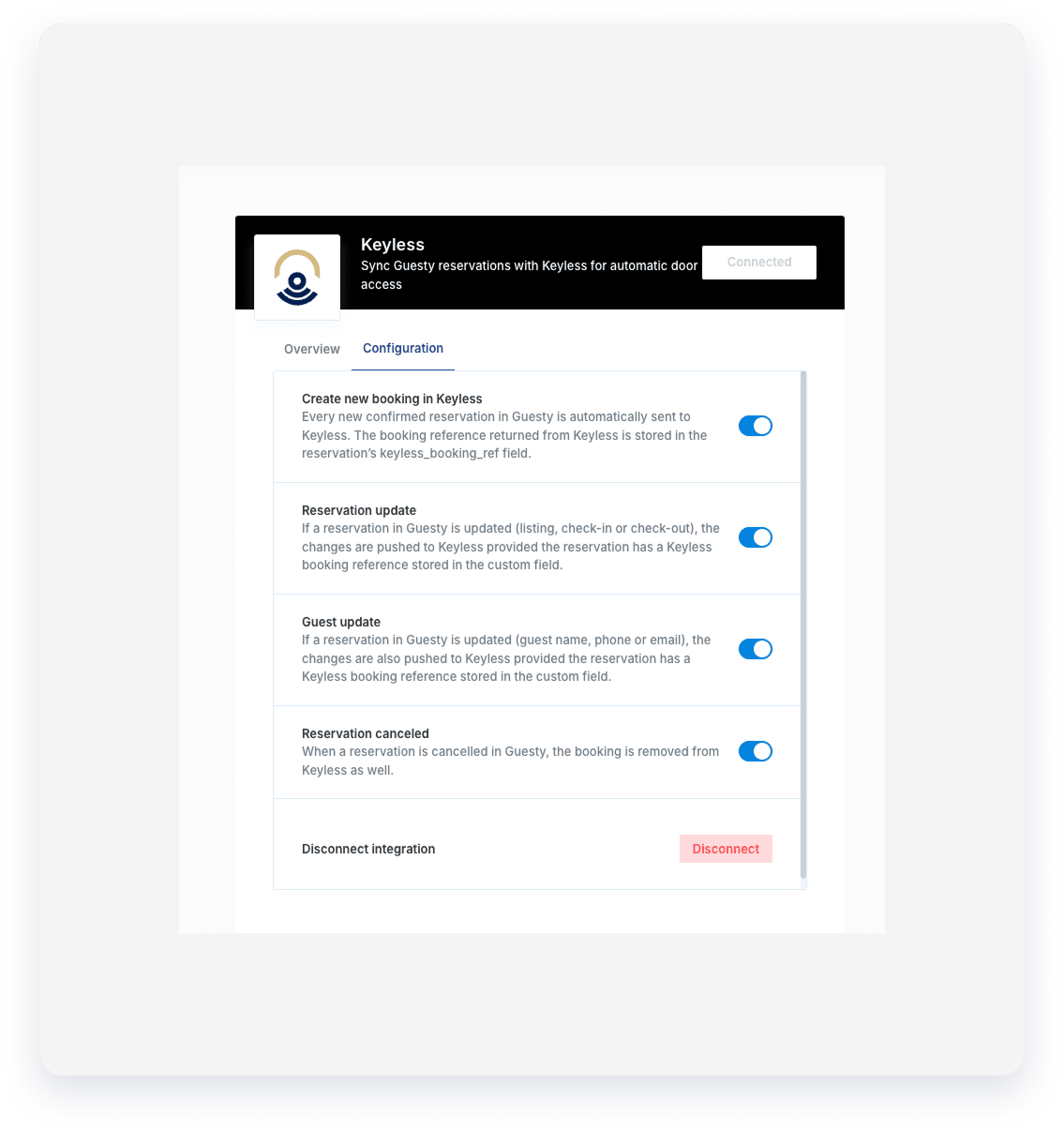
Once connected, the integration automatically performs the following actions:
- Creates a custom field
keyless_booking_refin your Guesty account. This field stores the booking reference from Keyless for each reservation. - Sends new confirmed reservations from Guesty to Keyless.
- Syncs any changes to a reservation's listing, check-in, or check-out times with Keyless.
- Syncs any changes to a guest's name, phone number, or email with Keyless.
- Removes reservations from Keyless when they are canceled in Guesty.
You can use the keyless_booking_ref custom field as a variable in your automated messages.
The Keyless guide to claim the key using booking reference code could be found here.
Integration limitations
- Guest must have an email address for a booking reference to be generated. Guesty sends the request to Keyless only when a guest email is present or updated.
- If there is an error with key generation, the issue posts automatically as an internal note to the inbox conversation for the affected guest.
Important:
- Do not delete or rename the
keyless_booking_refcustom field. Deleting or renaming it will break the integration. - The integration doesn't support pre-existing reservations. It will only sync new reservations made after the connection is established.
- Check-in times must be set for a future time. If a same-day reservation's check-in time has already passed, the new check-in time will be set to one hour from the current time. This applies to both new and updated reservations.
For questions or support, visit Keyless.