The template explained below is designed to help you efficiently assign multiple listings to a specific business model in Guesty. Once you complete the template, our support team will use this data to perform the assignment via an API.
Before you begin
Ensure you have the correct Business Model ID: This is a unique identifier for the business model you want to assign listings to.
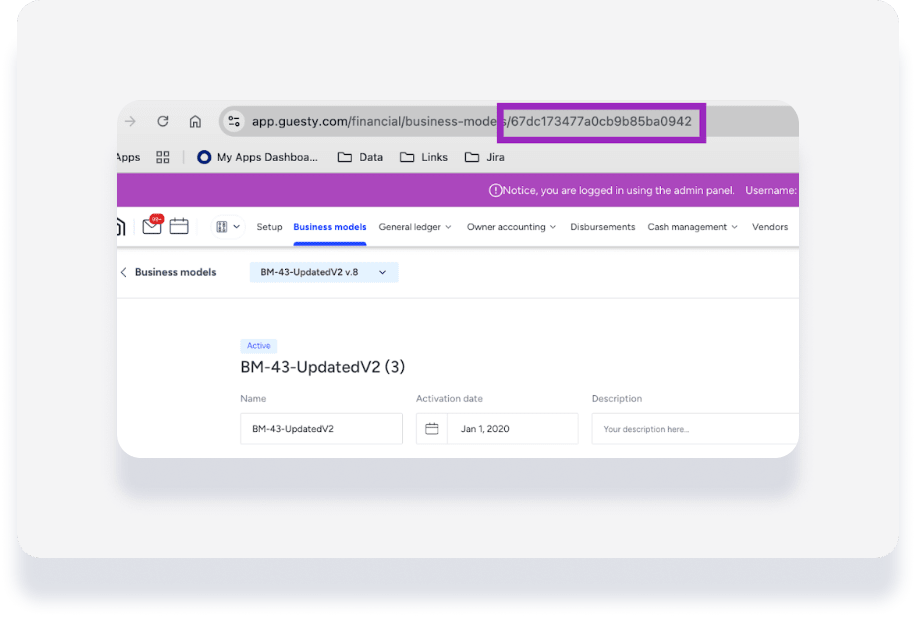
You can find the Business Model ID by navigating to Accounting > Business model. Click on the relevant business model, and copy the ID from the URL as highlighted in the image below.
Ensure you have the correct Listing IDs: These are unique identifiers for the individual listings you want to assign. Find the listing ID by navigating to Operations > Properties. Select the relevant property and copy the ID from the URL. Learn more.
Template guide
Download the template here.
Once completed, please contact us with the file in .xlsx format attached.
Business Model ID (Column A)
Purpose: This is the unique ID of the business model to which you want to assign the listings.
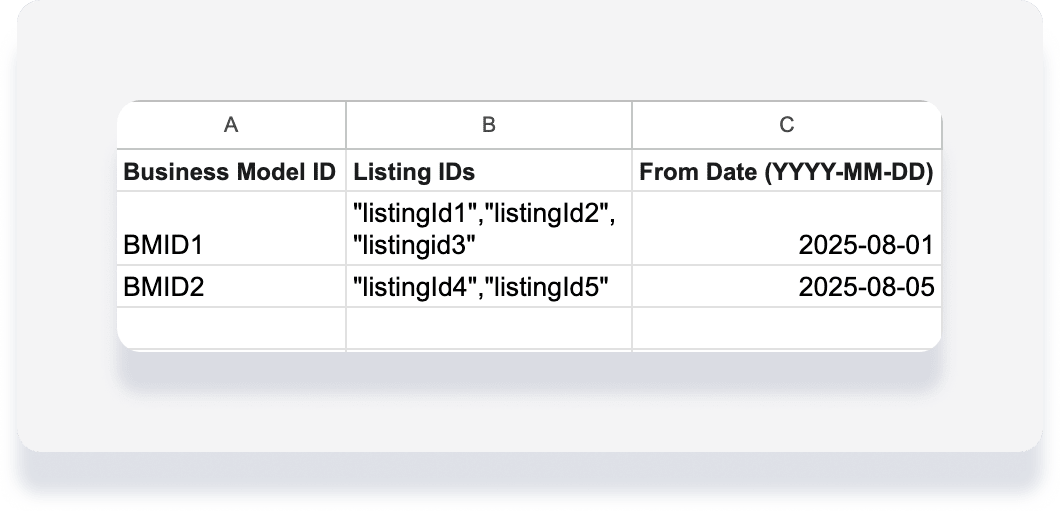
How to fill in: Enter one business model ID in the first row. Example: BM-12345.
Important:
All listings listed in this row will be assigned to this single Business Model ID.
If you need to assign listings to different business models, create a new row for each distinct business model ID.
Listing IDs (Column B)
Purpose: These columns are for the unique IDs of the listings you want to assign.
How to fill in: Enter all listings for the same business model in one cell. Start and end each listing ID with quotation marks, and separate listings with a comma. Example: "listingId1","listingId2","listingId3"
Important:
Each listing ID should be assigned to only one business model at a time. Do not list the same listing ID across different rows for different business models, as this could lead to unexpected behavior.
From Date (YYYY-MM-DD) (Column C)
This is an optional field.
Purpose: If provided, the business model will reprocess reservations from the specified date onwards for the assigned listings. This is limited to 2 months prior to the current date.
How to fill in: Enter the date in YYYY-MM-DD format. Example: 2025-07-01
Leave this cell blank if you do not want to reprocess past reservations. If left blank, the business model will only apply to new reservations from the current date onwards.
Example of completed assignment data sheet:
Important notes
Do not change the column headers. Our support team relies on these exact headers to process your request.
Accuracy is key. Double-check all business model IDs and listing IDs to ensure they are correct. Incorrect IDs will result in errors.
One business model per row. While you can assign multiple listings to one business model in a single row, if you need to assign listings to different business models, each distinct business model should start a new row.
Save as .xlsx. Save the file in the standard Excel .xlsx format.
Contact Support. If you have any questions or encounter issues, please contact our support team with your filled-out template.