When guests book through your Guesty Booking Engine, they can add special requests using the customizable "Add a special request" field. Guest requests are automatically captured and stored in your Guesty account. Understanding how these requests are handled in your system helps you provide better guest service and manage expectations effectively.
View special requests
Special requests appear in two key locations within each reservation.
Step by step:
- Sign in to your Guesty account.
- In the side navigation menu, click
 Reservations.
 - Click the relevant reservation.
-
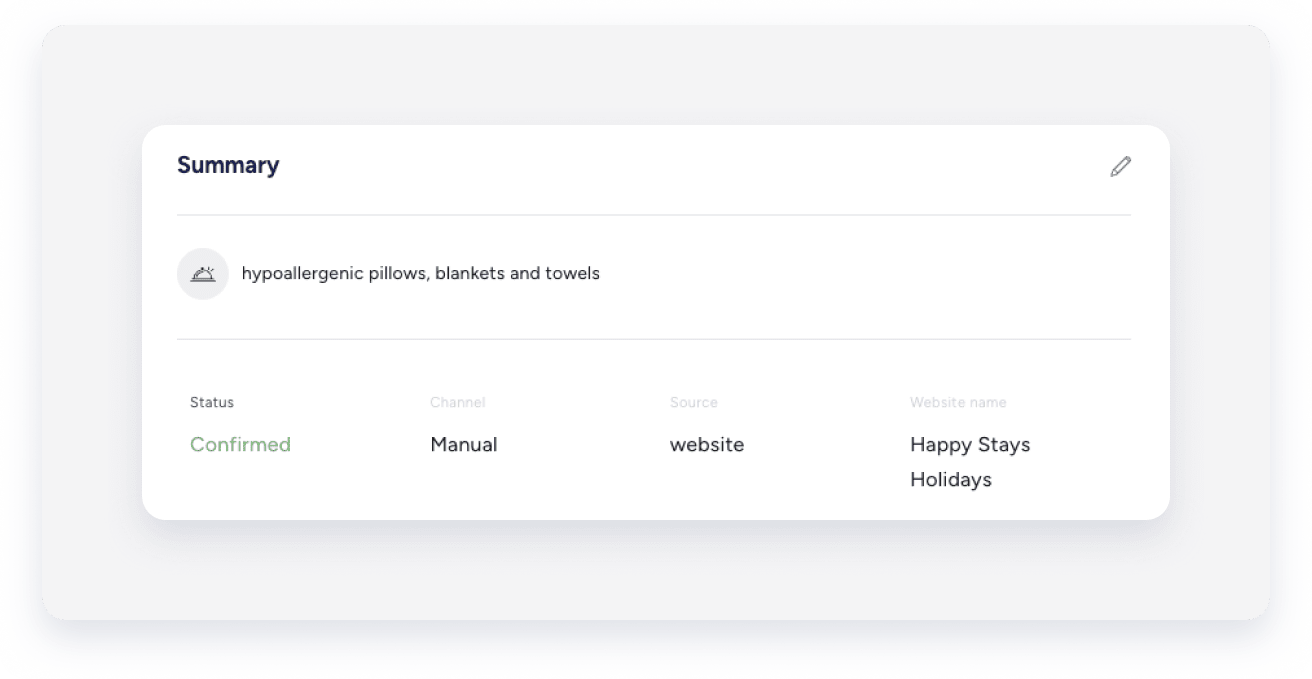
In the reservation "Summary" section, special requests are listed alongside other booking details.
-
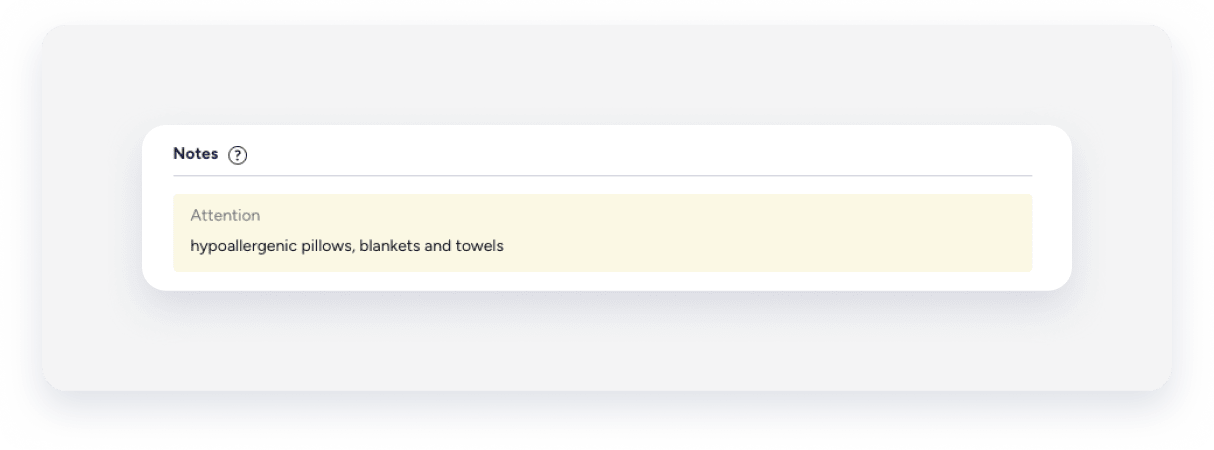
In the reservation "Notes" section, special requests are displayed as a note with an "Attention" label.
-
Note:
Special requests from the Guesty Booking Engine don't trigger separate email alerts. Guesty stores this information within the reservation to keep guest communication organized in your workflow.
Require special requests before booking
Follow the steps below to define whether requests are mandatory or optional.
Step by step:
- Sign in to your Guesty account.
- In the side navigation menu, click
 Marketing and sales to open the dropdown menu.
 - Under Channel management, select Distribution.
- Click the Guesty Booking Engine thumbnail.
- Click
 next to the relevant Booking engine, and select Edit booking engine.
- In the side navigation menu, click Booking settings and scroll down to the "Guest information mandatory for booking" section.
- Toggle on Ask for guest requests and check the box to make this field mandatory.
- Click Next.
- In the side navigation menu, click Languages to navigate to the last action.
- Click Save Booking Engine to apply your changes.
