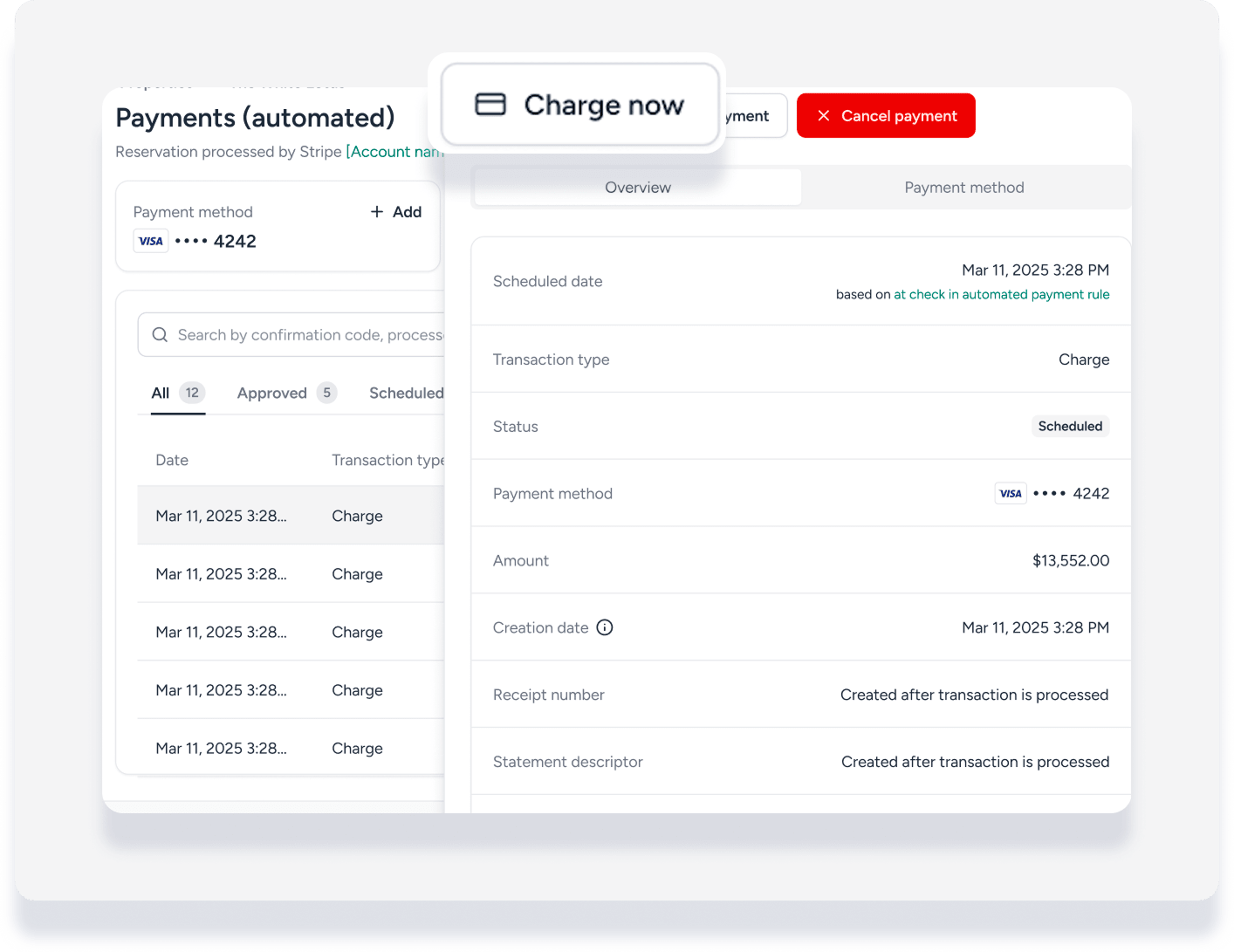
When a guest pays you before the scheduled payment automation, edit the scheduled payment to record the amount received following the steps below. You can also charge the balance immediately if needed.
If the amount received is less than the amount due, or if the reservation total changes in the future, manually adjust additional scheduled payments to ensure the correct balance is collected.
Important:
If the reservation total decreases after payment is recorded, edit the future amount to collect. If not, the original, higher amount will be applied and the guest overcharged.
Edit a scheduled payment to record payment received
Follow these steps to record a payment you've already received.
Step by step:
- Sign in to your Guesty account.
- In the side navigation menu, click
 Reservations.
 - Select the relevant reservation.
- In the left submenu, click Payments.
- In the left submenu, click Payments.
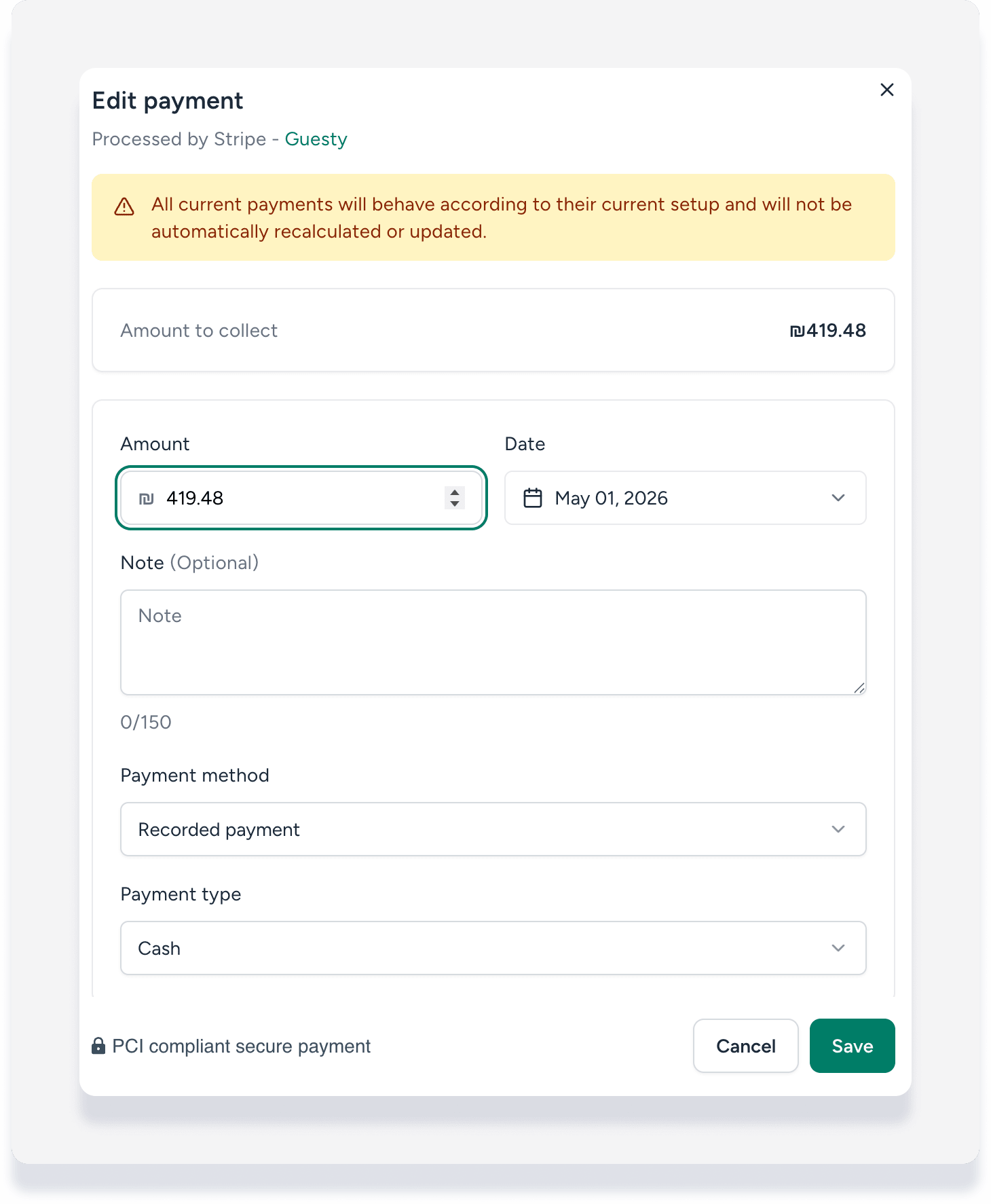
- Click Edit payment to the right of the next scheduled payment.
- In the pop-up:
- If you collected a lower amount, edit the amount shown. (See the next section for additional steps to collect the remaining balance.)
- Select the date the payment was received.
- Under "Payment method", select Recorded payment.
- From the dropdown menu, select the type of payment, for example cash or check.
- Click Save.
No balance left: Cancel future scheduled payments
If the guest pays in full and there is no remaining balance due, cancel the remaining scheduled payments.
- To the right of the future payment, click
 and and select Cancel payment.
- Click Yes, cancel payment.
Balance remaining: Edit next payment or charge immediately
When the the balance due changes on the reservation, payments that were already scheduled don't update automatically. Edit future scheduled payments if the first scheduled amount was underpaid, or if changes are made to the reservation that increases or decreases the balance due.
To collect the accurate amount due, either edit the next scheduled payment or charge the balance immediately.
For example:
- The guest paid $5000 via bank transfer.
- The remaining balance due for the reservation is $9,555.56.
- There is a scheduled payment for $7,277.78.
Update the amount of the scheduled payment to avoid undercharging the guest. Alternatively, add a payment to cover the difference.
Edit an upcoming scheduled payment
This option can be used to increase or decrease the amount to charge.
- On the next scheduled payment, cick and select Edit payment.
-
In the side panel, change the amount to match the "Amount to collect" shown.
Note:
Don't change any other fields. The date and payment method (guest's credit card) remain the same for automatic processing.
- Click Save.
Charge balance immediately
To charge the guest before the next scheduled payment:
- Click the relevant payment.
- In the side panel, click Charge now.
- Click Yes, charge now.