In addition to using the Guesty PriceOptimizer default market, you can handpick a custom market for your listings. Aligning market trends more closely with the actual conditions of your listings helps you achieve more accurate pricing and improved performance.
Using market groups "smooths out" your pricing curve by selecting listings with flat pricing that might be excluded from the PriceOptimizer default data.
Learn how to create and manage market groups.
Apply a market group to your forecast
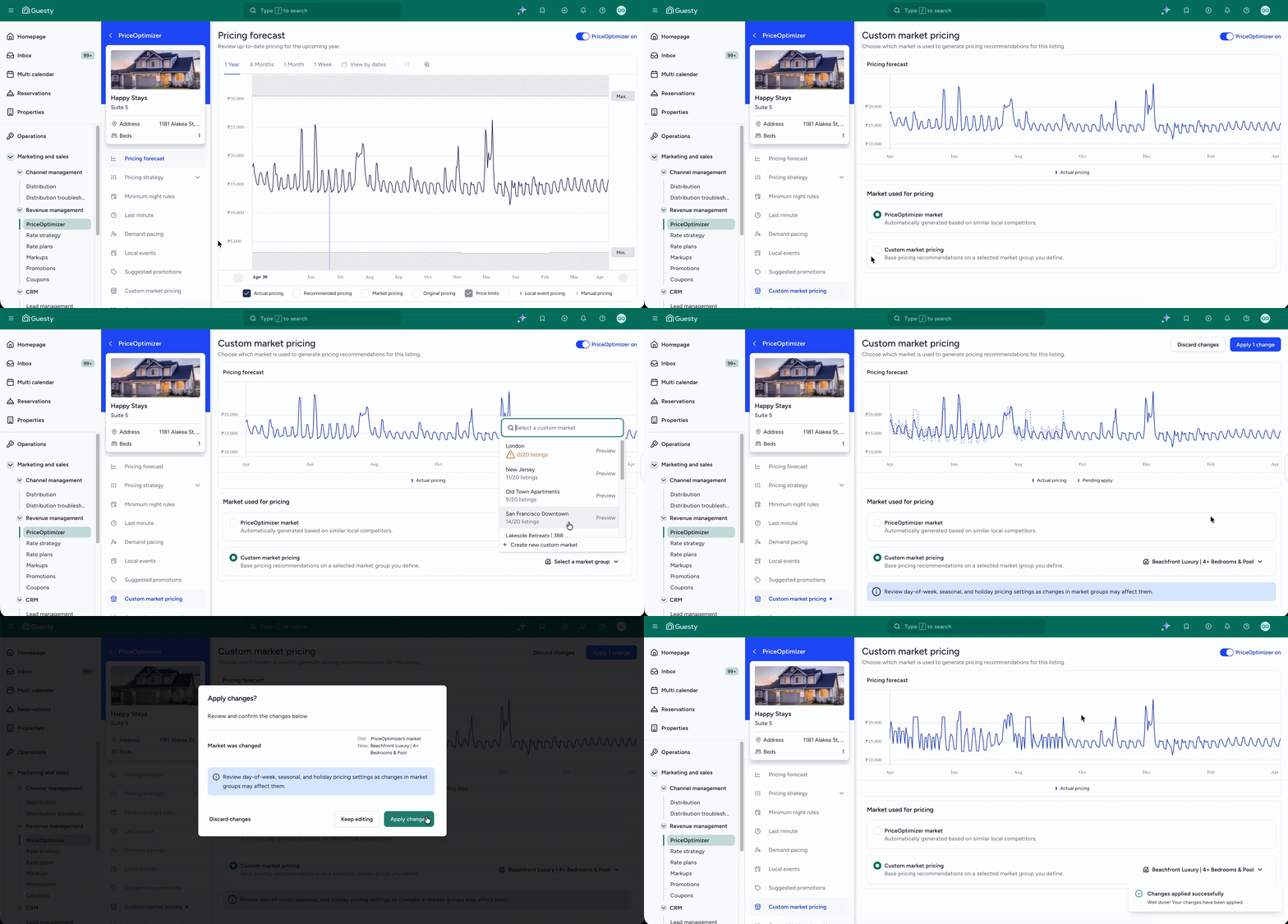
Follow the steps below to use a specific market group to determine a listing's pricing forecast.
Step by step:
- Sign in to your Guesty account.
- In the side navigation menu, click
 Marketing and sales to open the dropdown menu.
 - Under Revenue management, select PriceOptimizer.
- Find and select the relevant listing.
- In the side navigation menu, click Custom market pricing.
- Under "Market used for pricing", select Custom market pricing.
- Click Select a market group to choose an existing market group from the dropdown.
- Review the pricing forecast data that shows your actual pricing against the selected market group.
- In the top-right corner, click Apply change.
- In the pop-up, click Apply changes.
You can view which listings are associated with a certain market group under the Market groups tab. Click the number to view more details in the side panel.
Manage market groups for forecasts
To create a new group or edit listings within an existing one, navigate to the main Market groups section in the PriceOptimizer left-side menu.
Keep the following in mind when managing groups:
Add at least 5 listings (and up to 20) to ensure pricing isn't too dependent upon a single competitor.
If a selected listing is no longer active on an OTA, it is removed from the market group.
If all listings in a market group are removed, the listing reverts to the PriceOptimizer default market.
In both cases, an alert appears on the pricing forecast page.
Compare different market groups
Compare different pricing forecasts before applying changes. Select different groups from the Select a market group dropdown to review how each affects the forecast. No changes are made to live pricing until you click Apply change.
