Use whatsmydns.net to quickly check and diagnose DNS-related issues. This tool shows you how your DNS records appear from multiple global locations, helping you verify changes, spot problems, and confirm if records have propagated successfully.
Refer to this guide to:
- Verify DNS record propagation after updates
- Troubleshoot DNS resolution issues
- Identify regional DNS propagation discrepancies
- Confirm accurate DNS record configuration
Check DNS records using whatsmydns.net
Incorrect DNS configuration can cause service outages or make your website inaccessible. Follow the instructions below to check your DNS records before making changes.
Step by step:
- Open whatsmydns.net.
-
Enter the domain name you want to check (for example, "example.com" or "subdomain.example.com") in the input field.
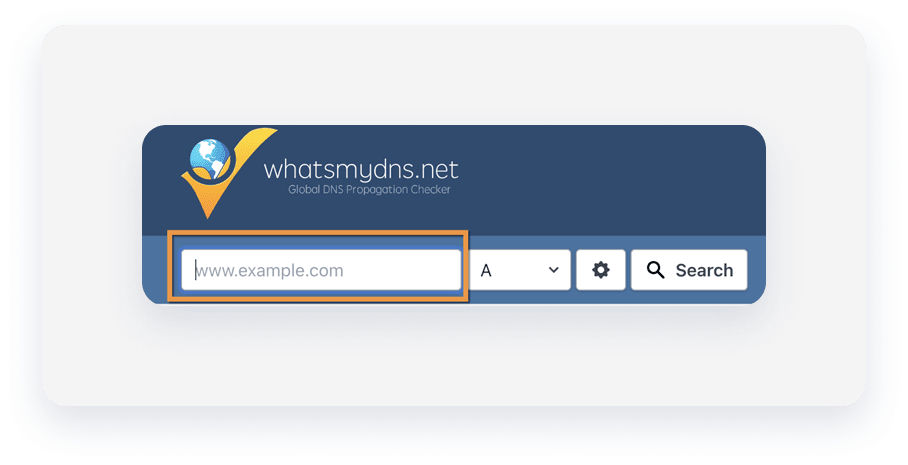
- Select the DNS record type from the dropdown menu.
-
A (Address): Maps a domain name to an IPv4 address.

-
CNAME (Canonical Name): Creates an alias for a domain name.
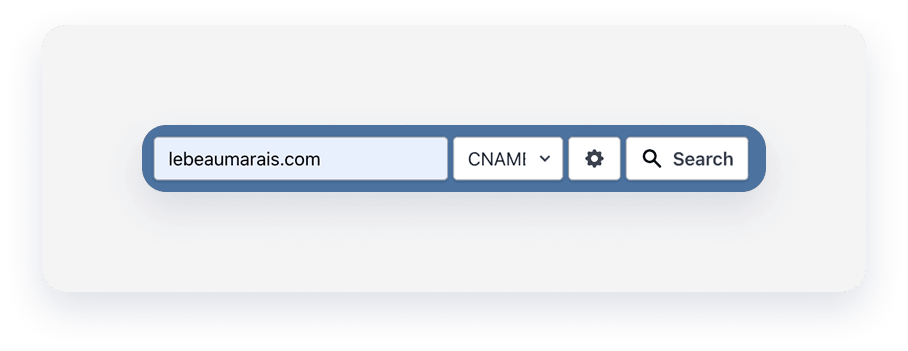
You can also check other record types, such as MX for mail servers or TXT for text-based data.
-
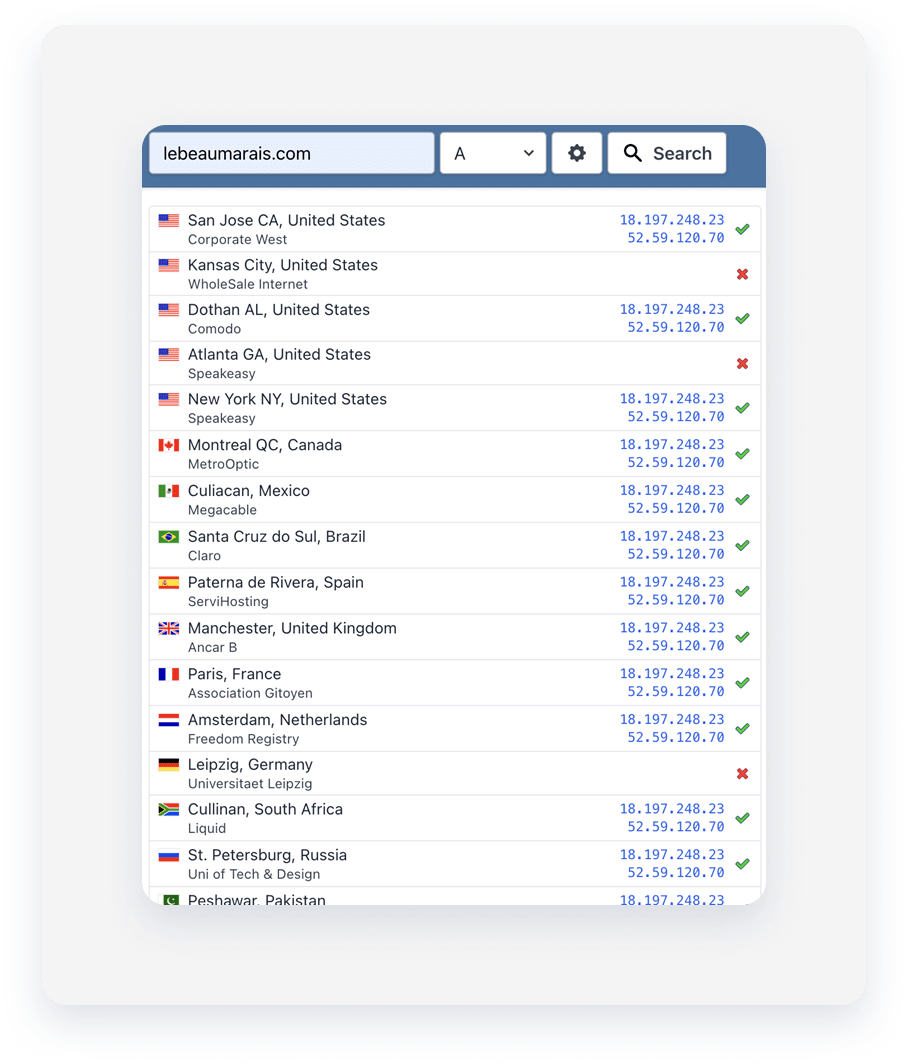
- Click Search. whatsmydns.net displays the results from DNS servers worldwide in a map or a table.
Tip:
If you recently updated your DNS, refresh the page or re-run the search to see if records have propagated.
Interpret the results
Review the results displayed for your DNS record check.
- Uniform values everywhere mean successful DNS propagation.
- Different results across some locations suggest propagation delays or regional issues.
- If most locations show red X marks, your DNS settings may be incorrect. Double-check in your DNS provider’s portal.
Result |
Meaning |
|---|---|
| Green checkmarks | The DNS record resolves as expected for that location. |
| Red X marks | The DNS record doesn't resolve correctly or resolves to an unexpected value for that location. |
| Empty fields | The record doesn't exist on that server or hasn't propagated yet. |
| IP addresses/values | Displayed IP addresses or values should match your intended configuration. |
Troubleshooting DNS issues
- Check all DNS records for typos or incorrect values in your domain host's dashboard.
- Use whatsmydns.net to verify global propagation after making changes.
- Review the map for:
- Red X marks everywhere: Likely a misconfigured or missing record.
- Red marks in a few locations: Likely a propagation delay or cached DNS data.
- Use additional tools such as Google Admin Toolbox Dig or DNS Checker for a second opinion.
- Contact your DNS provider’s support if resolution issues persist.
Best practices for DNS troubleshooting
To ensure efficient troubleshooting and accurate results, here are some important tips:
- Double-check domain spelling to avoid checking the wrong domain.
- Choose the correct DNS record type for your needs (A, CNAME, MX, etc.).
- Recognize that changes may take up to 48 hours for full propagation.
- Confirm findings with several tools for comprehensive troubleshooting.
- Save screenshots or notes from whatsmydns.net for future reference or if escalation is required.
