Important:
Make sure your listing isn't assigned to a Guesty rate strategy, as minimum night rules cause discrepancies when used in conjunction with PriceOptimizer.
Guesty PriceOptimizer generates recommended nightly rates by comparing your property with similar listings, applying dynamic factors (such as day of the week and holidays) on top of your base price, and adjusting pricing based on local market changes.
You can fine-tune your listing's base price and control how each dynamic factor influences the final rate.
For additional customization options, see the full PriceOptimizer settings guide.
Access PriceOptimizer settings
Follow these steps to access a listing's PriceOptimizer settings. See details in the sections below about the different options for your pricing strategy.
Step by step:
- Sign in to your Guesty account.
- In the side navigation menu, click
 Marketing and sales to open the dropdown menu.
 - Under Revenue management, select PriceOptimizer.
- Find the listing(s) for which you want to adjust the pricing. You can search for a specific listing by name or nickname, or use the filters to find all listings that match your specific criteria.
- Select the relevant listing.
- In the left-side menu, click Pricing strategy.
- Review and edit each section as described below.
- After making your changes, at the top of the relevant page, click Apply changes.
Base price strategy
The base price is the starting point for your pricing. Choose PriceOptimizer's recommended pricing or control the pricing yourself.
Learn more about the different settings you can use to control a listing's base price.
Price limits strategy
Stay within your desired pricing range by customizing your pricing with default minimum and maximum limits. Guesty PriceOptimizer’s algorithm stays within your default limits unless you add time-based rules for periods like holidays, events, or seasons.
| For example, if your minimum price default is set at $800 and your maximum is $1300, you can set a time-based rule to increase prices for the summer months. The minimum and maximum pricing apply to May through October, and the other months follow your default pricing. |
Day-of-week, seasonal and holiday pricing
Use the Day-of-week, Seasonal, and Holiday tabs to adjust pricing based on demand patterns. You can also configure minimum nights, closed-to-arrival (CTA), and closed-to-departure (CTD) restrictions directly within each pricing rule.
Each strategy offers two options, which can be configured at the listing or group level: Automatic pricing impact and Manual pricing impact.
Automatic pricing impact
Select Automatic pricing impact to use PriceOptimizer's recommended pricing. Under "Price strategy", click Edit pricing strategy and choose one of the following:
- Conservative — 20% weaker impact than PriceOptimizer’s recommendation (smaller swings between high and low)
- Standard — Guesty's PriceOptimizer default suggestion, calculated according to the trend of your market
- Aggressive — 20% stronger impact than PriceOptimizer’s recommendation (larger swings)
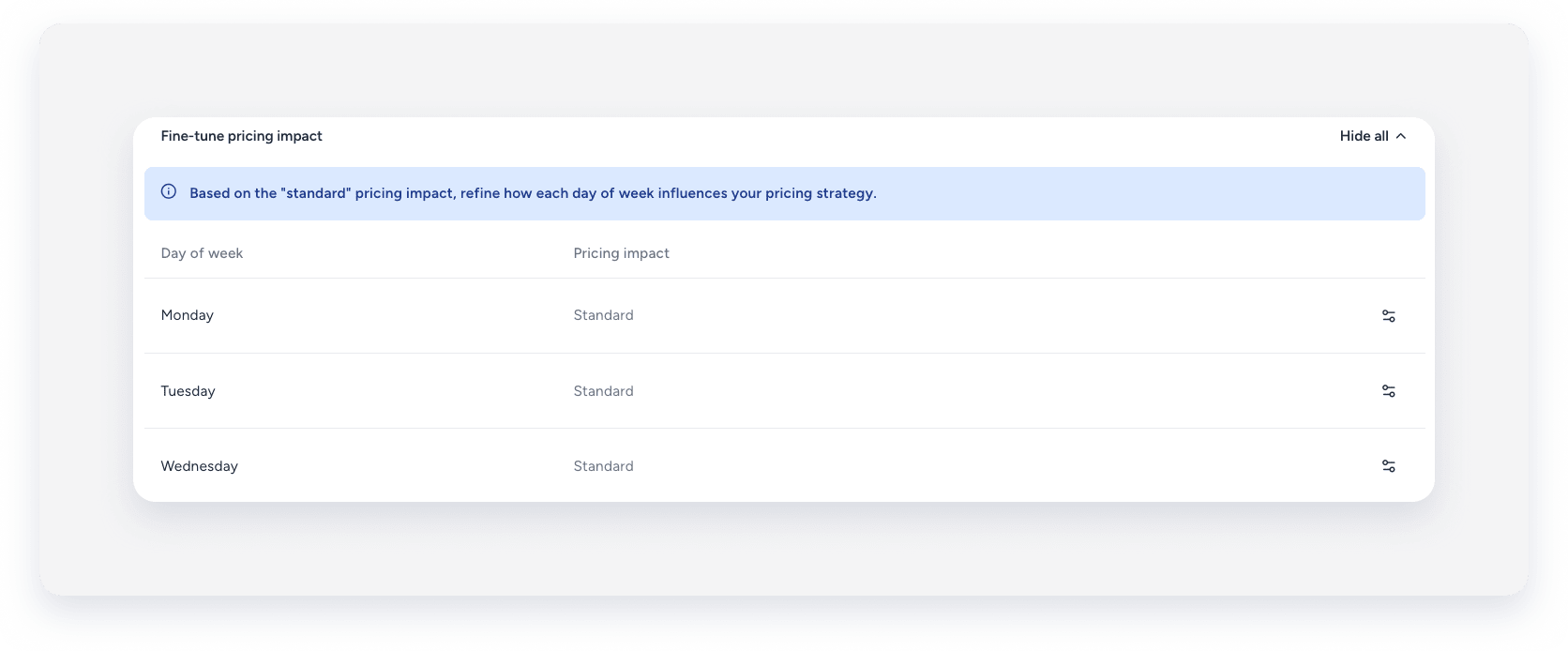
If you select Standard, you can use Fine-tune pricing impact to adjust the algorithmic suggestions for specific days, seasons, and holidays.
| For example, set your day-of-week strategy to Automatic pricing impact with a Standard price strategy, then use fine-tune to slightly increase pricing on Fridays and Saturdays without leaving the algorithm entirely. |
Manual pricing impact
Select Manual pricing impact to define custom pricing adjustments per day, season, or holiday, independent of the algorithm. When you select this option, a new section appears below where you can define your own adjustments.
| For example, apply a pricing adjustment to Saturdays only during your high season. |
Manual pricing impact is available at both the listing level and portfolio level through group pricing strategies.
Important:
Manual pricing impact is completely independent of the algorithm. You must set up all rules yourself — any rule left blank neutralizes that coefficient's impact entirely, instead of using PriceOptimizer's recommendation. For example, if you enable manual pricing impact without creating any pricing rules, your seasonal trend remains flat at your listing's base price.
Seasonal patterns
In addition to controlling the monthly seasonality impact as shown above, you can define rules for a date range. The date range rules are more specific and override the values that were set at the month level.
Next to "Seasonal Patterns (#)", click Add rule. In the right-side panel, configure the date range and pricing.
For seasonal manual pricing, when rules cover the same dates, the price changes are compounded from all available rules for these dates.
Holiday pricing
A list of holidays is pre-selected based on the listing's country.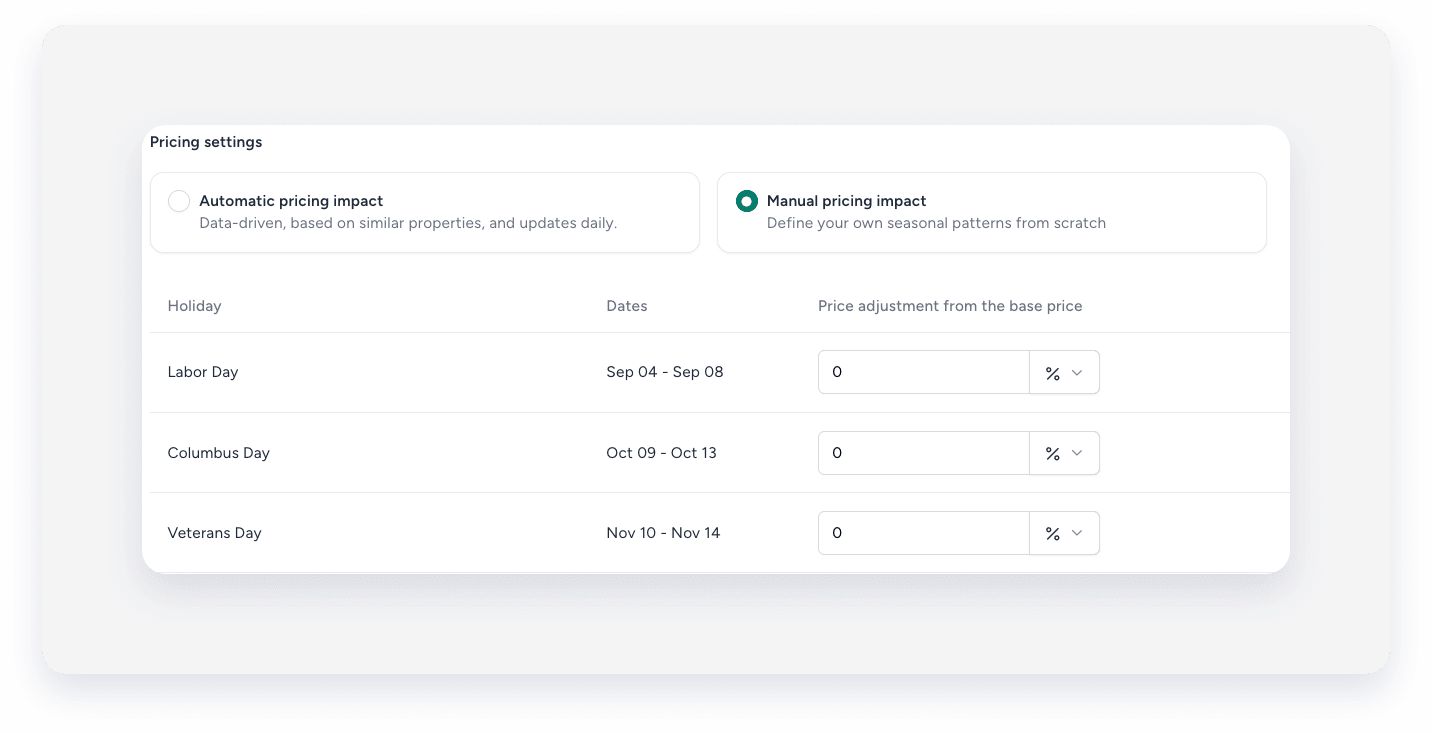
Time-based rules
Time-based rules are available only under the Seasonal tab, as part of Fine-tune pricing impact. Use them to adjust pricing on top of the seasonal trend for a custom date range. You can apply the rule to the entire date range or optionally narrow it down to specific days of the week within that range. Date ranges can’t overlap.
Minimum nights and check-in/check-out times
You can configure minimum nights and check-in/check-out restrictions directly in the Day-of-week, Seasonal, and Holiday tabs. These settings apply in addition to the general configuration under the Minimum night rules tab.
Configuring these settings within each pricing tab lets you work in context: instead of redefining the same date ranges under the Minimum night rules tab, you can select from your existing seasons or holidays, and manage pricing and stay restrictions together.
These settings are preserved when you switch between Manual and Automatic pricing impacts.
| For example, set up a high season under seasonal pricing and define a five-night minimum stay for that season, all in the same place. |
Tip:
To master personalizing your PriceOptimizer pricing strategy, visit Guesty Academy for interactive courses and step-by-step video tutorials.
