Important:
Verify that your website remains compliant with local data privacy laws (such as GDPR or the ePrivacy Directive) before removing or modifying cookies.
Most jurisdictions require you to obtain explicit user consent via a cookie banner and provide a clear tracking policy before storing non-essential data, ensuring your site meets all regulatory requirements is the sole responsibility of the user. Guesty is not responsible for any legal negligence.
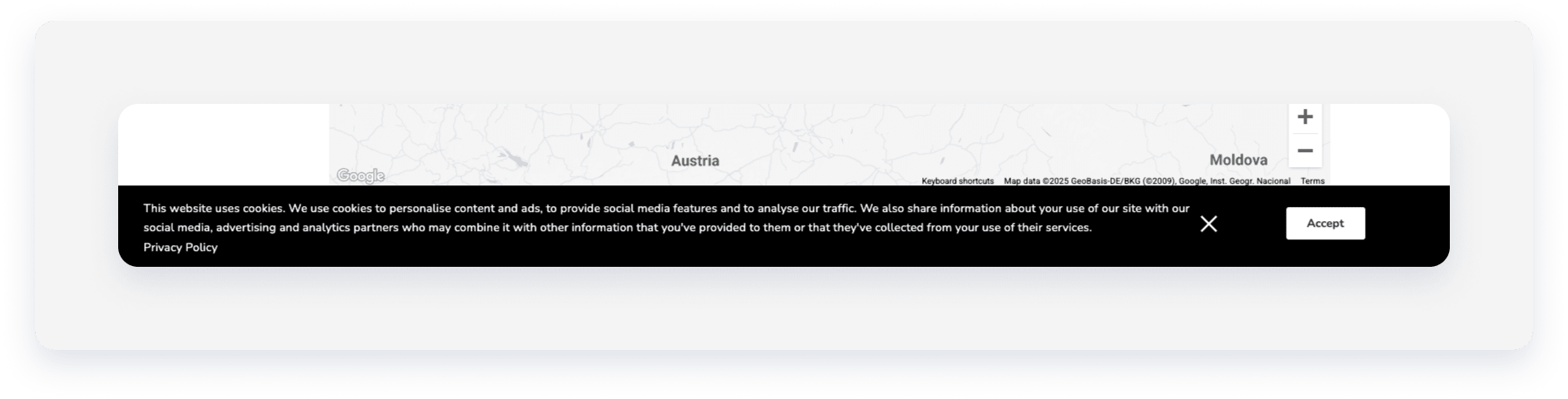
Remove the cookies banner
Follow the steps to remove the cookies banner from the Guesty Booking Engine.
Step by step:
- Sign in to your Guesty account.
- In the side navigation menu, click
 Marketing and sales to open the dropdown menu.
 - Under Channel management, select Distribution.
- Click the Guesty Booking Engine thumbnail.
- Click
 next to the relevant Booking Engine.
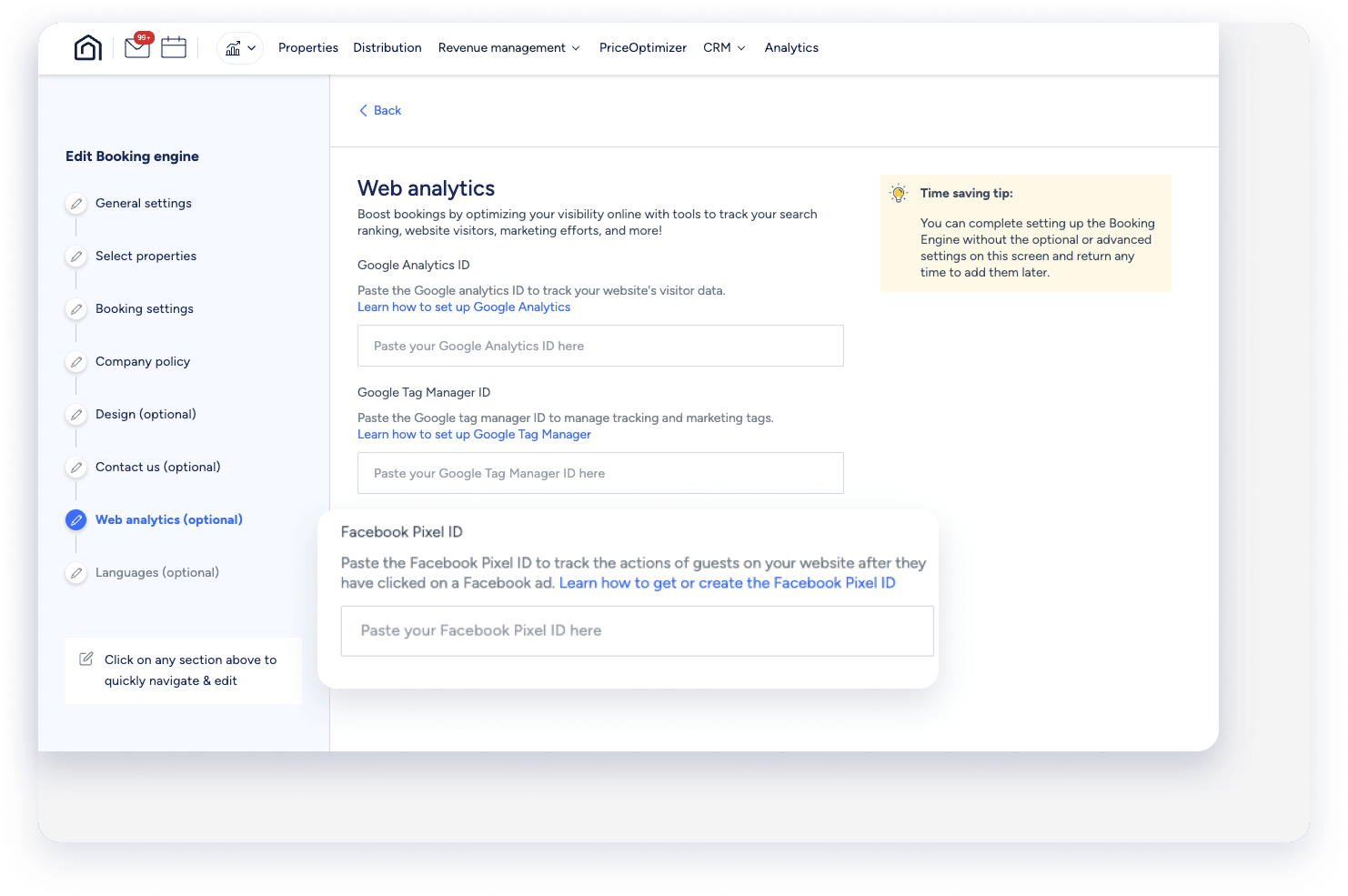
 - In the side navigation menu, click Web analytics.
-
Clear the "Facebook Pixel ID" field.
By clearing this field, you will disable the cookies banner from appearing on your Booking Engine.
- Click Next.
- Click Save Booking Engine.
Hide the cookies banner
Follow the step below to hide the cookies banner while keeping the Facebook Pixel ID.
Step by step:
- Sign in to your Guesty account.
- In the side navigation menu, click Marketing and sales to open the dropdown menu.
- Under Channel management, select Distribution.
- Click the Guesty Booking Engine thumbnail.
- Click next to the relevant Booking Engine, and select Edit Booking Engine.
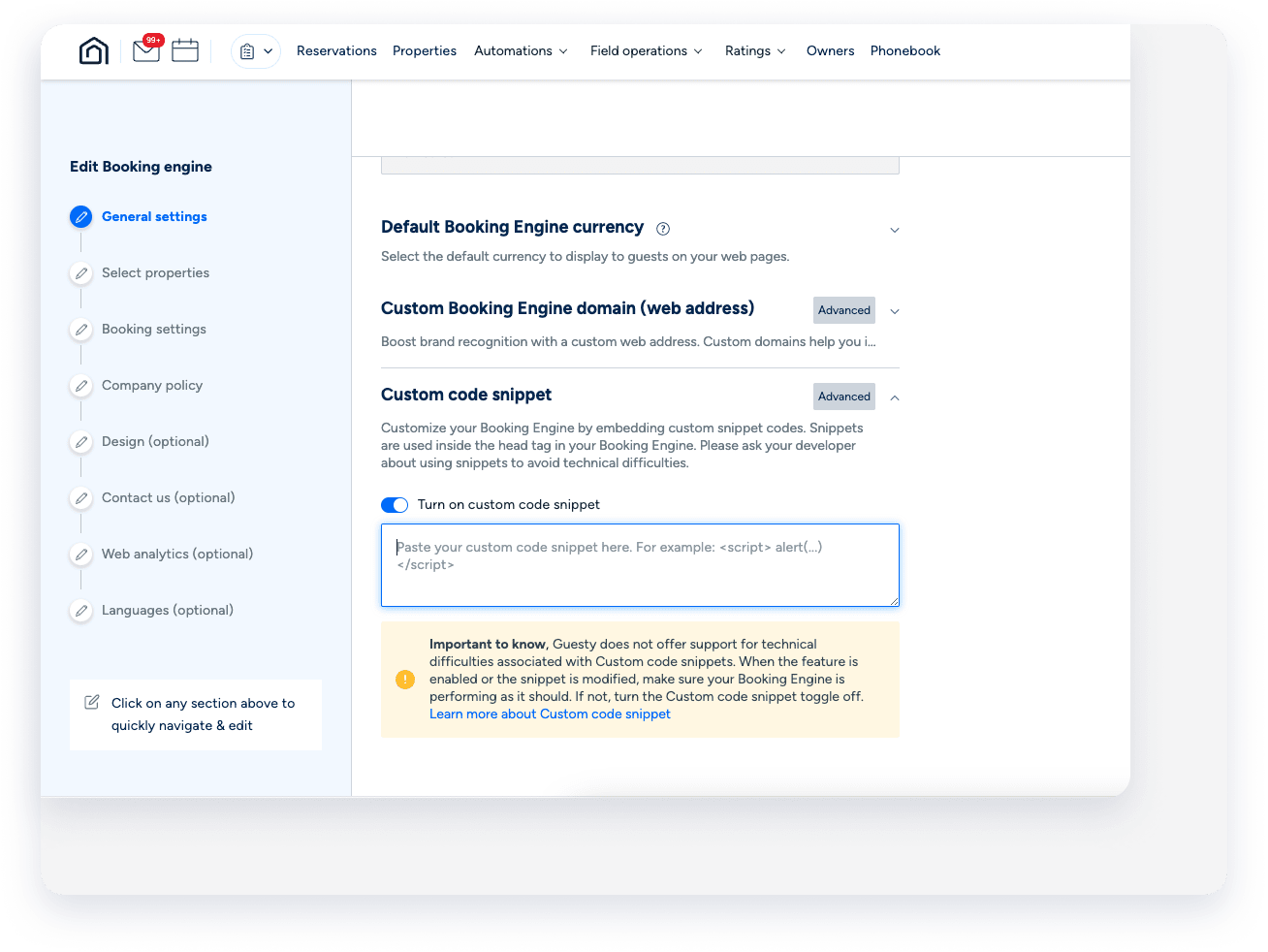
- In the side navigation menu, click General settings and scroll down to Custom code snippet, then click Advanced.
- Toggle on Turn on custom code snippet.
-
Copy and paste the custom code below into the text field:
<script type="text/javascript" id="Cookiebot" src="https://consent.cookiebot.com/uc.js"
data-cbid="01234567-89ab-cdef-0123-456789abcdef" data-widget-enabled="false"
async></script>
- In the side navigation menu, click Languages to navigate to the last action.
- Click Save Booking Engine.
