Additional contacts provide property owners with flexibility by allowing trusted individuals to access and manage their Owners Portal on their behalf. You can add multiple contacts who will have the same access and permissions as the property owner.
Before you begin
Each email address can only be used for one owner's portal. If you need to provide portal access to the same person for multiple owners, use different email addresses for each portal.
Note:
The ability to add a contact to multiple owner entities is in pilot.
Currently, there are no predefined role restrictions for additional contacts. This means additional contacts have full access to the Owners Portal and can perform the same actions as the property owner, including:
- View all portal information, including calendar, reservations, and financial data
- Create and manage owner stays on behalf of the owner
- Access accounting and financial information
- Communicate through the portal
- Update the owner profile information
While the system doesn't enforce role restrictions, you can:
- Use descriptive role names when adding contacts (such as "Accountant," "Assistant," or "Property Manager")
- Communicate directly with additional contacts about their intended responsibilities
- Monitor portal activity through standard reporting tools
Create and manage additional contacts
Follow the instructions below to add additional contacts.
Step by step:
- Sign in to your Guesty account.
- In the side navigation menu, click
 Operations to open the dropdown menu.
 - Under Portfolio, select Owners.
- Select the relevant owner.
- In the left sidebar, click Additional contacts.
- Click + Add contact.
- Enter the relevant information.
- Switch the toggle on to activate the Owners Portal and send an email invitation to the added contact. This can also be done at a later stage.
- Click Save.
After adding additional contacts to an owner's portal, they will receive an email invitation to register and access the portal. They can then sign in using their email address and begin managing the owner's portal immediately.
Additional actions can be handled from the "Additional contacts" page:
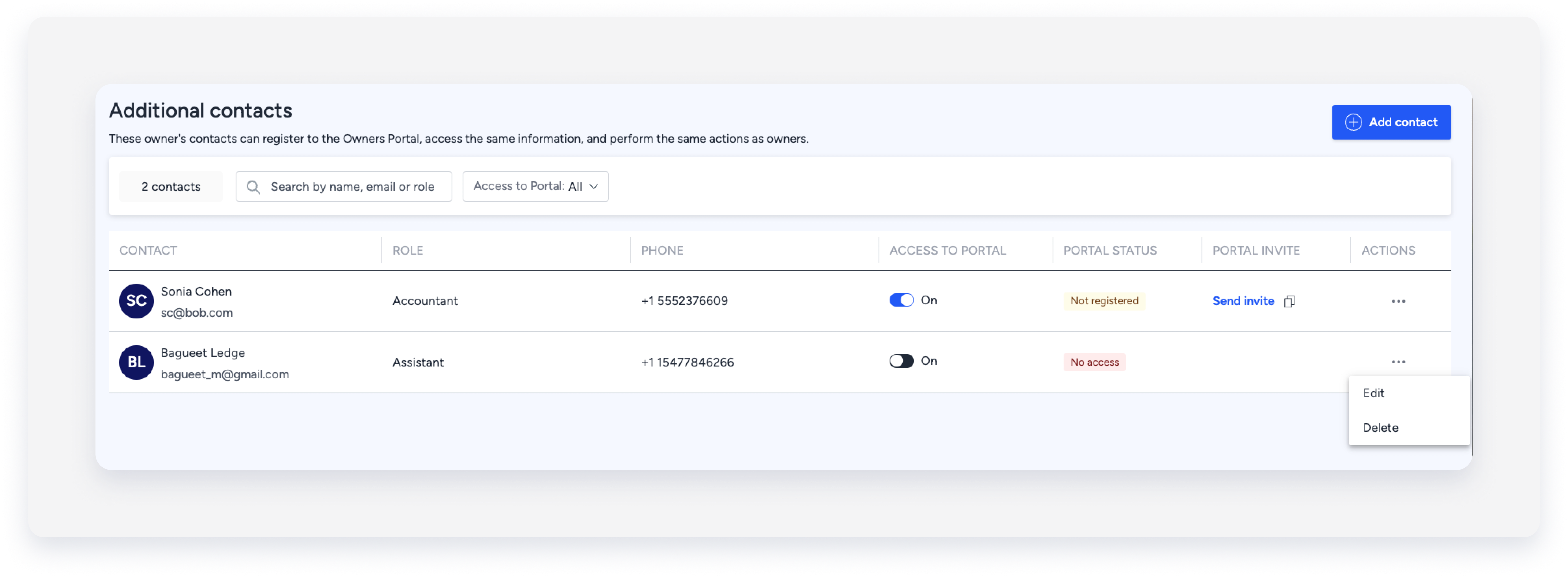
- Filter: Use the filter to search contacts by name, email or role, or according to their portal access setting.
- Provide access: Switch the Access to portal toggle on or off to give or remove access, and confirm the action in the pop-up.
-
Sending invite: To send an invite to the portal again, click Send invite. Alternatively, click
 to copy the invite and paste it into your preferred method of communication.
 -
Edit or delete: Click next to the relevant contact and select the relevant option from the dropdown menu. Confirm the action in the pop-up.
Owner reservations as an additional contact
When an additional contact creates a reservation from the Owners Portal, they can create it as:
- Owner reservation - Tagged as created by the owner
- Owner-guest reservation - Tagged as an owner stay where the owner is the guest
Reservations created by additional contacts won't show a separate label identifying them as created by an additional contact. They will appear as if created by the owner.
