Managing your team's workload effectively is key to maintaining smooth operations. Review task logs to track history, identify who created a task, or see who made specific updates. This ensures accountability and helps you stay on top of daily field operations across your properties.
Access task logs
Follow the steps below to view the history of a specific task:
Step by step:
- Sign in to your Guesty account.
- In the side navigation menu, click
 Operations to open the dropdown menu.
 - Under Field ops, select Tasks.
- Select the relevant task.
- Scroll down to the bottom of the task window to view the log.
Identify the task assignee in the log
Task logs display different labels depending on how the task was managed. Review the scenarios below to understand the log entries:
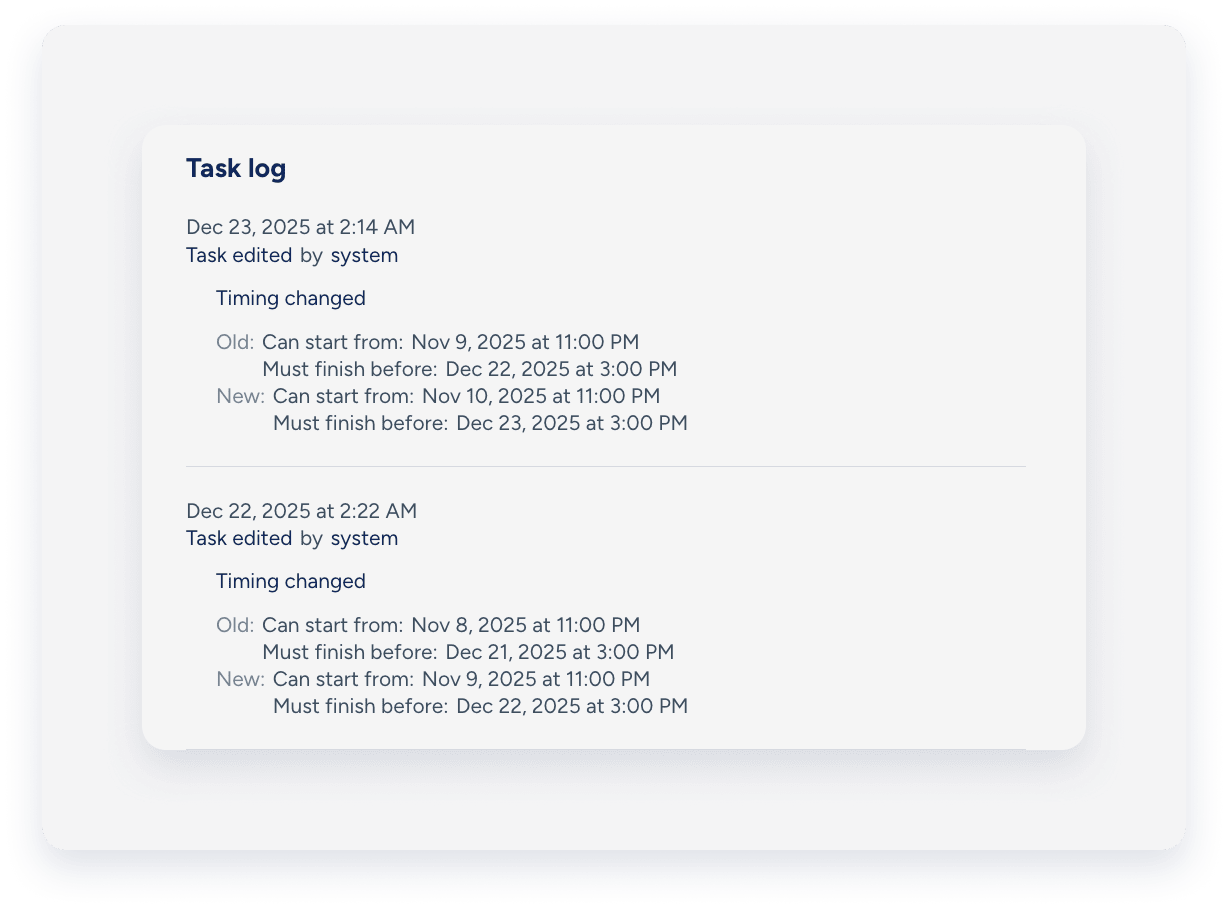
By "system"
The "By system" label appears when Guesty creates or updates a task automatically based on auto-task schedules or auto-task templates.
For example, if you change the assignee in the auto-task template, Guesty displays all resulting tasks as edited "By system" in the log.
Guesty also automatically cancels associated auto-tasks when a reservation is canceled. Any changes to reservation details—such as check-in, check-out, and estimated arrival times—trigger automatic task updates.
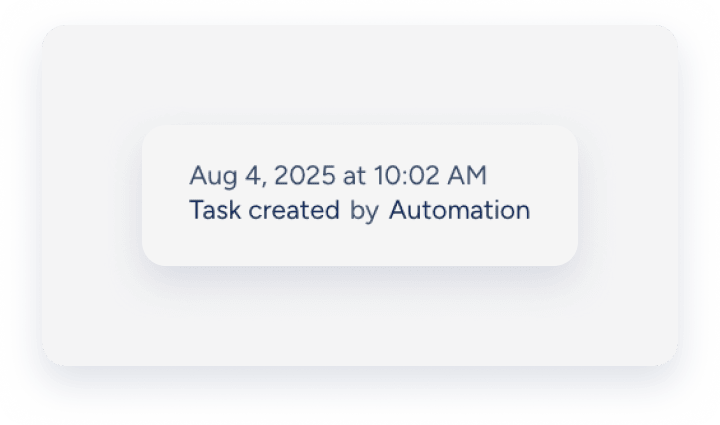
By "Automation"
The "By automation" label appears when recurring, calendar-based tasks are created or updated by a user in the Guesty account.
For example, if you create or modify a repeating manual task schedule, the logs for all resulting task instances display "By automation".
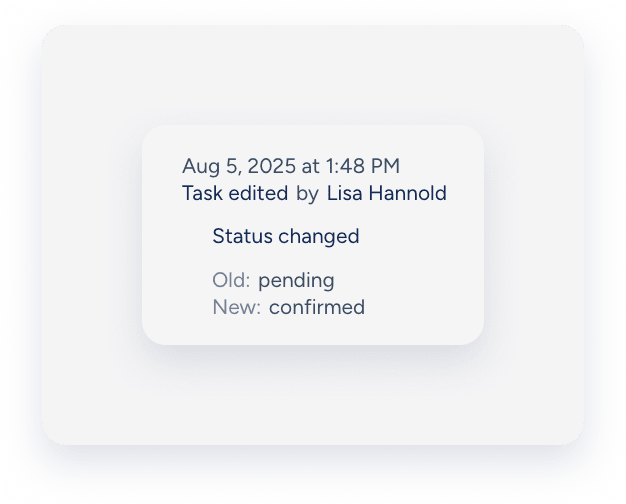
By a specific user
The log displays a specific user's name when they create a one-time manual task or make changes directly to a generated auto task or manual task.
Examples include:
- If a user creates a manual task on his dashboard, the task log displays the user's name.
- If a cleaner accepts the cleaning auto-task and then updates the checklists, the task log displays the cleaner's name.