Measure your Guesty Booking Engine’s performance using third-party analytics tools such as Google Analytics, Google Tag Manager, and Meta (Facebook) Pixel. Track visits, conversions, and user actions to optimize your marketing strategies and make informed, data-driven decisions to boost revenue.
Note:
- Guesty provides sample scripts and code examples for event tracking, but can't assist with resolving specific event tracking issues.
- Guesty Booking Engine doesn't support tracking marketing campaigns or traffic sources.
Set up your analytics tools
Google Analytics 4
Google Analytics 4 (GA4) lets you collect, analyze, and interpret user behavior data. Track key site metrics, like number of visitors, on-site actions, and conversions (such as booking reservations). The Guesty Booking Engine sends events to Google Analytics automatically.
To integrate GA4 with your Guesty Booking Engine, retrieve your GA4 Measurement ID, then add it in your Guesty Booking Engine settings.
Note:
Since July 2024, Google Analytics 3/Universal Analytics (UA) is no longer supported. If you still use UA, complete your migration to GA4. Learn more about the differences between GA3 and GA4.
Google Tag Manager
Google Tag Manager (GTM) enables you to manage and deploy tags (snippets of code or tracking pixels) on your Guesty Booking Engine. Use these tags to connect with Google products like Google Ads and Google Analytics.
Track conversion rates, user behavior, and other key metrics without editing your website’s source code. Configure certain events for tagging and gather detailed data, such as button clicks or form submissions.
Guesty implements page-view, object-view, checkout, and purchase events using GTM. See code examples for tracking these events. These events are ready in Google Analytics, and you can use them without further configuration.
Create custom events and dimensions to track actions not covered by default GA4 events. For example, track custom button clicks, video plays, or capture specific user attributes by defining custom dimensions. Ensure your custom events are logged within the past 24 hours to appear in your analysis and in Google Tag Manager Assistant.
Why do we use gtag() instead of dataLayer.push()?
The Guesty Booking Engine uses gtag() for tag management instead of dataLayer.push(). gtag() acts as a wrapper around dataLayer.push() and is preferred as it helps prevent accidental changes to the dataLayer object. Only events sent using gtag() are sent directly to GA4. Data pushed with dataLayer.push() only appears in Tag Manager Assistant, not in GA4 itself.
See the difference between gtag() and dataLayer.push() below.
//Sending Event with gtag()

gtag("event", "view_item", {
  currency: "USD",
  value: 100,
  items: [
    {
     item_id: <Property ID>,
     item_name: <Property name>,
     affiliation: <Point of sale (Google etc.)> ,
     index: 0,
     price: <Property price>,
     quantity: 1,
    }
  ]
});

// Sending Event with datalayer.push()
dataLayer.push({
  event: "view_item",
  ecommerce: {
   currency: "USD",
   value: 100,
   items: [
     {
      item_id: <Property ID>,
      item_name: <Property name>,
      affiliation: <Point of sale (Google etc.)>,
      index: 0,
      price: <Property price>,
      quantity: 1,
     }
   ]
});
Unlike dataLayer.push(), gtag() does not require passing a name and payload value (like “ecommerce”), and doesn’t need clearing before sending new values. It passes everything in a single event model property.
To connect GTM, retrieve your Google Tag ID and add it to your Guesty Booking Engine settings.
Google Tag Manager Assistant
Google Tag Manager Assistant is a browser extension for debugging, validating, and monitoring tags implemented through GTM. Get real-time insights into which tags fired, their configuration, and any errors affecting their performance.
Meta (Facebook) Pixel
Meta Pixel is a snippet of code you add to your Booking Engine to track visitor activity and conversions. When a visitor takes an action (like making a reservation), the Pixel sends this data to Facebook to help you understand what happens after someone clicks your ad.
To set up Meta Pixel, get your Pixel ID and add it to your Guesty Booking Engine settings.
Important:
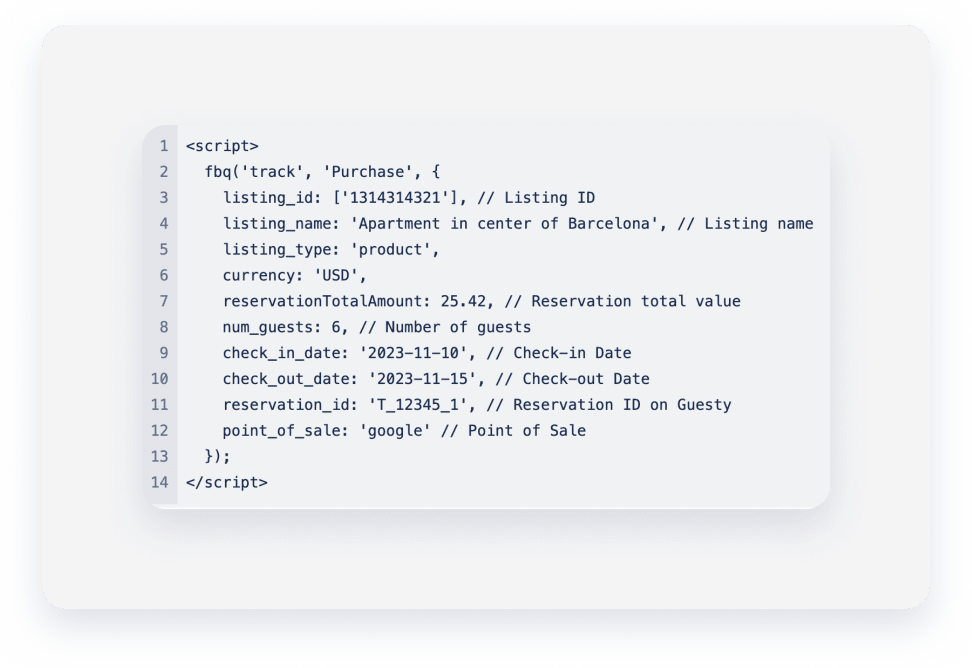
Meta Pixel events for purchase tracking don't use the required value parameter. Instead, the purchase amount is sent as reservationTotalAmount. Because Meta Ads Manager only recognizes the value parameter, purchase values can't be registered or used to calculate ROAS in Ads Manager.
Connect your analytics tools to the Guesty Booking Engine
Step by step:
- Retrieve your Google Tag ID.
- Sign in to your Guesty account.
- In the side navigation menu, click
 Marketing and sales to open the dropdown menu.
 - Click the Guesty Booking Engine thumbnail.
- Click
 next to the relevant Booking Engine and select Edit Booking Engine.
 - In the left-side settings menu, click Web analytics (optional).
- Navigate to the relevant analytic tool section and paste the tracking code.
- Click Save Booking Engine.
Code examples
Track page view events
Track the number of page views. This event fires when a user moves from one page to another in your Booking Engine.
Google Analytics 4 (Google Tag Manager)
gtag("event", "page_view", {
page_location: "/en/properties"
})
Track property page view events
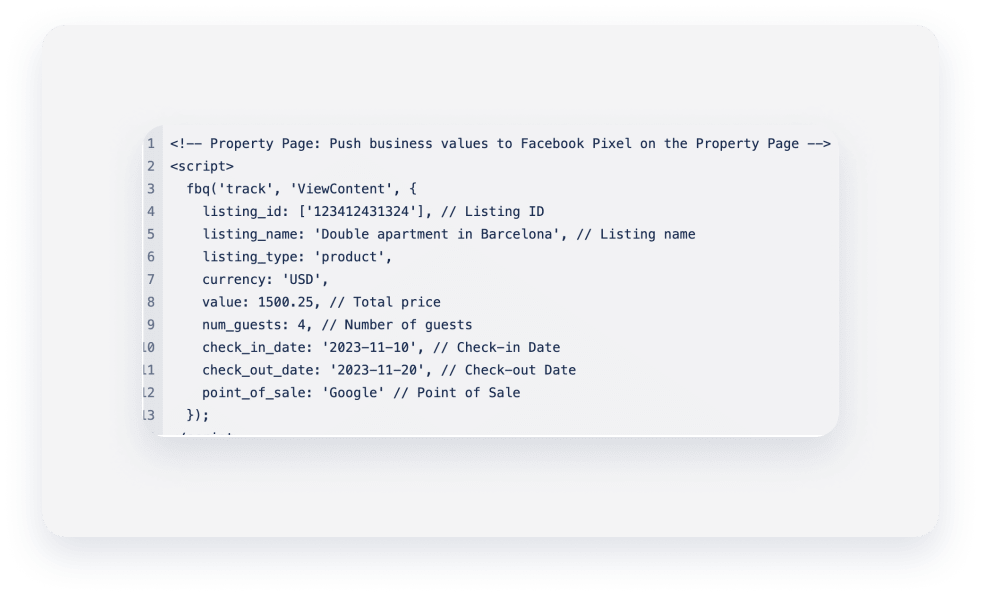
Track when visitors view a specific property page. This event sends to Google Analytics when check-in, check-out, and minimum guest values are selected.
Google Analytics 4 (Google Tag Manager)
gtag("event", "view_item", {
currency: <Property currency>,
value: <Property price>,
items: [
  {
   item_id: <Property ID>,
   item_name: <Property name>,
   item_category: <Check in date in ISO string>,
   item_category2: <Check out date in ISO string>,
   item_category3: <Number of guests>,
   affiliation: <Point of sale (Google etc.)>,
   index: 0,
   price: <Property price>,
   quantity: 1,
   }
  ]
});
Meta (Facebook) Pixel
Note:
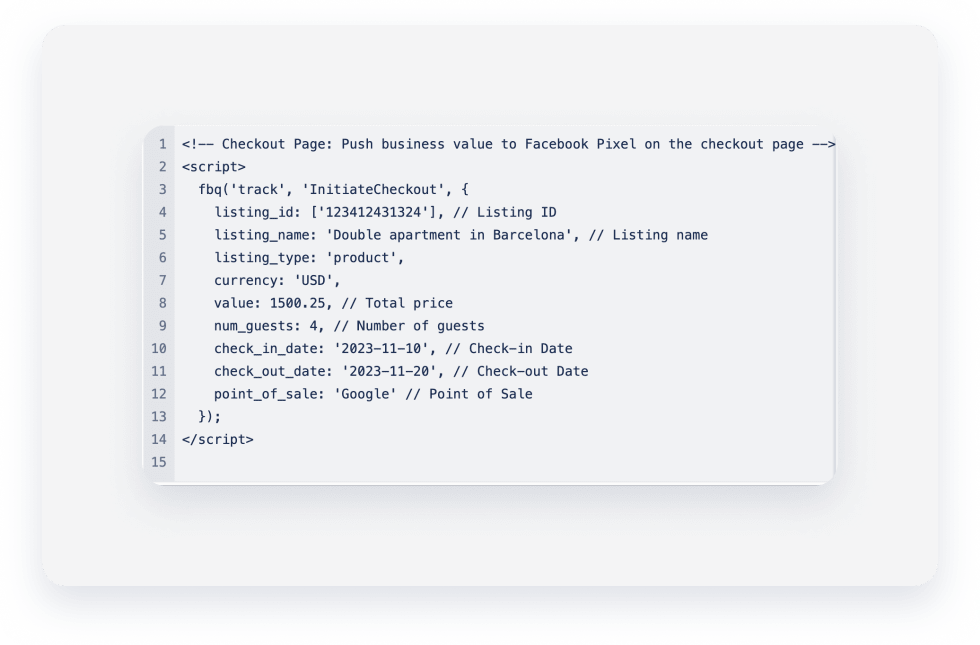
Meta Pixel events for page and initiate checkout send booking value under the value parameter, which is supported for tracking. Purchase events use reservationTotalAmount.
Track the beginning of a booking process
Track when a user accesses the reservation “check-out” page (start of the booking process).
Google Analytics 4 (Google Tag Manager)
gtag("event", "begin_checkout", {
currency: <Property currency>,
value: <Property price includes all fees and taxes>,
items: [
  {
   item_id: <Property ID>,
   item_name: <Property name>,
   item_category: <Check in date in ISO string>,
   item_category2: <Check out date in ISO string>,
   item_category3: <Number of guests>,
   affiliation: <Point of sale (Google etc.)>,
   index: 0,
   price: <Property price>,
   quantity: 1,
   }
  ]
});
Meta (Facebook) Pixel
Track the event of booking a reservation
Track when a guest is directed to the reservation confirmation page after submitting a reservation. Guesty supports tracking for both instant bookings and booking requests.
-
For instant bookings: Add
/instant-successto your Booking Engine URL. For example:yourdomain.guestybookings.com/instant-success -
For booking requests or inquiries: Add
/inquiry-successto your Booking Engine URL. For example:yourdomain.guestybooking.com/inquiry-success
Google Analytics 4 (Google Tag Manager)
Single reservation:
gtag("event", "purchase", {
transaction_id: <Reservation ID>
currency: <Property currency>,
value: <Property price includes all fees and taxes>,
tax: <Reservation total tax>,
items: [
{
item_id: <Property ID>,
item_name: <Property name>,
item_category: <Check in date in ISO string>,
item_category2: <Check out date in ISO string>,
item_category3: <Number of guests>,
item_category4: "Single reservation", //Type of reservation
affiliation: <Point of sale (Google etc.)>,
index: 0,
price: <Property price>,
quantity: 1,
}
]
});
Group reservation:
gtag("event", "purchase", {
transaction_id: <Reservation ID>
currency: <Property currency>,
value: <Property price includes all fees and taxes>,
tax: <Reservation total tax>,
items: [
{
item_id: <Property ID>,
item_name: <Property name>,
item_category: <Check in date in ISO string>,
item_category2: <Check out date in ISO string>,
item_category3: <Number of guests>,
item_category4: "Group reservation", //Type of reservation
item_category5: <Group reservation ID>
affiliation: <Point of sale (Google etc.)>,
index: 0,
price: <Property price>,
quantity: 1,
}
]
});
Meta (Facebook) Pixel
Tip:
Test your analytics setup using Google Tag Manager Assistant and Meta Pixel Helper browser extensions to verify that events fire as expected and data appears in your analytics dashboards.
