You can process credit card transactions in Guesty by connecting one or more payment processing accounts, such as Stripe (external processor) or GuestyPay (our internal processor), depending on your Guesty product and geolocation.
Once you've connected payment processors and assigned listings to the processor accounts, there are different ways within Guesty to see how payment processors are connected to listings and used in specific reservations.
Find listings assigned to a payment processor account
If you want to see all listings assigned to a specific payment processor account, follow these steps.
Step by step:
- Sign in to your Guesty account.
- In the side navigation menu, click
 Guest payments to open the dropdown menu.
 - Under General, select Payment processing.
- (Optinal) Click the dropdown menu to sort by a specific payment processor.
- Under the "Properties" column, click the number of properties on the relevant processor line.
- In the side panel, click Assign listings.
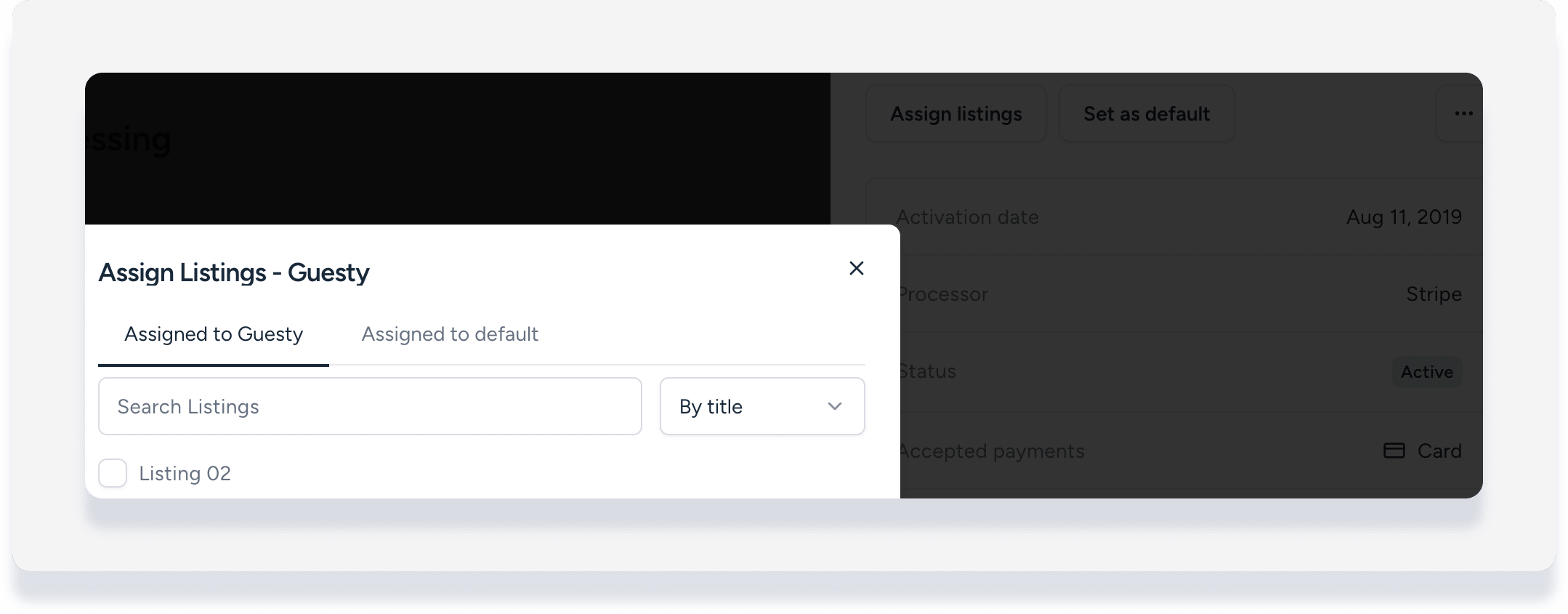
In the pop-up, the currently assigned listings are shown under the "Assigned to [Account name]" tab.
Find which payment processor account is assigned to listing
To see which payment processor account a specific listing is assigned to, follow these steps.
Step by step:
- Sign in to your Guesty account.
- In the side navigation menu, click
 Properties.
 - Select the relevant property.
- In the left-side menu, click Pricing & Policies, then select Auto payments.
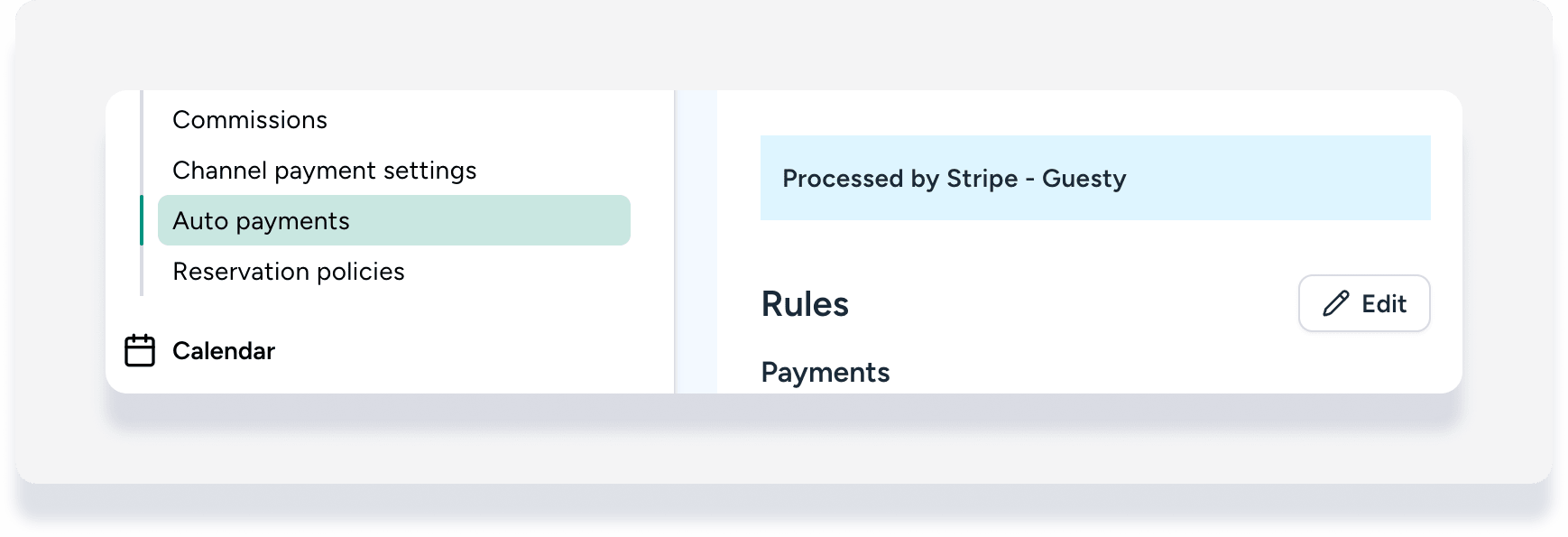
The payment processor account is shown as "Processed by [Processor name] - [Account name]".
Find which account processed a reservation payment
If you want to know which account is responsible for processing one of your reservation's payments, follow these steps.
Step by step:
- Sign in to your Guesty account.
- In the side navigation menu, click
 Reservations.
 - Select the relevant reservation.
- In the left submenu, click Payments.
- Click on the relevant payment to expand the details.
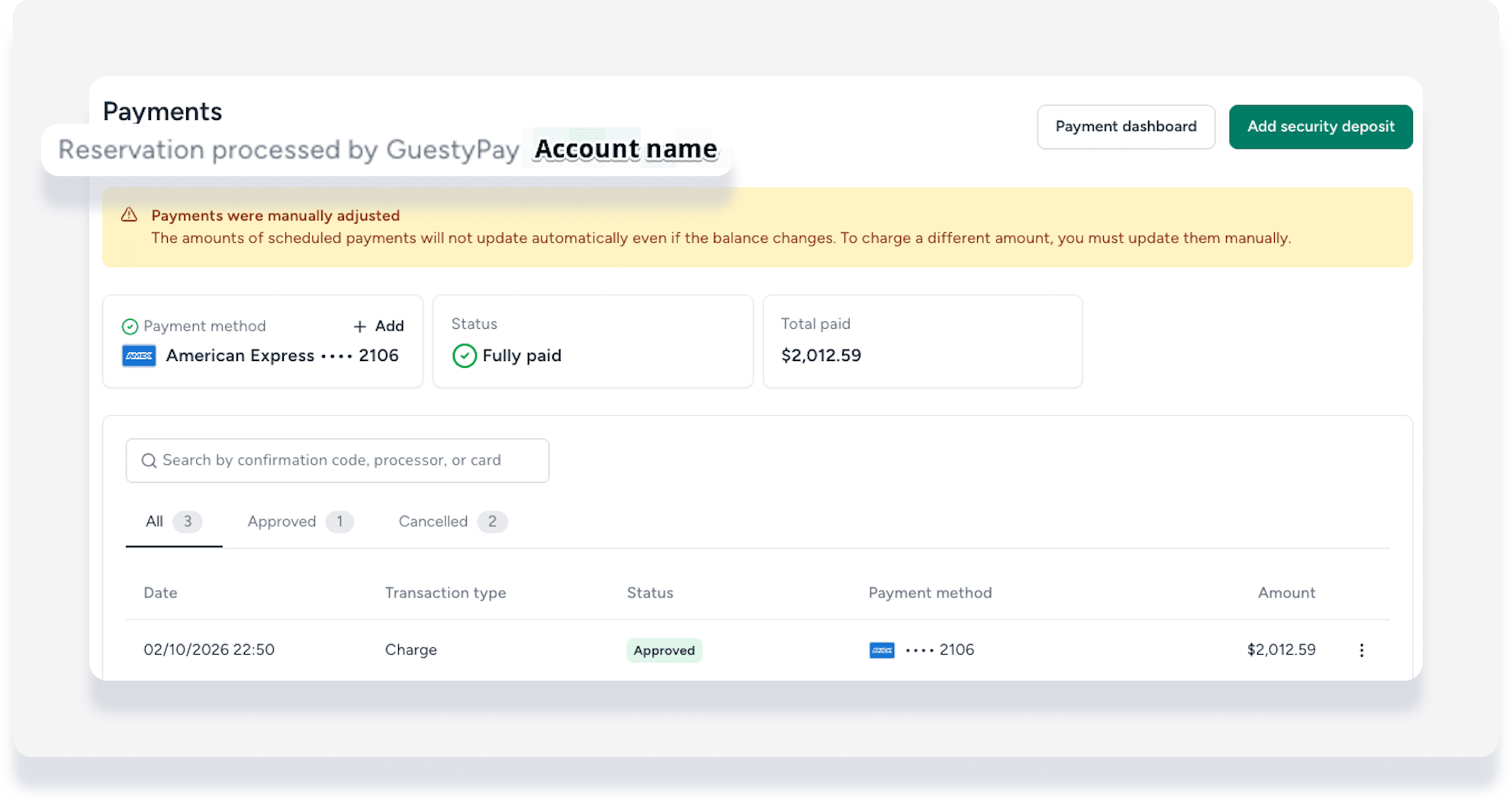
The payment processor account is shown at the top of the Payments page as "Processed by [Processor name] - [Account name]".