A security deposit is an amount you hold to help cover additional costs if your property is damaged during a guest's stay. With a deposit in place, guests are often more mindful of causing damage.
Adding a security deposit in Guesty makes it visible on the booking channel, but you are responsible for collecting the funds - not the channel. You can charge the guest using the payment method attached to their reservation in Guesty.
Automate security deposits through Payment Automations instead of adding them manually to each reservation.
Add a security deposit
To add a security deposit to a reservation, follow the instructions below.
Step by step:
- Sign in to your Guesty account.
- In the side navigation menu, click
 Reservations.
 - Select the relevant reservation.
- In the left submenu, click Payments.
- In the top-right corner, click
 then select Add security deposit.
 - In the side panel, enter the necessary information.
- Click Hold now or Save, depending on whether you set the deposit for the current or future date.
Security deposit status
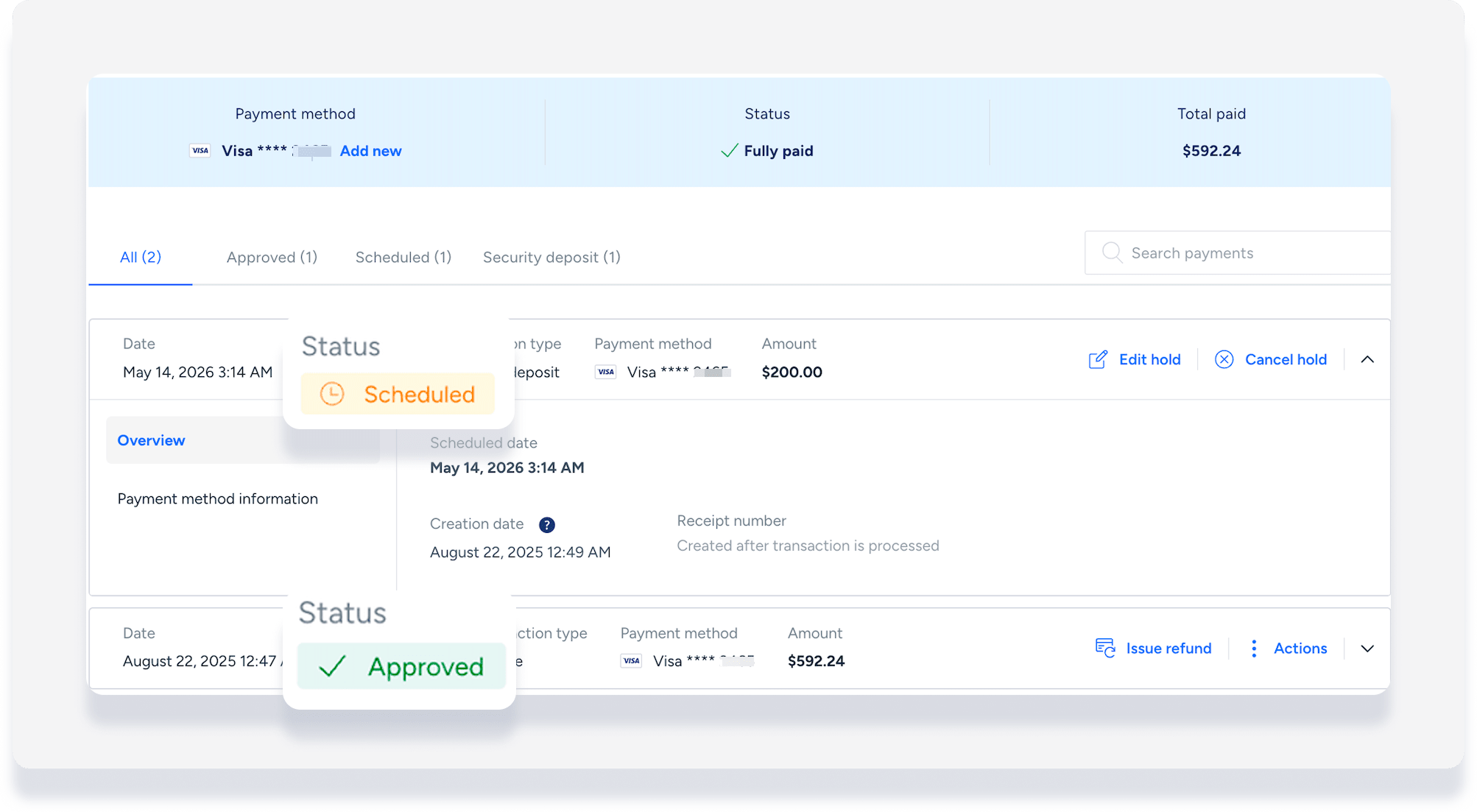
Once added, the security deposit status is shown in the payments screen:
- Scheduled
- Approved
- Completed
- Funds releases
Charge a security deposit
To be able to charge a security deposit, you first must add it to the reservation. To charge a security deposit, follow the instructions below.
Step by step:
- Sign in to your Guesty account.
- In the side navigation menu, click Reservations.
- Click the relevant reservation.
- In the left submenu, click Payments.
- Click the payment line with transaction type "Security deposit".
- In the side-panel, click Charge security deposit.
- Enter an optional reason for the charge. The amount to be charged is the total funds held and cannot be changed.
- Click Charge.
The security deposit is marked as "completed", and a new payment line added to reflect the successful credit card charge:
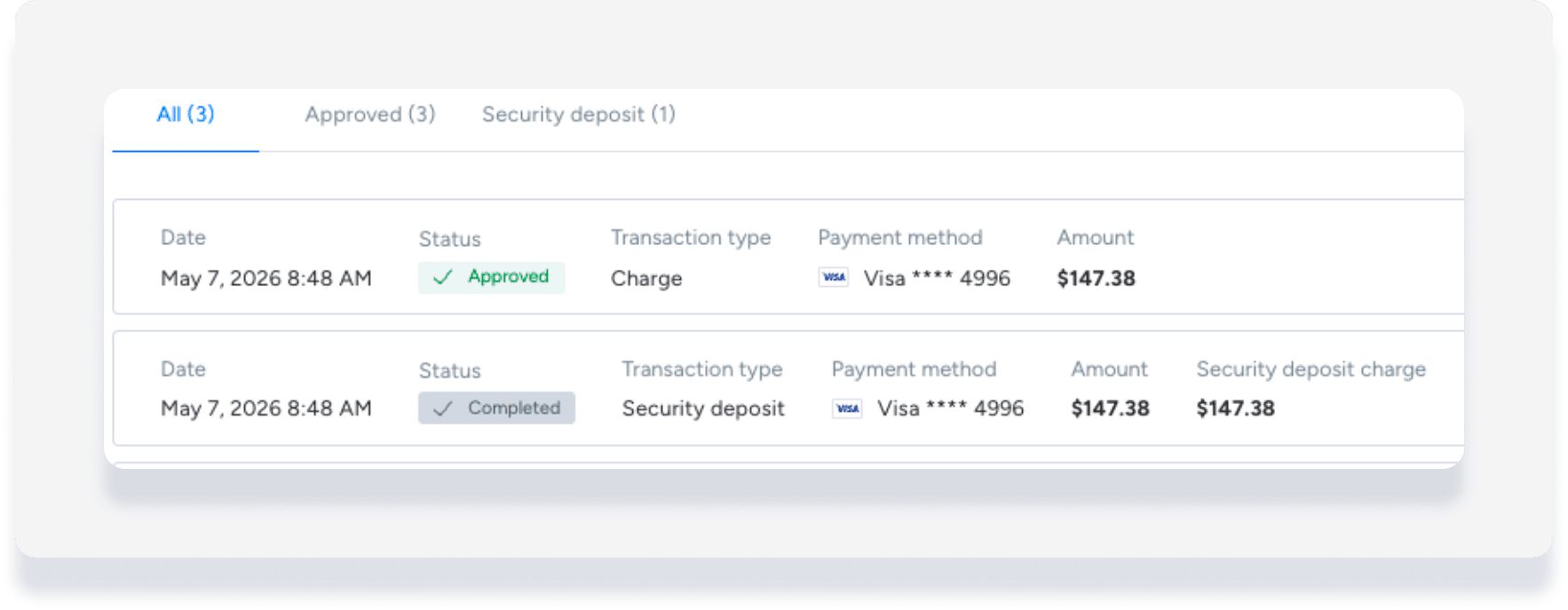
The charge is added as a line item to the guest folio and guest invoice.
If you use Guesty Accounting, you will also see an entry in the posting journal with the full amount of the charge paid to you (the PMC). You can follow these instructions to change that and split the revenue between you and the owner, for example.
