Guesty PriceOptimizer demand pacing allows you to fully control the impact pricing has based on occupancy, relating to the number of days before check-in, giving you the flexibility to adjust nightly rates based on occupancy and lead time. This includes the ability to apply discounted rates if the calendar is low in reservations or increase pricing if demand is high. Demand pacing won't cause your rates to fall below or rise above your minimum and maximum price limits.
For additional PriceOptimizer customization options, see full details here.
Access PriceOptimizer settings
Follow these steps below to access a listing's PriceOptimizer settings. See details in the section below about the different customization options.
Step by step:
- Sign in to your Guesty account.
- In the side navigation menu, click
 Marketing and sales to open the dropdown menu.
 - Under Revenue management, select PriceOptimizer.
- Find the listing(s) for which you want to adjust the pricing. You can search for a specific listing by name or nickname or use the filters to find all listings that match your specific criteria.
- Select the relevant listing.
- In the left-side menu, click Demand pacing.
- After making any changes, click Apply x change(s) in the top-right corner and select Apply again in the confirmation pop-up.
Pricing forecast
In the pricing forecast, view your actual pricing, market pricing, and original pricing (before rules are applied) in an easy-to-read graph.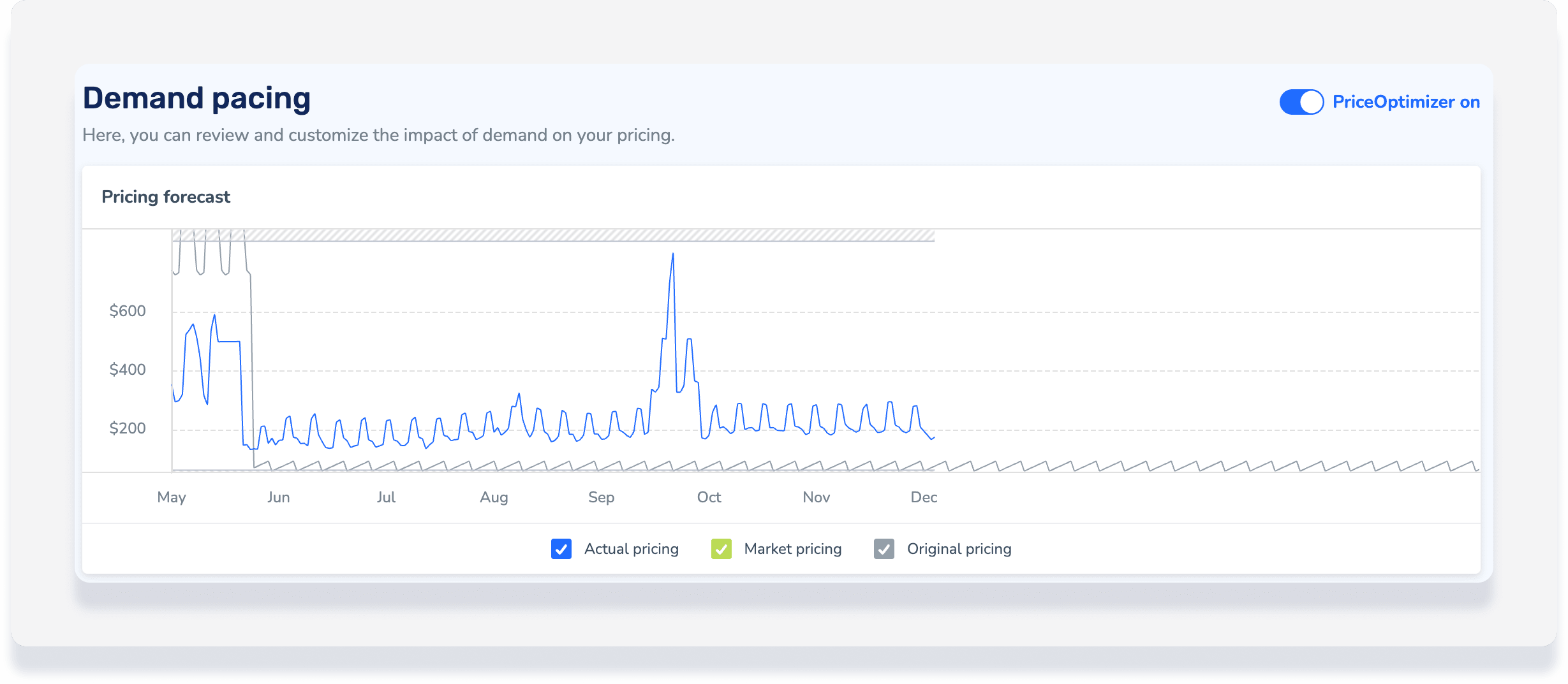
Customize your demand pacing
The impact will be calculated as follows: Demand pacing impact = % of (base price + other dynamic factors).
Select Automatic pricing impact to use the recommended pricing from PriceOptimizer's algorithm. Keep the recommended pricing or take a more conservative approach (20% lower) or a more aggressive approach (20% higher).
Select Manual pricing impact to fully control how to impact pricing with demand rules based on occupancy and the number of days before check-in.
How day ranges are defined
Day ranges are defined by booking windows measured from the current date, rather than fixed calendar dates. For example, a booking window of 0 to 7 days represents the period from today through the next seven days.
Click + Add day range column in the top-right corner to add day ranges in 15-day increments. Click + Add occupancy row below the current rows to add occupancy tiers.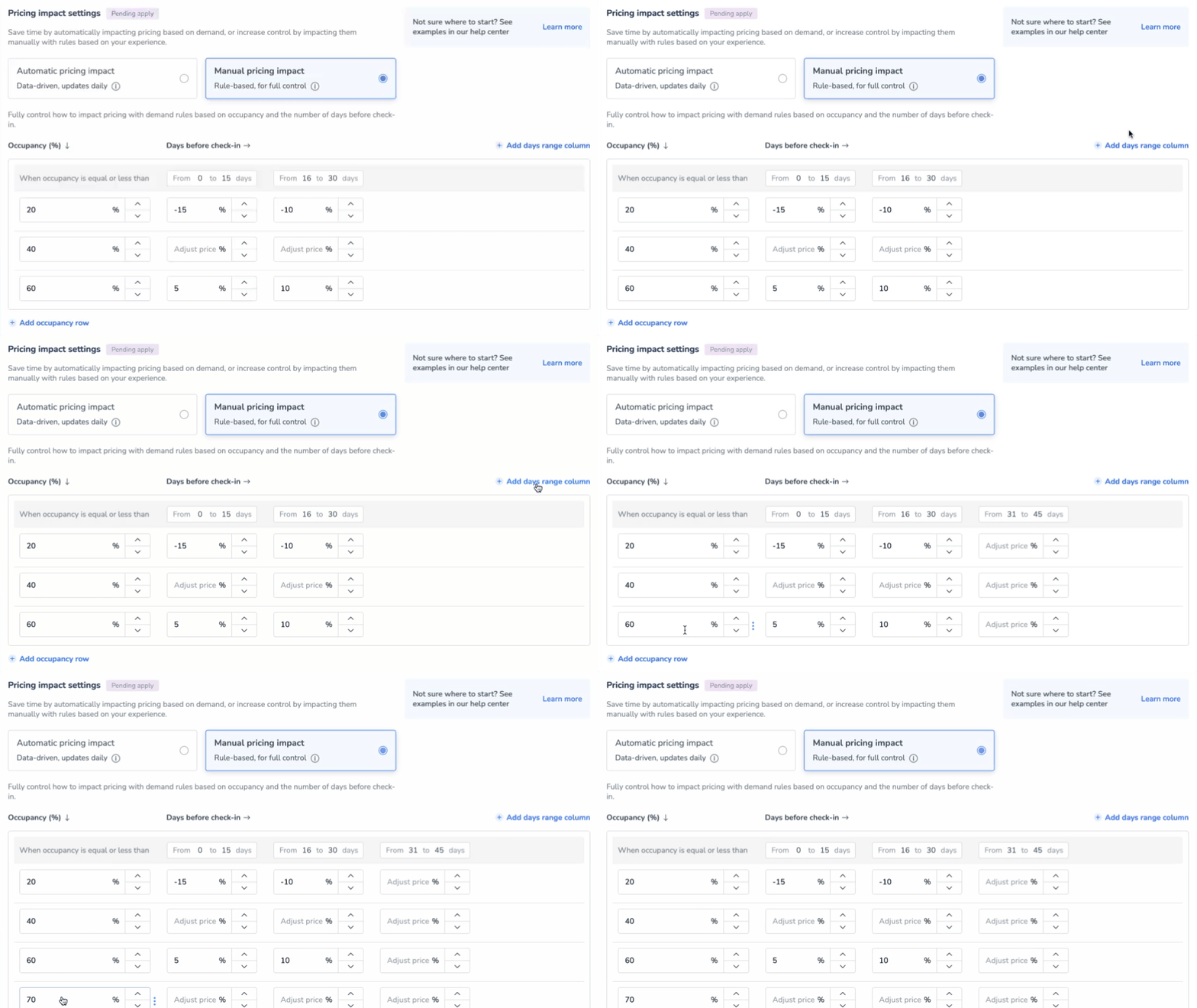
How occupancy is calculated
Occupancy is calculated independently for each booking window you create. The calculation considers only the days available for booking within that window.
Blocked days are excluded from the occupancy calculation. For example, if a month has 30 days, of which 10 are blocked, and 20 are available for booking, the occupancy percentage is calculated based only on the 20 available days.
How pricing values work
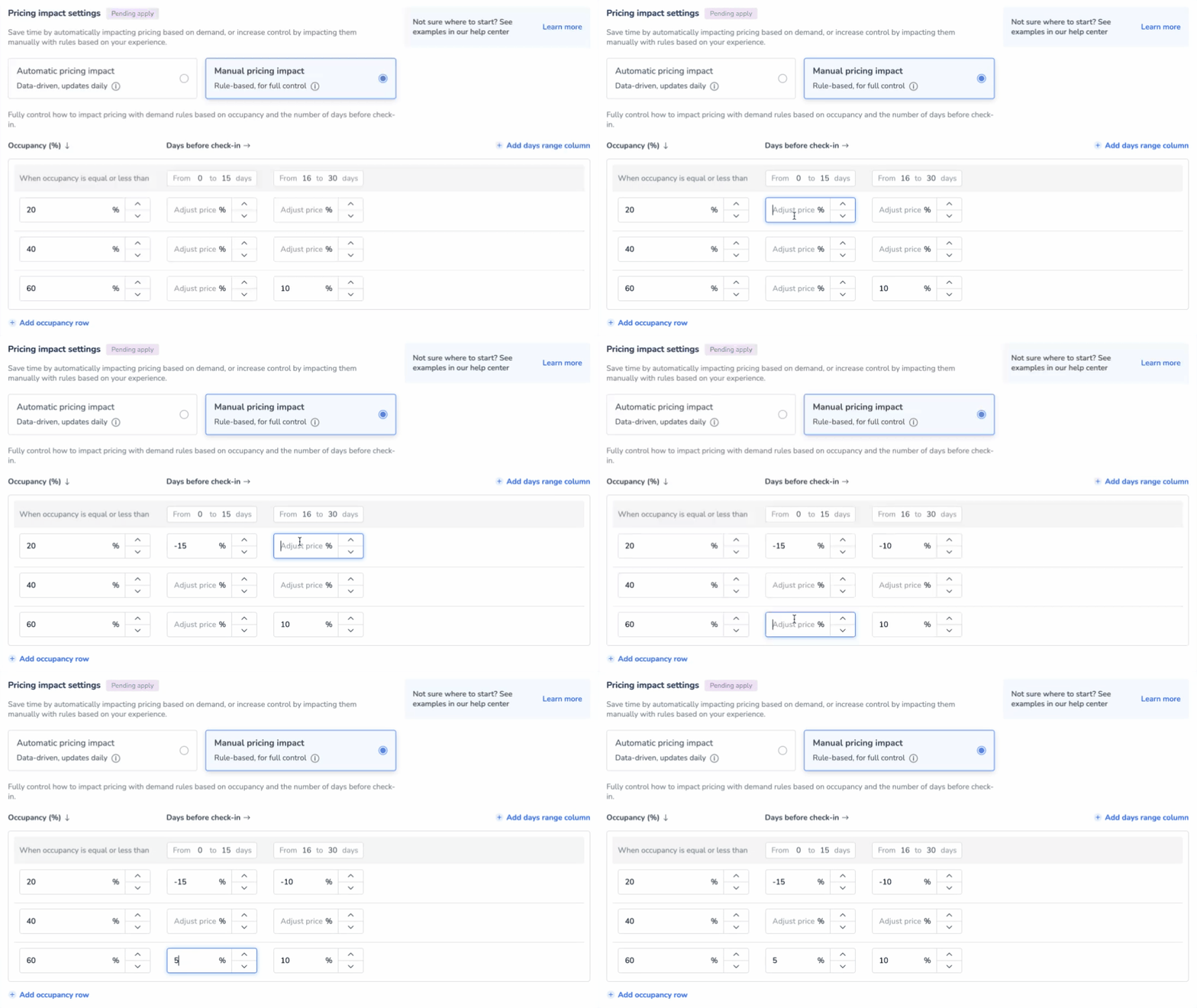
Positive numbers increase pricing. Negative numbers discount pricing. Review the examples below to discount or raise prices based on occupancy and lead time:
- Occupancy at or below 20%: Enter "-15%" for 0 to 15 days before check-in to apply a 15% discount. Enter "-10%" for 16 to 30 days before check-in to apply a 10% discount.
-
Occupancy at or below 60%: Enter "5%" for 0 to 15 days before check-in to raise pricing by 5%. Enter "10%" for 16 to 30 days before check-in to raise pricing by 10%.
Click Apply x change(s) in the top-right corner, and click Apply in the pop-up. Changes don't save if you navigate away without clicking Apply.
Tip:
To master adjusting pricing based on demand with PriceOptimizer, visit Guesty Academy for interactive courses and step-by-step video tutorials.
