Your website's domain acts as a digital street address and helps users find your site. You can publish a Guesty Advanced Website using a default domain or by connecting an external custom domain you already own. The domain for a Guesty Advanced Website must be different from the Guesty Booking Engine domain.
Important:
To connect a custom domain, you must purchase and manage your domain through an external domain provider.
Connect your custom domain to your Guesty Advanced Website
Follow the instructions below to connect a custom domain to your Guesty Advanced Website.
Step by step:
- Sign in to your Guesty account.
- In the side navigation menu, click
 Marketing and sales to open the dropdown menu.
 - Under Channel management, select Distribution.
- Click Guesty Websites.
- At the top right, click Publish (or Republish if your site was previously published).
- In the pop-up, click Change web address.
- Click Use a domain you already own
- Enter the URL. Be sure to include “www.” in the URL.
- Click Continue.
- In the pop-up, click Continue.
- Guesty Websites will search for your domain host provider, and prompt you to log in with your provider (for example, GoDaddy). Alternatively, set up your domain manually.
- Enter your login credentials for your domain host provider, and click Continue. If you don't own the login credentials, click Forward login to a colleague. Copy the link provided and send it to a colleague to complete the setup.
- You'll receive a confirmation message that your domain is now configured. Click Done.
Note:
After connecting your domain, your website may take up to 24 hours to display at the new address.
Set up a custom domain manually
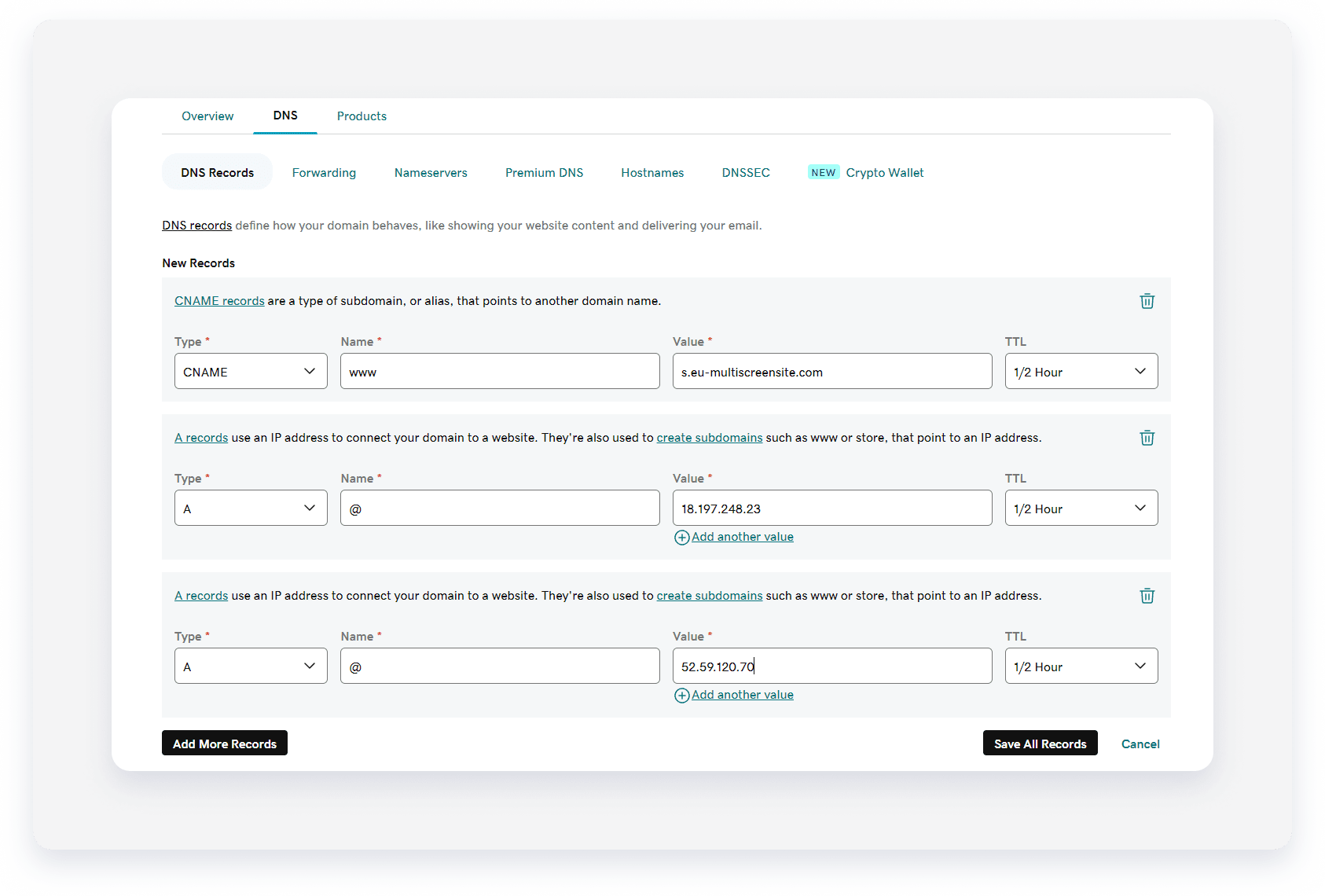
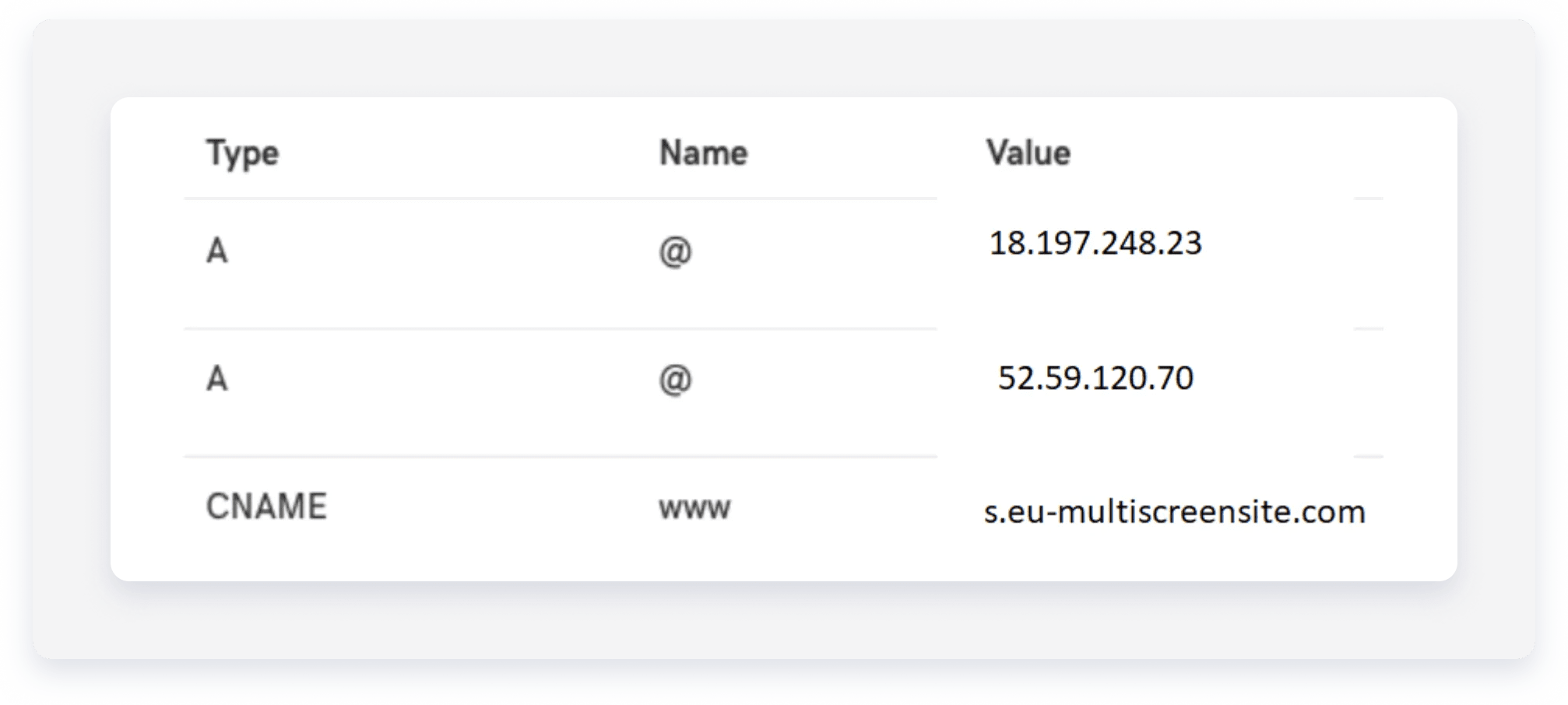
If errors occur during automatic connection, you must manually update the domain host provider settings. Add two A records and one CNAME record to the domain host. Two A records ensure server balance and redundancy. Contact the domain host if instructions for creating these records aren't available in their help center.
If a domain host restricts multiple records for the @ domain, add one record for the @ domain and include both IP addresses.
Websites previously published with a 301 Redirect and CNAME require a new SSL certificate. Remove any previous 301 Redirect settings before proceeding.
Important:
Active AAAA and CAA records prevent the issuance of an SSL certificate. Ensure these records aren't configured in the domain settings.
Use the following details for the manual setup:
CNAME record
- Host: www
- Points to: s.eu-multiscreensite.com
A records
- First A Record:
- Host/Alias: @
- Target/Destination: 18.197.248.23
- Second A Record:
- Host/Alias: @
- Target/Destination: 52.59.120.70
|
Example: The following is an example from GoDaddy, in which they use two A records (one for each IP).
The following output is added: |
Update your custom domain
You can change your site's domain at any time. If you plan to close your website and relinquish the connected domain, contact us to disconnect the domain before you delete the site. Once disconnected, your domain becomes available for others to purchase.
Disconnect a custom domain
To disconnect a domain you own, locate and contact your domain registrar and let them know you want to point the domain's DNS to the new servers of the new host.